
You are here:
Guidelines for Filtering Contacts
Contact sync filters let you choose which contacts sync from Salesforce to users’ Microsoft or Google application. Learn about how sync filters work differently, depending on how they’re set.
Required Editions
| Available in: Lightning Experience |
| Available with Einstein Activity Capture Standard in Sales in Starter, Pro Suite, Professional, and Enterprise Editions |
| Available with Unlimited Edition, Einstein 1 Sales Edition, and Agentforce 1 Edition |
| Available with Einstein for Sales, which is included in Einstein 1 Sales Edition and available for an extra cost in Enterprise and Unlimited Editions |
| Available with Sales Engagement, which is included with Sales in Performance and Unlimited Editions, and available for an extra cost in Professional and Enterprise Editions |
| Available with Revenue Intelligence, which is available for an extra cost in Enterprise and Unlimited Editions |

You can define contact sync filters from the General Settings and Advanced Settings tabs when editing a configuration.
Options for Filtering Contacts
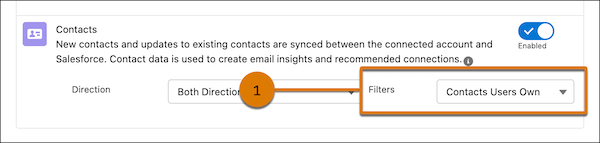
Use the record ownership filter (1) to sync contacts to your users’ connected accounts based on who owns the contact record. When you select All Contacts, all Salesforce contacts that users can access sync with your users’ connect account. Access to Salesforce contacts is based on your sharing settings. When you select Contacts Users Own, only contacts that users own sync with users’ connected accounts. And when a synced contact is updated, those changes sync for the current owner only. For the best experience, select Contacts Users Own. That way, your sales reps can focus on the contacts that are most important to them.
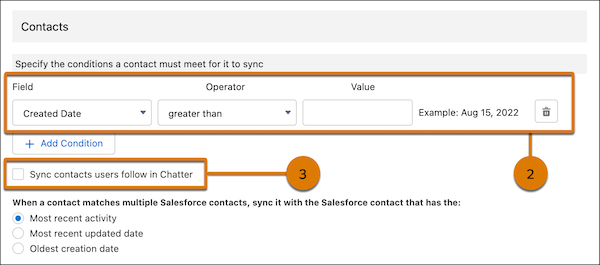
Optionally, use condition filters (2) to sync contacts to your users’ connected accounts based on contact record field values. To sync, contacts must meet all the condition filters you set. You can also select Sync contacts users follow in Chatter (3) to sync contacts to your users’ connected accounts based on which contacts they follow in Chatter.
How Sync Contacts Users Follow in Chatter Works
The Sync Contacts Users Follow in Chatter filter works differently depending on your record ownership and condition filters.
| RECORD OWNERSHIP FILTER | ANY CONDITION FILTERS? | CONTACTS THAT SYNC |
|---|---|---|
| All Contacts | No | All Salesforce contacts that users can access sync to users’ connected accounts, including contacts that users follow in Chatter. |
| Yes | Salesforce contacts that users can access, including contacts that users follow in Chatter, sync to your users’ connected accounts only if they meet the condition filters. | |
| Contacts Users Own | No | All Salesforce contacts that users own plus the contacts that users follow in Chatter sync to users’ connected accounts. |
| Yes | Salesforce contacts that users own sync to your users’ connected accounts only if they meet the condition filters. Also, the Salesforce contacts that users follow in Chatter sync to users’ connected accounts, even if those contacts don’t meet the condition filters. |
