
You are here:
Get Ready to Sync Events from Salesforce for Outlook (Retiring) Using Einstein Activity Capture
You can choose which events sync from your Microsoft® Outlook® calendar to Salesforce using Einstein Activity Capture.
Required Editions
| Available in: Lightning Experience |
| Available with Einstein Activity Capture Standard in Sales in Starter, Pro Suite, Professional, and Enterprise Editions |
| Available with Unlimited Edition, Einstein 1 Sales Edition, and Agentforce 1 Edition |
| Available with Einstein for Sales, which is included in Einstein 1 Sales Edition and available for an extra cost in Enterprise and Unlimited Editions |
| Available with Sales Engagement, which is included with Sales in Performance and Unlimited Editions, and available for an extra cost in Professional and Enterprise Editions |
| Available with Revenue Intelligence, which is available for an extra cost in Enterprise and Unlimited Editions |
| User Permissions Needed | |
|---|---|
| To sync events both ways: | Read and Edit on events AND Event sync direction set to Sync both ways in an active Einstein Activity Capture sync configuration |
| To sync events from Outlook to Salesforce: | Create on events AND Event sync direction set to Exchange to Salesforce in an active Einstein Activity Capture sync configuration* *If admins enable the Relate synced events to Salesforce records option in a user’s sync configuration, users should also have Read on contacts and leads to take advantage of that feature. |

If your administrator has set up Einstein Activity Capture, your events sync automatically between Outlook and Salesforce. Events sync when you create or update them. If you’ve got many events, your first sync could take some time.
Admins decide in what direction your events sync: Exchange to Salesforce, Salesforce to Exchange, or both directions. Ask your admin in which direction you’re set up to sync, so you know where to update your events.
Admins can select more settings to define your sync experience. Ask your administrator about how you’re set up to sync in these cases:
- Are you syncing private events?
- Are events that you delete in one calendar automatically removed from the other?
- Are your events automatically related to relevant Salesforce contacts, or one relevant lead?
- Are you syncing event series (repeating events created in Lightning Experience or the Salesforce mobile app)?
Prevent Personal Events from Syncing
You can prevent events from syncing with Salesforce in different ways.
- Create a separate calendar in your calendar application to keep track of your personal events. Einstein Activity Capture syncs only your default Outlook calendar to Salesforce.
- Exclude events from syncing based on the organizer’s or sender’s email address. See Exclude Emails and Events from Being Added to Salesforce. The excluded addresses list also prevents emails and events from being captured and added to the activity timeline of related records.
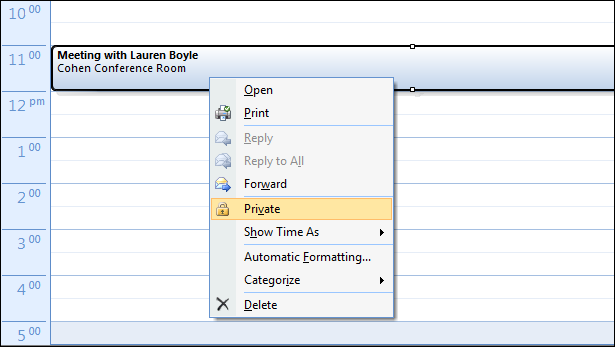
- Ask your admin if your sync configuration is set to sync private events. If you’re not
syncing private events, you can assign events with the Private option
from your calendar application, and those events don’t sync with Salesforce.
For example, you can mark an event as private from Microsoft Outlook® like this.
Respond to Event Invitations from Outlook
Your responses to event invitations don’t sync from Salesforce to Outlook. To avoid overwriting your attendance status, learn where is best to accept and decline event invitations based on your sync direction.
