
You are here:
Guidelines for the Account Intelligence View
Streamline your workflow by keeping a few guidelines about the Account Intelligence view in mind.
Required Editions
| Available in: Lightning Experience |
| Available with Sales in: Professional, Enterprise, Performance, and Unlimited Editions |
Account Intelligence Views
- The default Account Intelligence views are My Accounts and My Important Accounts.
- You can edit and rename default Account Intelligence views, but you can’t share, clone, or delete them.
- To see a list of all accounts, switch to the Accounts list view.
Custom Filters
- Account Intelligence views and saved filters are unique to the Account Intelligence view. They aren’t shared with the Account list view.
- To quickly change the list of Accounts, select a metric filter in the header row, such as With
Opportunities or With Upcoming Activity. Or, use the Activity or Owner dropdown filters to
temporarily change the list view.
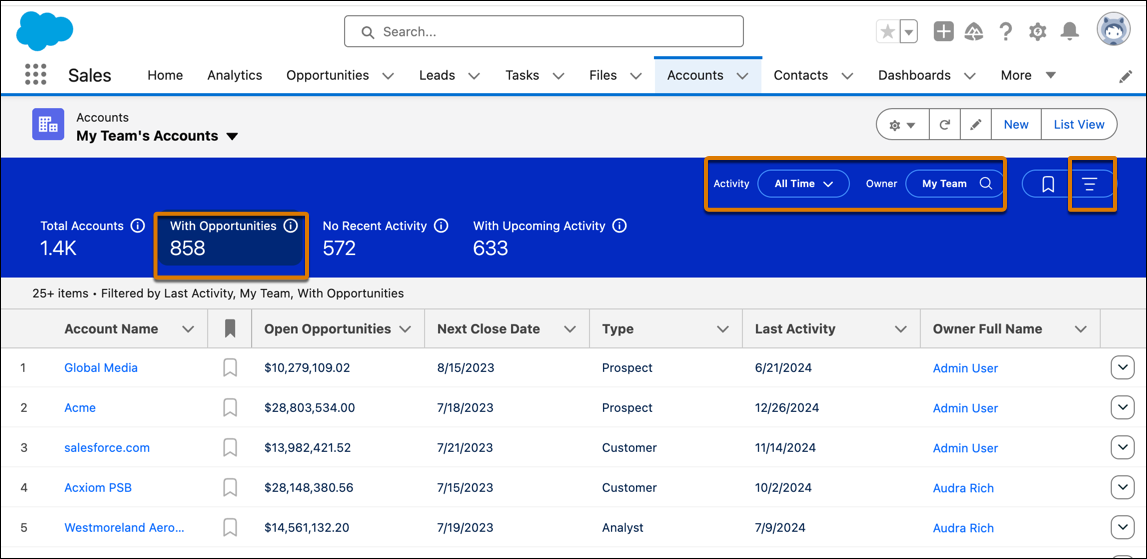
- To persist your filters for a particular list in the Account Intelligence view, set them in the filter panel by selecting the Show Filters button
 .
. - To further refine your list view, set additional filter criteria in the filter panel.
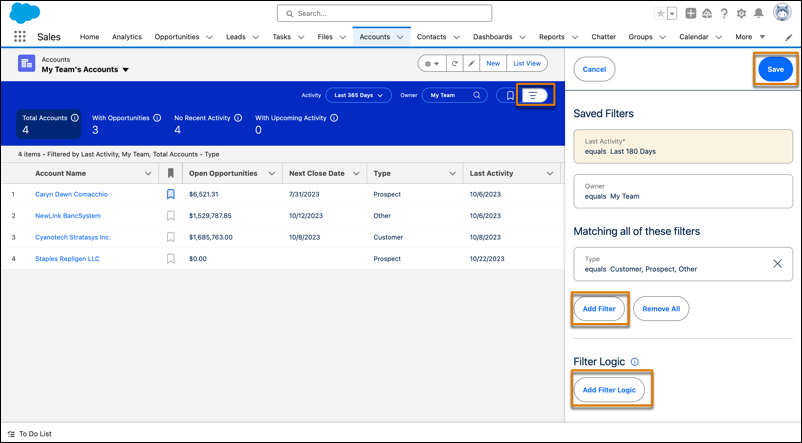
- The Activity filter shows you accounts with completed activity within the date range that you specify. To see accounts with no completed activity, select Never.

Example The Acme Global account has one upcoming task. This new account doesn’t have any completed past activities. To see this account in the list of accounts in the Account Intelligence view, select Never in the Activity filter criteria
Accounts Marked as Important
- You can see and mark accounts as important in the Account Intelligence view only.
- Users can mark up to 200 accounts as important.
- The important designation is visible only to the user who marked the accounts as important. The list of important accounts can’t be shared with other users.
Opportunity Metrics
- The Account Intelligence view supports standard and custom number and currency fields for summarizing opportunity metrics. The default field is Amount.
- You can choose which opportunity field to use for metrics summaries based on the fields a Salesforce admin has configured. Set or change the summary field in the Account Intelligence view by using the available fields in the List View Controls menu.
- When an admin changes the default opportunity summary field for the Account Intelligence view, that action changes the default Opportunity summary field for the Pipeline Inspection view.
Opportunities and Cases in the Side Panel
- The side panel shows up to five open opportunities and five open cases.
- To see a list of all related records, including closed records, click All Opportunities or All Cases.
- The sort order of the opportunities and cases related lists determines the sort order of the opportunities and cases shown in the side panel.
Activities in the Side Panel
- Which metrics you see depends on which features are enabled. To see the complete timeline of your interactions with each account, set up Einstein Activity Capture.
- In the Upcoming Activity section, only one open activity is shown, with a due date within 6 months from the current date. Open tasks that don’t have a due date aren’t included. Open tasks that are overdue are included.
- In the Recent Activities section, the selection in the Activity dropdown in the side panel determines the filter time frame, not the Activity dropdown in the main Account Intelligence view.
Did this article solve your issue?
Let us know so we can improve!
