
You are here:
Focus Your Strategic Efforts with Sales Account Plans
In a sales account plan, you can research and analyze accounts, set objectives with actionable metrics, and keep tabs on growth and development.
Required Editions
| Available in: Lightning Experience |
| Available in: Enterprise, Performance, and Unlimited editions with Sales and in Agentforce 1 Sales Edition |

Accessing Sales Account Plans
Access sales account plans from the Account Plans related list on the account home page.
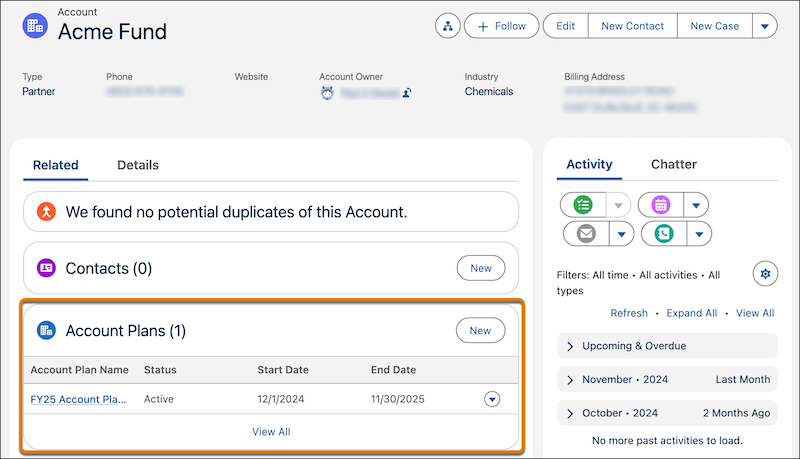
Or, from the App Launcher, search for Account Plans.
Getting to Know Your Account Plan
The sales account plan details page is your home for long-term account growth strategy planning.
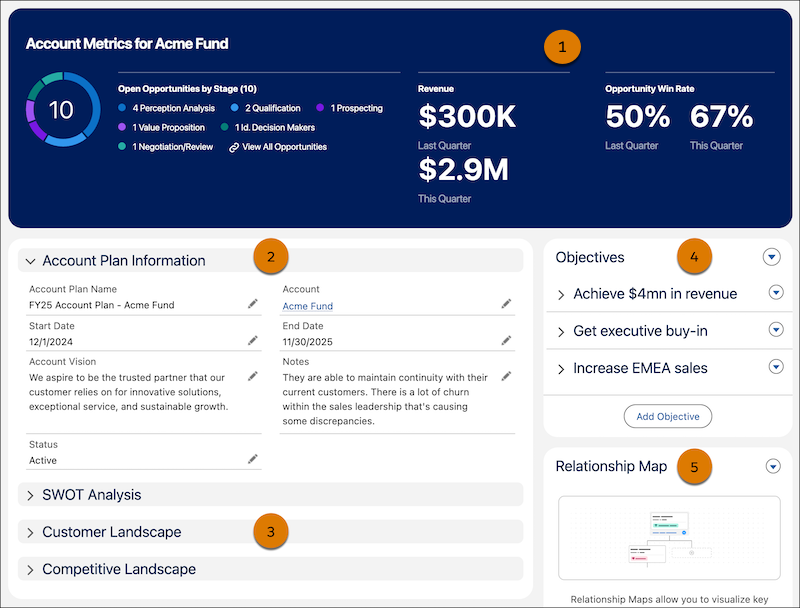
Review account KPIs (1), find an overview of the account plan details (2), and capture and evaluate customer needs (3). Determine and track measurable objectives (4), and go to the account’s buyer relationship map (5).
Viewing Key Metrics on the Account Plan KPIs Dashboard
The Account Plan KPIs dashboard shows the number of open opportunities by stage for an account. The dashboard shows up to 10 stages with the most open opportunities, but open opportunities in other stages are grouped in Other. Closed opportunities, both won and lost, aren’t included in the count of opportunities.
You can’t customize the Account Plan KPIs dashboard. However, you can add your own dashboard by using Lightning App Builder.
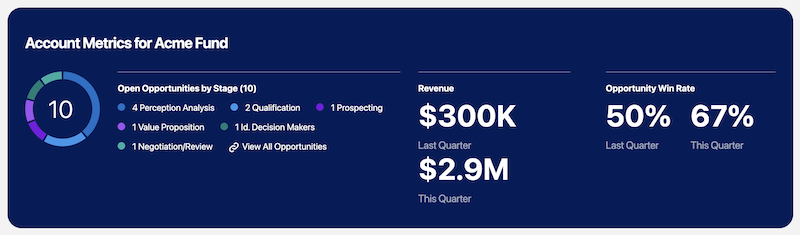
The Account Plan KPIs dashboard also provides these metrics.
| KPI | DESCRIPTION |
|---|---|
| Revenue | The sum of amounts from Closed Won opportunities for the quarter, either current or previous. |
| Opportunity Win Rate | The percentage of Closed Won opportunities for the quarter. The Opportunity Win Rate is calculated from Closed Won opportunities where the Amount field is populated. The number of Closed Won opportunities is divided by the total number of closed opportunities (both won and lost), and then the result is multiplied by 100. |
Identifying and Evaluating Account Needs
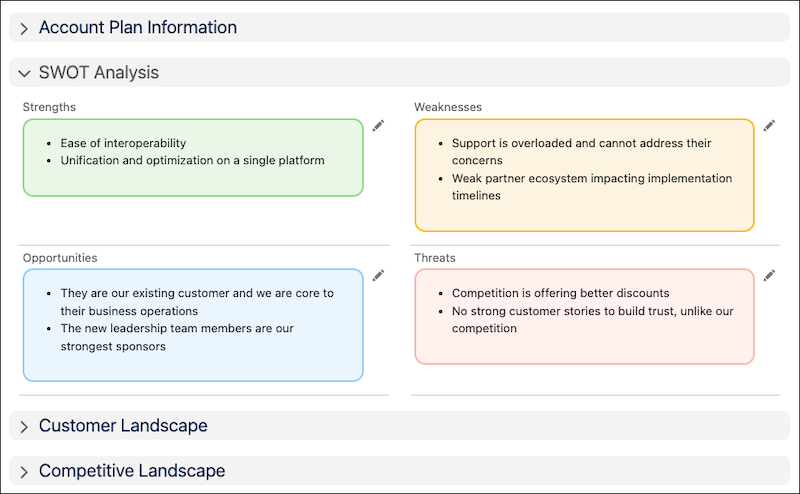
In the SWOT Analysis panel, identify the account’s strengths, weaknesses, opportunities, and threads. This analysis helps remove barriers and implement new strategies for your long-term growth strategy. Format and organize your thoughts with the built-in rich text editor.
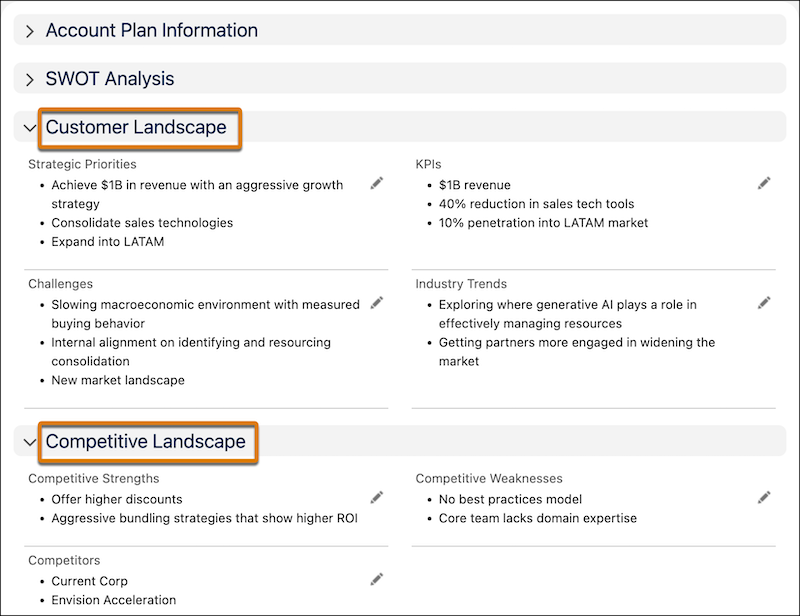
In the Customer Landscape and Competitive Landscape panels, gather details that help your sales teams fully understand the account’s biggest areas of opportunity and risk within the marketplace.
Identifying Potential Sales Opportunities with Product Whitespace
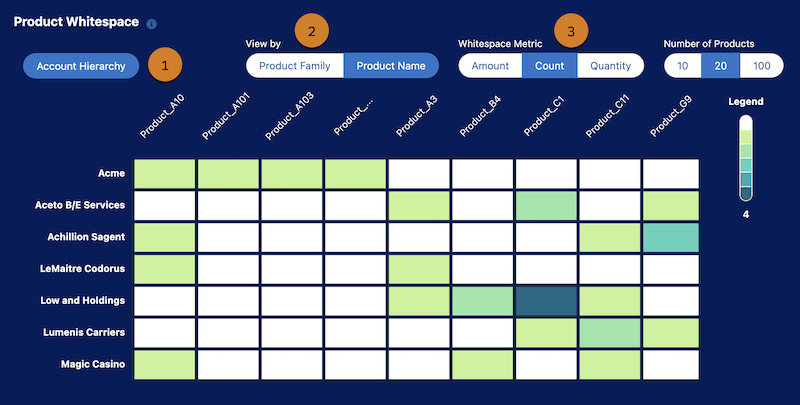
The Product Whitespace map shows top-selling products from Closed Won opportunities in the past year across related accounts so that you can find potential products for upselling and cross-selling. By default, the map shows product data for the account associated with the account plan. When the account is part of a hierarchy, the map includes data for up to four other accounts closest to it in the hierarchy.
You can’t customize the Product Whitespace map, but you can modify which information appears. To adjust the default view, click Account Hierarchy (1) and select up to 20 accounts to show. View data by product family or name (2), and filter by metrics such as opportunity product amount, count, or quantity (3).
Lighter colors represent zero or lower values of the metric, and darker colors represent higher values. The maximum value helps calculate the range of values represented by a color. As a result, small values can appear in white, and similar values can appear in two different colors despite being close.
Measuring Account Growth Objectives
The Objectives panel shows progress toward measurable goals that support your long-term growth strategy for the account. Measure the currency, percent, or number value that aligns with a specific goal, such as achieving a certain amount of revenue. To calculate an objective’s current value automatically, use a calculation definition that identifies the specific object, field, and other conditions you care about, and then select specific records to track. See Sales Account Plan Objectives, Measures, and Calculation Definitions.
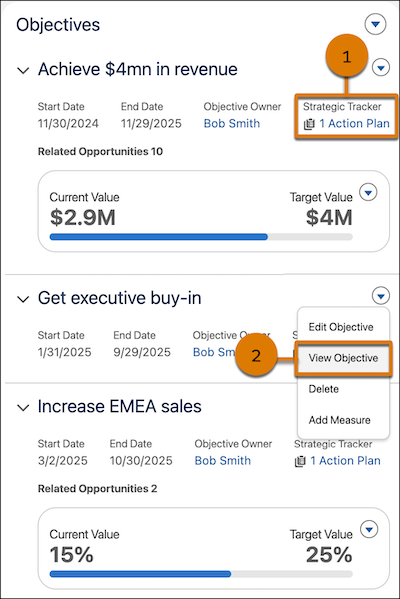
The Strategic Tracker (1) links to sales action plans that organize the specific tasks and events for your sales team members as they work toward an objective. See Strategic Tracker with Sales Action Plans.

To see a more detailed view of the objective, select View Objective (2) from the objective’s actions dropdown.
Visualizing Account Contacts
Gain insight into the relationships between the account’s contacts by easily linking to the account’s buyer relationship map from an account plan. When the Buyer Relationship Map is turned on, you can access the map from an account plan with one click.

