To start using the integration with Gmail™, get the Salesforce extension from the
Chrome Web Store and connect your email account.
Required Editions
Available in: Salesforce Classic and
Lightning Experience
Available with Sales Cloud, Service Cloud, and Lightning Platform in:
Essentials, Group, Professional, Enterprise,
Performance, Unlimited, and Developer Editions
Complete these steps to the integration to the Chrome browser.
Tip The extension automatically updates with each Salesforce release. There’s no
need to get a new version of the extension when a new Salesforce release is
available.
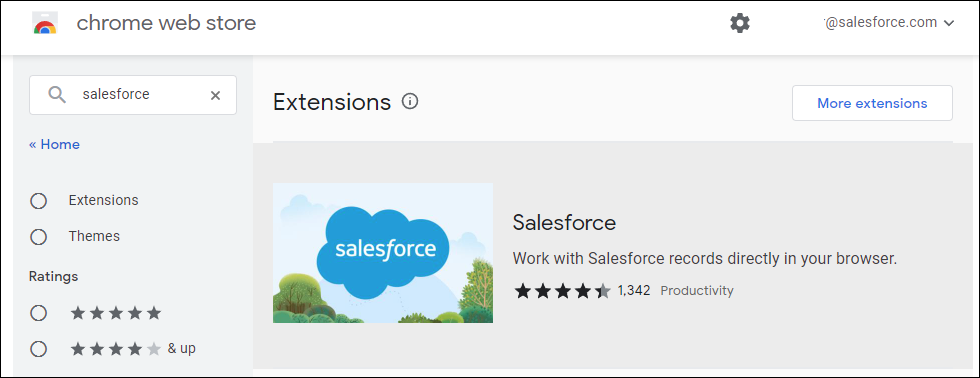
In the Chrome Web Store, enter
Salesforce in the Search box, then select
the Salesforce extension.
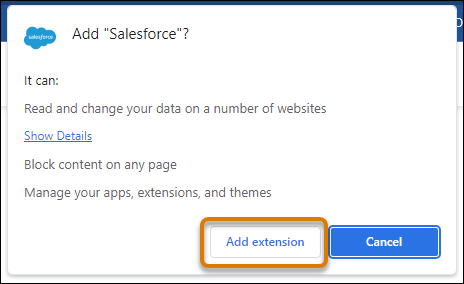
Click the icon, click Add to Chrome.
Click Add extension to add it to your Gmail account.
After adding the extension to Chrome and navigating to Gmail, enter your Salesforce
credentials in the new integration pane.
Tip For a better viewing experience, we recommend that you turn off Gmail’s
People widget. For more support, visit Google’s support website.
We use three kinds of cookies on our websites: required, functional, and advertising. You can choose whether functional and advertising cookies apply. Click on the different cookie categories to find out more about each category and to change the default settings.
Privacy Statement
Required Cookies
Always Active
Required cookies are necessary for basic website functionality. Some examples include: session cookies needed to transmit the website, authentication cookies, and security cookies.
Functional Cookies
Functional cookies enhance functions, performance, and services on the website. Some examples include: cookies used to analyze site traffic, cookies used for market research, and cookies used to display advertising that is not directed to a particular individual.
Advertising Cookies
Advertising cookies track activity across websites in order to understand a viewer’s interests, and direct them specific marketing. Some examples include: cookies used for remarketing, or interest-based advertising.