
You are here:
Tips for Working in the Gmail Integration with Inbox
If your company is moving from the legacy Salesforce Inbox Chrome extension to the Gmail integration with Inbox, review the differences between the two solutions for a smooth transition.
Required Editions
| Available in: Lightning Experience |
| Available in: Unlimited, Einstein 1 Sales, and Agentforce 1 Sales Editions. Available for an extra cost in Professional and Enterprise Editions. |
Salesforce Inbox Productivity Tools
All Salesforce Inbox tools are available in the side panel, and not in a separate toolbar. Your Salesforce admin determines which tools are available in your integration. The tools that are available depend on the action you’re taking in your email.
When you’re composing an email, the side panel includes the Compose tab.
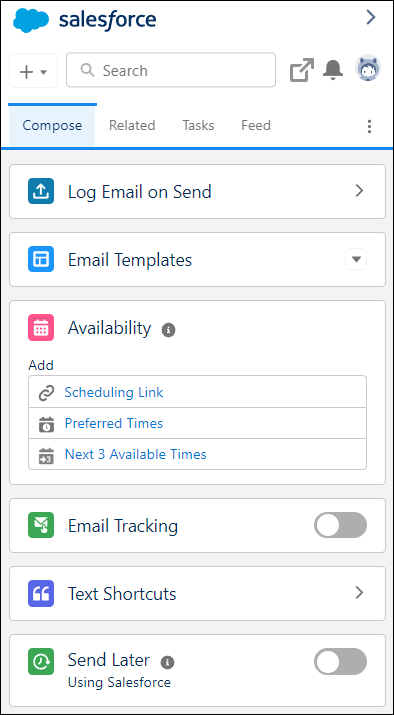
The Compose tab includes options to insert your availability, track an email (called Read Receipts in legacy versions of Inbox), schedule emails to send later, and to insert text shortcuts. You also have access to insert and create email templates.
When you’re reading an email, the integration panel includes the Related tab. The Related tab contains the Salesforce records related to the email you’re reading.
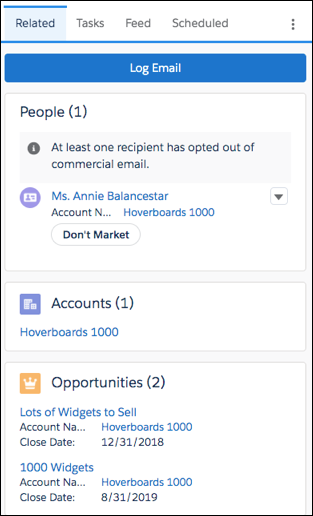
At any time, view emails scheduled to send later in the Scheduled tab, and view email tracking information in the Feed tab.
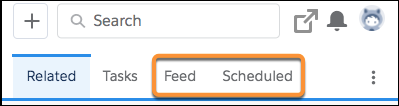
If your Salesforce admin has customized the email application pane, these tabs could have different and show in a different order.
Email Logging
There are multiple ways to log an email to Salesforce records. When you’re composing an email, use the Log Email on Send option to select which records to log an email to when it’s sent. Be sure to save your selections in the integration pane before sending your email. The email is logged to the selected records after it’s sent.
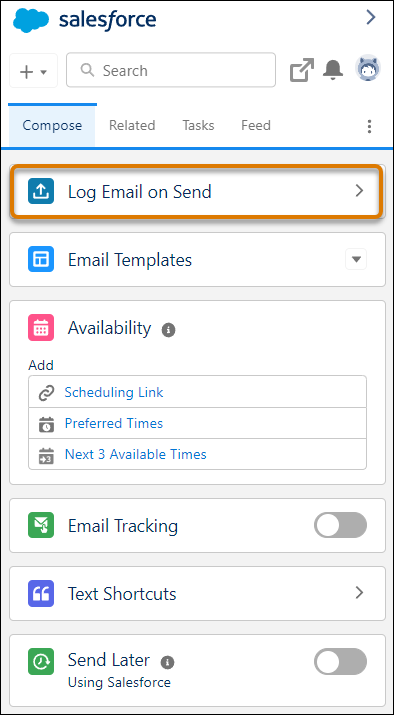
Or, use the reminder to log prompt to select records to log your email to after it’s sent. To disable the prompt, select Log Email on Send in the integration pane, and deselect the Always remind me to log option at the bottom of the pane.
Related Records
In the legacy Salesforce Inbox Chrome extension, you could hide internal records from appearing as related records using the Hide Internal Records setting. In the Gmail integration, to make the list of related records more relevant, resolve the email addresses related to those records. The integration remembers your choices over time and your preferences across many objects. For example, click the number with the yellow triangle. The integration shows all possible matches for that email address. Select the record you want the integration to remember as the default record for that email address, and click Select to save your preference.
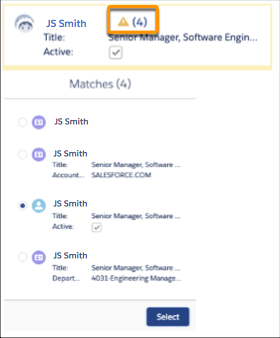
After you select the record you want the integration to remember, the panel shows all other related objects depending on your selection. For example, related opportunities and accounts.
Favorite Objects
You can’t identify objects as favorites in the Gmail Integration. Use the search to find other records to log an email to. If you can’t find an object that you used in the past, contact your Salesforce admin.
Add Salesforce Records
The integration recognizes email addresses that don’t match a record in Salesforce when viewing or composing an email. Add those people to Salesforce as a new contact or lead.
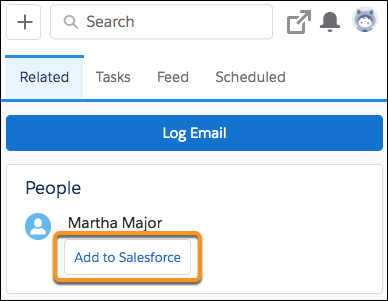
You can also create records at any time using the add option in the navigation bar.
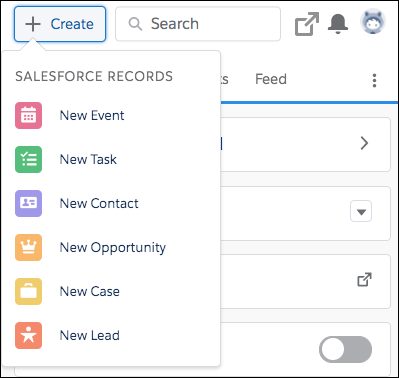
If you don’t see an object type in this list, ask your Salesforce admin to add the object type to the Email Publisher Layout.
Gmail Full-Screen Compose Mode
The Gmail integration is supported in Compose mode when using the smaller, compose window, not in the full-screen compose window.
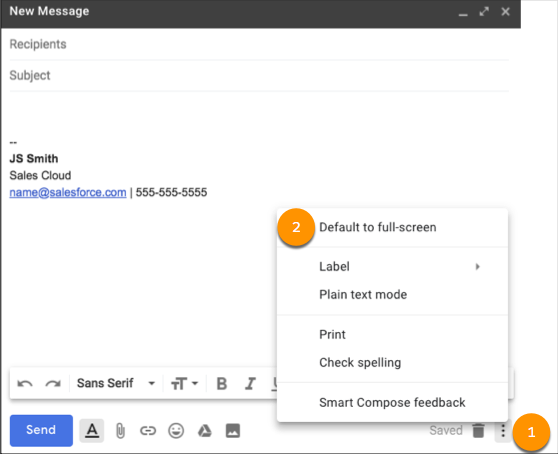
To set Gmail to default to the smaller, window, select the Compose settings (1), and then deselect Default to full-screen (2).
