
You are here:
Tips for Working in the Outlook Integration with Inbox
If your company is moving from the legacy Salesforce Inbox Outlook add-in to the Outlook integration with Inbox, review the differences between the two solutions for a smooth transition.
Required Editions
| Available in: Lightning Experience |
| Available in: Unlimited, Einstein 1 Sales, and Agentforce 1 Sales Editions. Available for an extra cost in Professional and Enterprise Editions. |
Salesforce Inbox Productivity Tools
All Salesforce Inbox tools are available in the side panel, and not in a separate toolbar. Your Salesforce admin determines which tools are available in your integration. The tools that are available depend on the action you’re taking in your email.
When you’re composing an email, the side panel includes the Compose tab.
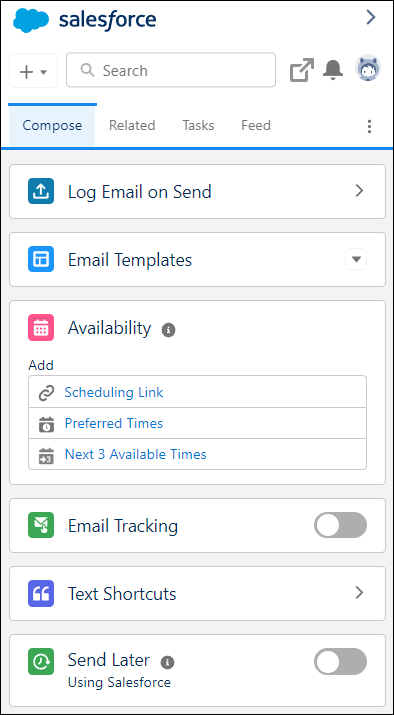
The Compose tab includes options to insert your availability, track an email (called Read Receipts in legacy versions of Inbox), schedule emails to send later, and to insert text shortcuts. You also have access to insert and create email templates.
When you’re reading an email, the integration panel includes the Related tab. The Related tab contains the Salesforce records related to the email you’re reading.
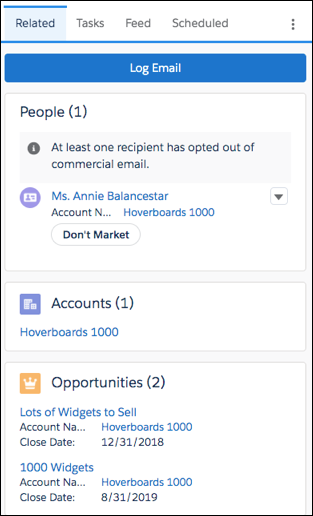
At any time, view emails scheduled to send later in the Scheduled tab, and view email tracking information in the Feed tab.
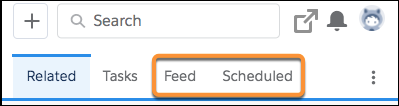
If your Salesforce admin has customized the email application pane, these tabs could have different and show in a different order.
Log Emails and Events
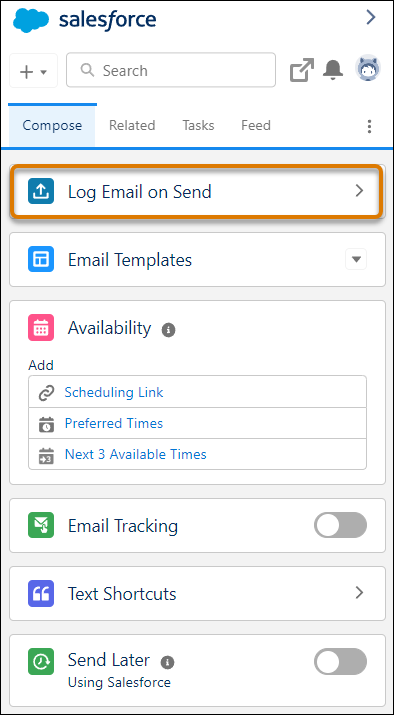
When you’re composing an email, use the Log Email on Send option to select which records to log an email to when it’s sent. Be sure to save your selections in the integration pane before sending your email. The email is logged to the selected records after it’s sent.
When you’re reading an email, use the Pick Records button in the Related tab and select which records to log the email to. Or, if you like the records Salesforce suggested, click Log Now.
When you’re organizing an event, create the event and save it in your Outlook calendar. You can log the event to Salesforce records after the event is saved.
Related Records
In the legacy Salesforce Inbox Chrome extension, you could hide internal records from appearing as related records using the Hide Internal Records setting. In the Outlook integration, make the list of related records more relevant by resolving the email addresses related to those records.
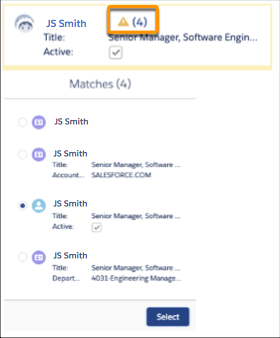
The integration remembers your choices over time and your preferences across many objects. For example, click the number with the yellow triangle. The integration shows all possible matches for that email address. Select the record you want the integration to remember as the default record for that email address, and click Select to save your preference.
Favorite Objects
You can’t identify objects as favorites in the Outlook integration. Use the search to find other records to log an email to. If you can’t find an object that you used in the past, contact your Salesforce admin.
Add Salesforce Records
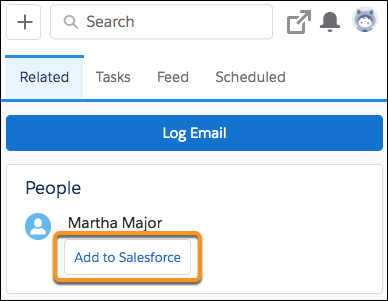
The integration recognizes email addresses that don’t match a record in Salesforce when viewing or composing an email. Add those people to Salesforce as a new contact or lead.
You can also create records at any time using the add option in the navigation bar.
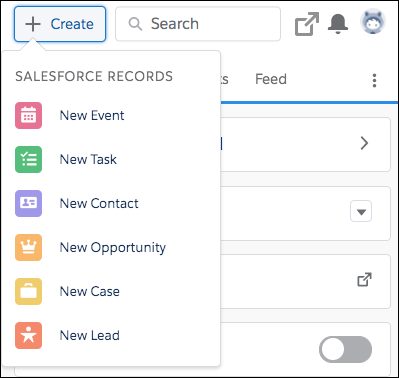
If you don’t see an object type in this list, ask your Salesforce admin to add the object type to the Email Publisher Layout.
