Loading
Salesforce now sends email only from verified domains. Read More
Manage Your Billing Processes with Salesforce Billing
Table of Contents
Select Filters

          No results
          No results
          Here are some search tips

          Check the spelling of your keywords.
          Use more general search terms.
          Select fewer filters to broaden your search.

          Search all of Salesforce Help
          Create Invoice Group IDs

          Create Invoice Group IDs

          Salesforce Billing offers a way to customize invoice groups so that customers can bill order products matching certain criteria. This process is useful for separating invoices that don’t share the same billing or payment terms. It’s also helpful for combining several order products into one invoice. By defining an Invoice Group ID, you get to control how and when you invoice an order product. (Salesforce Billing Managed Package)
          Required Editions

          Available in: Salesforce Billing Winter '18 and later

          There are several ways to group invoices—by order, account, contract, PO number, legal entity, and so on. For example, if you have one order that is associated with two different billing accounts, you could separate the order into two invoice groups: Invoice Group 1 (Billing Account 1) and Invoice Group 2 (Billing Account 2). If you'd like to manually group invoices according to your own criteria, create an Invoice Group ID on the Order Product Detail page.

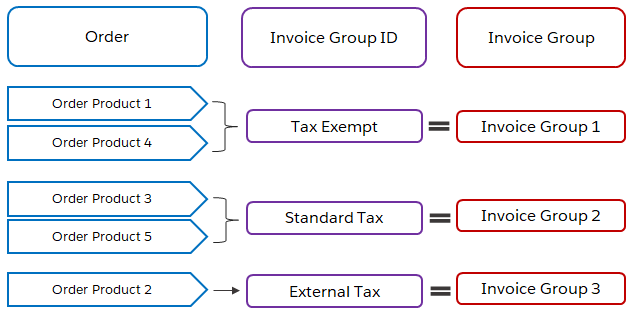
          Let's look at how this process works. Say that you have five order products for a single account and you want to invoice them by tax status to make accounting easier. Two of your order products are tax exempt, two use standard tax, and one uses an external tax engine.

          Diagram showing how invoice groups work

          The tax exempt invoices go out in invoice group 1, invoices using standard tax in group 2, and one using an external tax engine in group 3.

          To create a customized invoice group, in Salesforce Classic:

          • Go to one of your orders and select an associated order product.
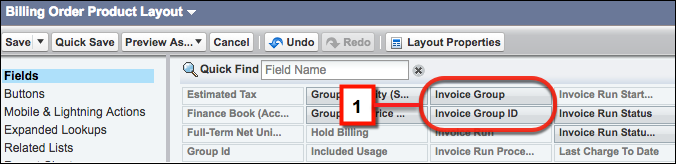
          • On the Order Product Detail list under Billing Frequency Information, make sure that you have both fields, Invoice Group and Invoice Group ID. If you don’t see them, select Edit Layout at the top right of the page (in Salesforce Classic). Under the Fields section, find the field(s) (1) and drag to the Billing Frequency Information list. Save your work.
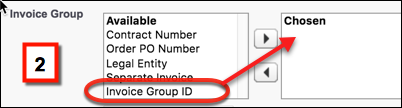
          • Return to the Order Product Detail page. Click to edit the Invoice Group field and select Invoice Group ID as the Invoice Group (2).
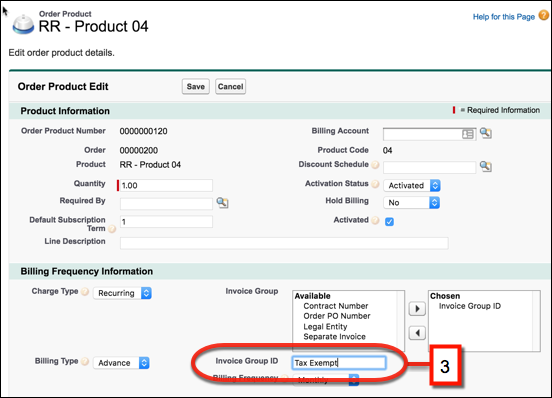
          • Enter a unique name for the Invoice Group (3) and save your work.

          Order Product Layout page in Salesforce Classic

          Invoice group picklist

          Order product detail page in Salesforce Classic

          In Lightning Experience:

          • Select an order product.
          • Under Billing Frequency Information on the Order Product Details page, click to edit the Invoice Group field .
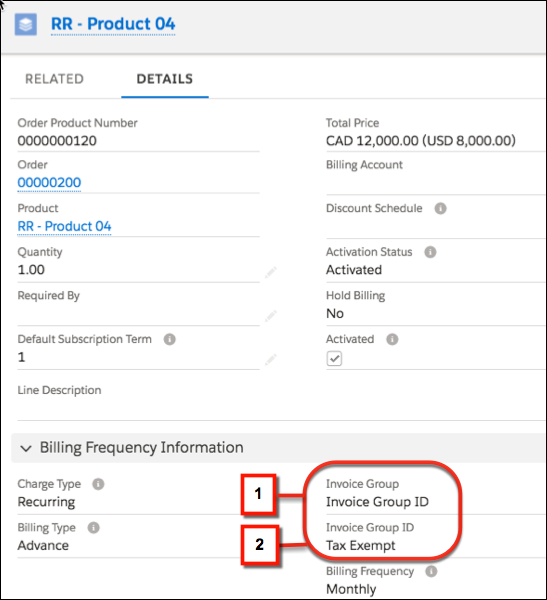
          • Select Invoice Group ID (1).
          • In the Invoice Group ID field, enter a name for your invoice group (2).
          • Save your work.

          Order product details page in Lightning Experience

          Note
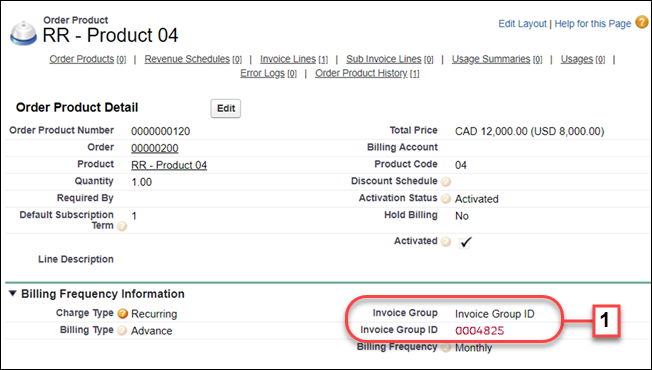
          Note You can create an invoice group based on the order number. On the Invoice Group ID field on the Order Product Detail page (1), enter the number. This action creates one invoice per order.

          Using an order number as invoice group ID

           
          Loading
          Salesforce Help | Article