
You are here:
Add and Edit Contacts on the Buyer Relationship Map
Learn how to work with contacts on the buyer relationship map.
Required Editions
| Available in: Lightning Experience |
| Available in: Enterprise, Performance, Unlimited Editions with Sales, and Agentforce 1 Sales Edition |
| User Permissions Needed | |
|---|---|
| To create and edit contacts: | Create and Edit on Contact |
Contacts associated with the opportunity or account that have a seniority level and department group assigned are automatically shown on the buyer relationship map. These steps are for contacts that don’t meet that criteria.
-
To add a contact to the map, do one of the following.
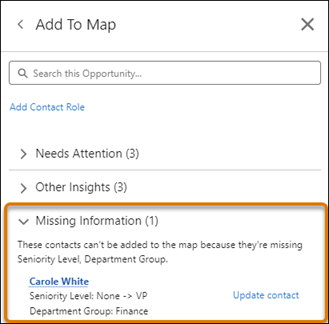
- If the contact is already associated with the opportunity or account, go to the
side panel and open Missing Information. Find the contact you want to add. Edit or
update the contact to assign a seniority level and department group. Then, it shows on
the map.
- If the relationship map is for an account, click
 in a level
under a department group. In the side panel, click Add Contact.
After saving the contact, it appears on the map.
in a level
under a department group. In the side panel, click Add Contact.
After saving the contact, it appears on the map. - If the relationship map is for an opportunity and the contact isn’t associated with the opportunity, add an opportunity contact role by clicking Add Contact Role in the side panel. After you add the role, the contact appears in Missing Information in the side panel. Edit or update the contact to assign a seniority level and department group. Then, it shows on the map.
Contacts added to the same level in a department group are grouped on the map.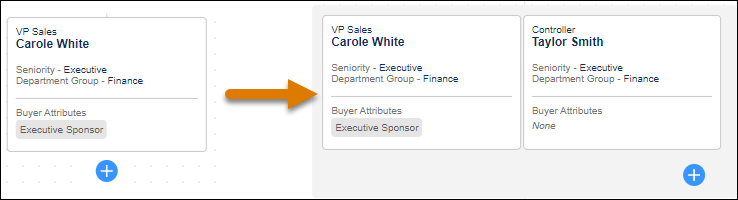
- If the contact is already associated with the opportunity or account, go to the
side panel and open Missing Information. Find the contact you want to add. Edit or
update the contact to assign a seniority level and department group. Then, it shows on
the map.
-
To edit a contact, do one of the following.
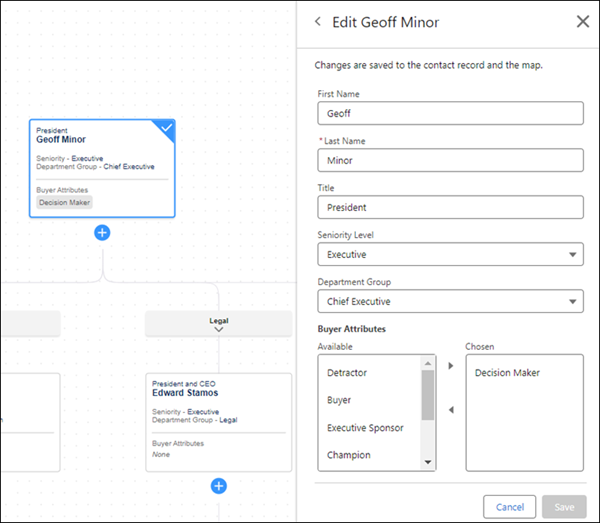
- If the contact is shown on the map, select the contact. In the side panel, click Edit. The side panel shows a subset of contact fields. Update them and click Save.
- If the contact isn’t shown on the map, go to the side panel and open Missing Information. Next to a contact, click Edit contact. The side panel shows a subset of contact fields. Update them and click Save.

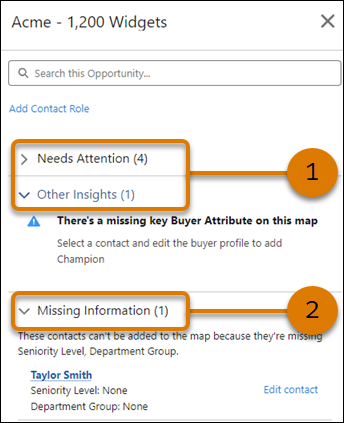
Tip Use insights to identify areas of your map that are missing critical and optional
key stakeholders (1). Find contacts in your account or opportunity with missing seniority
levels and department groups that prevent them from appearing on the map (2).
Did this article solve your issue?
Let us know so we can improve!
