When you’re ready to set up Customizable Campaign Influence, turn on the feature in
Setup. Then select or create the model you want to use.
Required Editions
Available in: Salesforce Classic and Lightning
Experience
Available in: Salesforce Professional, Enterprise,
Performance, Unlimited, and Developer Editions
User Permissions Needed
To enable Campaign Influence:
Sales Cloud User, Service Cloud User, or CRM User permission set license
AND
Customize Application
To view Campaign Influence records:
Campaign Influence permission set
AND
Read on campaigns and
opportunities
AND
Marketing User selected in User
Detail
For Account Engagement users, we recommend turning on Connected Campaigns before you set up
Customizable Campaign Influence. Connecting your campaigns shares Account Engagement marketing
data with Salesforce to give you a bigger picture of performance.
From Setup, enter Influence in the Quick Find box, and then
select Campaign Influence Settings.
Under Campaign Influence, select Enabled.
If you use Account Engagement, choose whether to enable Additional Campaign Influence
Models.
These models don’t support custom fields in auto-association rule criteria.
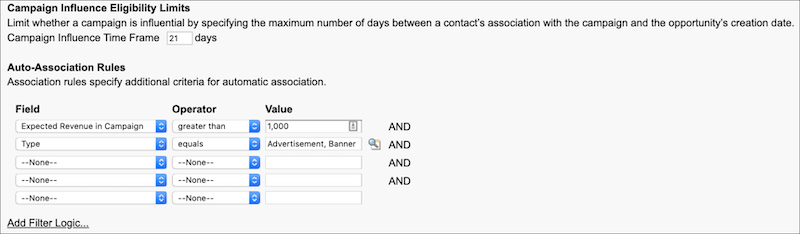
Under Campaign Influence in Setup, select Auto-Association
Settings. Then enter the criteria that you want to use to limit associations
by time frame or field values.
For best results, use the lookup icon to add multiple criteria in the Value
fields.
To review a model’s details, click Model Settings and edit a
model from the list.
To show data in related lists, edit a model and select Default
Model.
We use three kinds of cookies on our websites: required, functional, and advertising. You can choose whether functional and advertising cookies apply. Click on the different cookie categories to find out more about each category and to change the default settings.
Privacy Statement
Required Cookies
Always Active
Required cookies are necessary for basic website functionality. Some examples include: session cookies needed to transmit the website, authentication cookies, and security cookies.
Functional Cookies
Functional cookies enhance functions, performance, and services on the website. Some examples include: cookies used to analyze site traffic, cookies used for market research, and cookies used to display advertising that is not directed to a particular individual.
Advertising Cookies
Advertising cookies track activity across websites in order to understand a viewer’s interests, and direct them specific marketing. Some examples include: cookies used for remarketing, or interest-based advertising.