
You are here:
Build Your Prediction
With Einstein Prediction Builder, make custom predictions about what happens next in your business without writing any code. After you decide what you want to predict, the field you want to predict values for, and what object contains that field, you’re ready to build.
Build AI predictions with clarity and ease. Guided Setup flow walks you through building predictions using learning cards, info bubbles, notifications, and Salesforce Help.
- From Setup, in the Quick Find box, enter Einstein Prediction Builder. Then select Einstein Prediction Builder. Or, in Setup Home, on the Einstein Prediction Builder tile, click Get Started.
- If it’s your first time using Einstein Prediction Builder, on the splash page, click Get Started. Otherwise, skip to the next step.
- Click New Prediction.
- On the Name & Type page, name your prediction. For example, Annual Revenue Prediction.
- Tab or click in the next field to auto-populate the API name.
- Tab or click in the next field to describe the prediction.
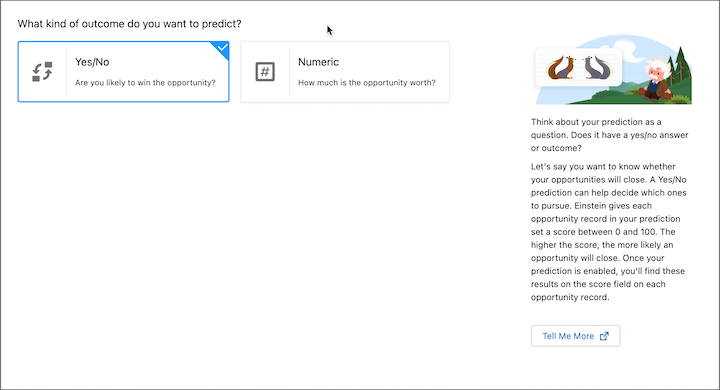
- Choose your prediction type. the For example, to predict whether customers register for a particular event, you can choose the Yes/No prediction. Or, to predict how much revenue you'll make this year, choose the Number prediction. Then click Next.
-
On the Object page, select the object that contains the field that you want to
predict values for. To quickly find an object, enter its name in the search
field. Then click Next.
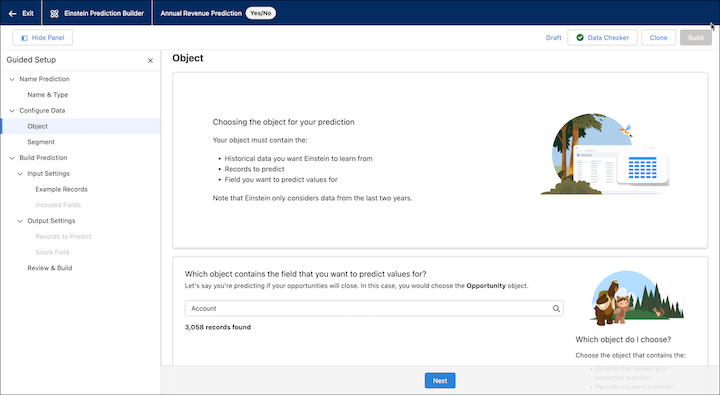
- You can optionally focus the prediction on a specific segment in your dataset. On the Segment page, click Segment of {Object}, for example, Segment of Account. Then click Save & Next.
- On the Example Records page, define your yes and no examples. Then click Save & Next.
- On the Included Fields page, deselect fields that you want Einstein to consider for your prediction.
- On the Records to Predict page, select which the records you want Einstein to predict. Then click Next.
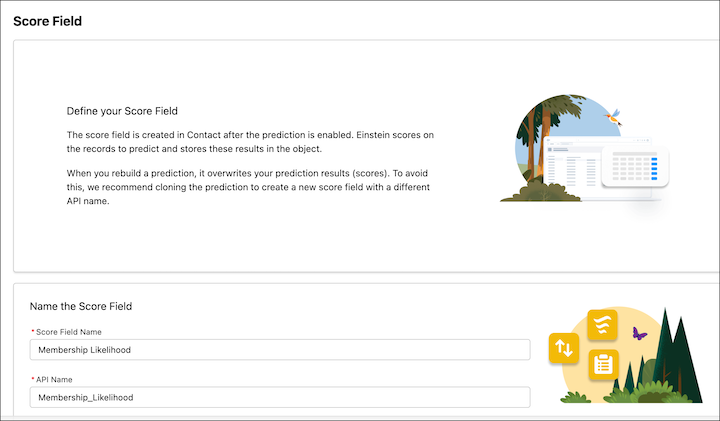
- On the Score Field page, name the field that will store your prediction scores. For example, Predicted Annual Revenue.
- Tab or click in the next field to auto-populate the score field API name. Then click Save & Next.
- On the Review & Build page, review your prediction settings carefully. To make changes, go back to the page where you want to make updates. Then click Next to get back to the Review & Build page again.
- When ready, click Build Prediction.
- Check back later to review your prediction’s scorecard before you decide whether to enable your prediction. After you enable the prediction, Einstein checks records hourly and provides new scores for records that changed.

Note You can’t edit predictions in enabled or pending status. To edit a prediction
that’s enabled, first disable it so you can change your settings.
- Segment Your Data
When you build a prediction in Einstein Prediction Builder, you can also focus your prediction on a specific segment of your dataset. For example, to only look at data for a particular region or industry. With segments, you can get more useful predictions by excluding records that aren’t relevant to your prediction. - Check Your Data
Data Checker automatically validates your data and alerts you as you build a prediction. It provides feedback in real time so you can catch issues early. - Define Your Prediction Set
You can define the set of records that Einstein provides prediction results, scores, for. This set of records is your prediction set or scoring set (as known by data scientists). By default, Einstein scores all records that aren’t included in your example set. You can choose to have Einstein score records in your example set, or you use filters to choose a specific set of records to score. - Define Scoring Settings
When Einstein scores records, these results are stored in a custom field called the score field. You must give the field a new name and API name each time you create a prediction or clone an existing one.
Did this article solve your issue?
Let us know so we can improve!
