
You are here:
Build a Recommendation
As with any AI solution, building a good recommendation is an iterative process.
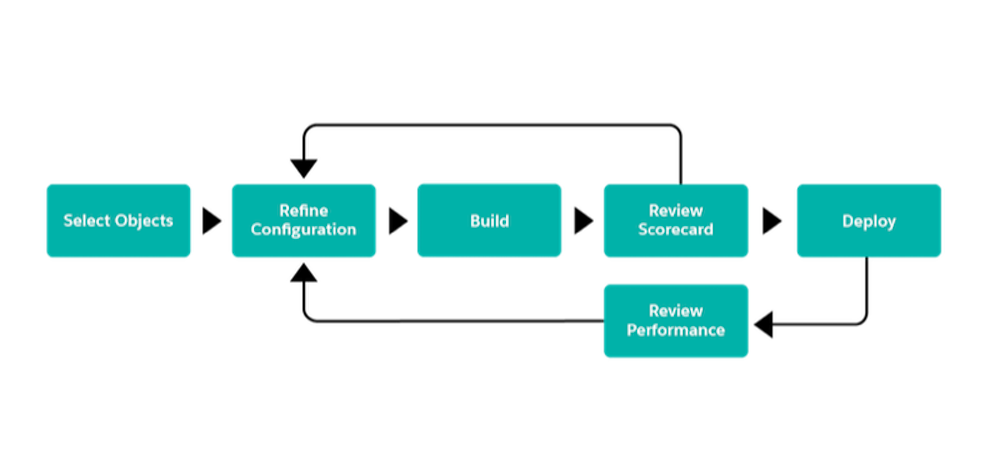
When Einstein builds a recommendation, it surfaces detailed metrics to help you evaluate whether you have enough data to build your recommendation. You can also add business rules or segment your data before you deploy it to a Next Best Action Strategy. To show actionable recommendations to your users, use the power of Next Best Action and Lightning Flows. After you build a recommendation, review its performance. Edit or clone your recommendation to adjust your data.
With Einstein Recommendation Builder, you can make personalized recommendations without writing code. Determine what you want to recommend, who you want to recommend it to, and which object tracks their interactions. Now you’re ready to build.
- From Setup, enter Einstein Recommendation Builder in the Quick Find box, then select Einstein Recommendation Builder.
- Or, if it's your first time using Einstein Recommendation Builder, click Get Started on the splash page. Otherwise, skip to the next step.
-
Click New.
Einstein Recommendation Builder opens.
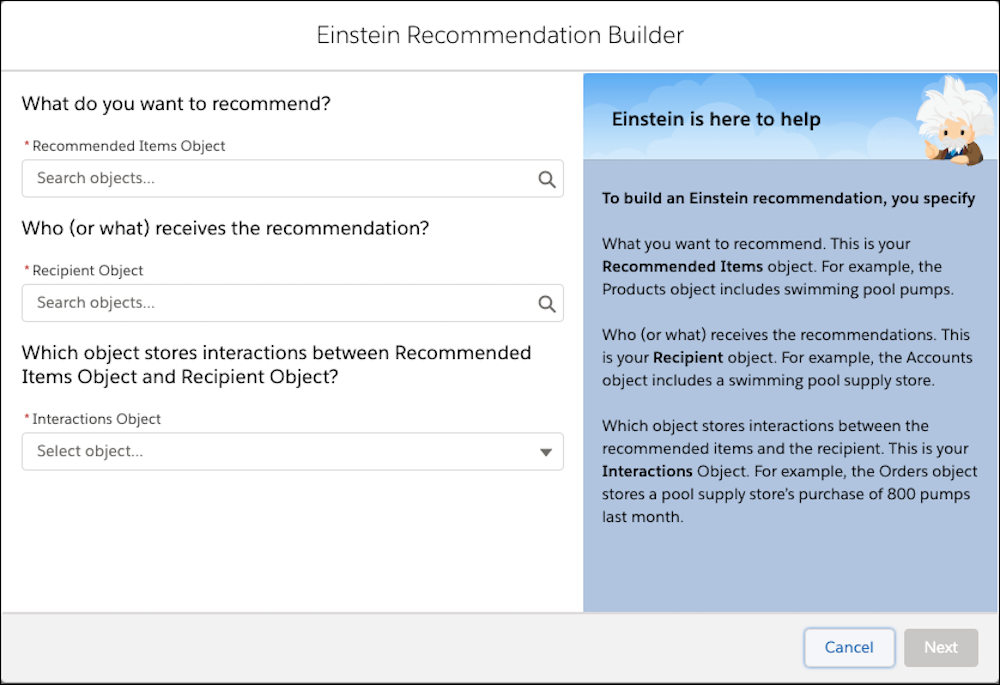
- Choose your Recommended Items object. This object represents what you want to recommend, for example, Bank Product.
- Choose your Recipient object. This object represents who or receives the recommendation, for example, Contact.
- Choose your Interactions object. This object represents who or receives the recommendation, for example, Contact. Click Next. For example, Bank Account. This object contains metadata related to a customer’s banking history such as their banking preferences, product history, purchase history, credit information.
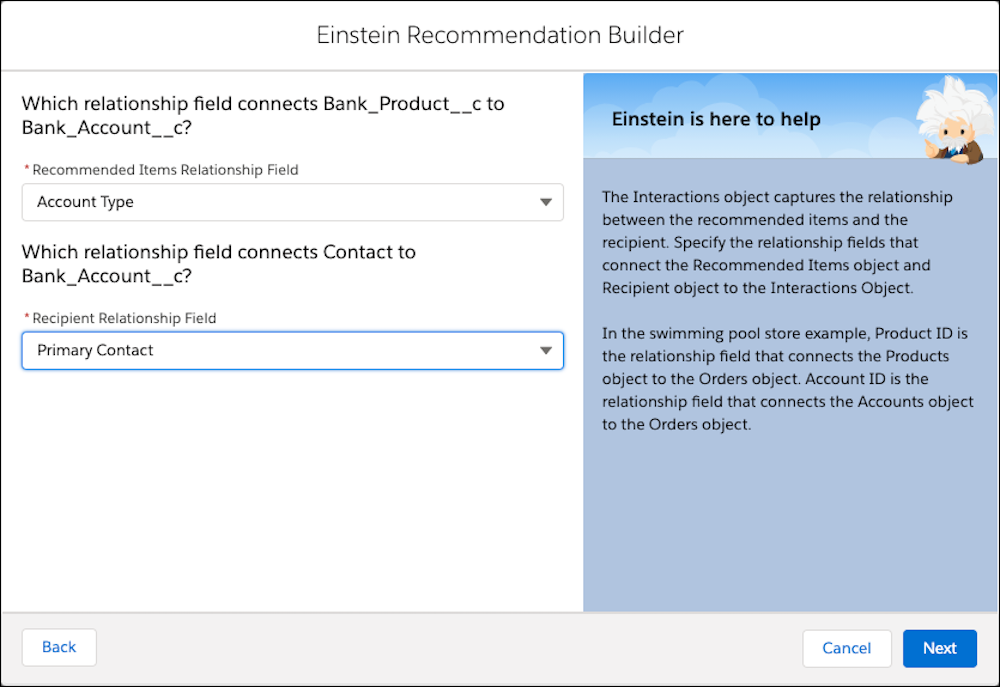
- Choose the field that connects your Recommended Items object to your Interactions object.
-
Choose the field that connects your Recipient object to your Interactions object. Click
Next.
 Note If there’s more than one relationship between the interactions object and the other two objects, Einstein Recommendation Builder asks you for more information.
Improve the quality of your recommendation by specifying which field connects the Recommended Items object to the Recipient object. And, in turn, which field connects the Recipient object to the Interactions object.
-
Name your recommendation. For example, Credit Recommendations.
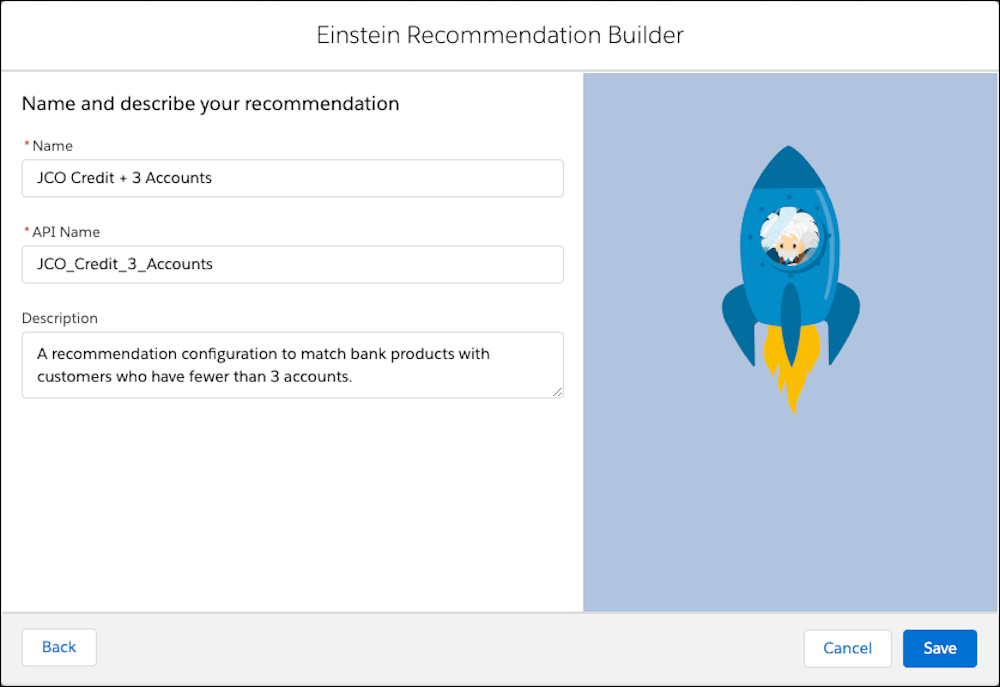
- Tab or click in the next field to auto-populate the API name, and click Save.
-
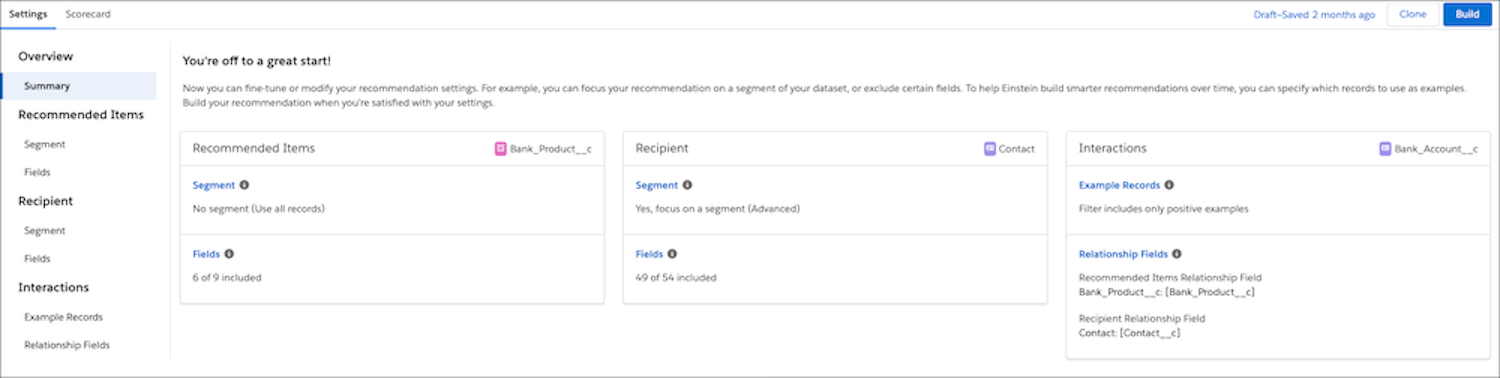
If you want to focus your recommendation on a specific segment in your dataset, click
Segment, select Yes, focus on segment, and
define your conditions.
Data Checker runs once you save your segment data. Otherwise, leave the default option No Segment selected. If you have enough data, click Next.
Note Data Checker validates whether you have sufficient data each time you modify your recommendation settings. If you don’t have enough unique records in your positive and negative interactions, it provides a status on your recommendation data. To learn how Einstein checks data on your Salesforce objects, see Validate your data.We also suggest you review Data Checker results to catch setup errors before you build your recommendation.
-
Click Build.
Recommendations build as fast as 30 mins, and sometimes take up to 24 hours. After the build is complete, view the Scorecard tab to review the recommendation’s quality and other metrics.
After the build is completed, view the Scorecard tab to review the recommendation’s quality and other metrics.
