
You are here:
Review Your Recommendation’s Scorecard
After building your recommendation, you can review your recommendation's results in the Einstein Recommendation Builder scorecard. Check out big-picture metrics and get details on the Overview Page.
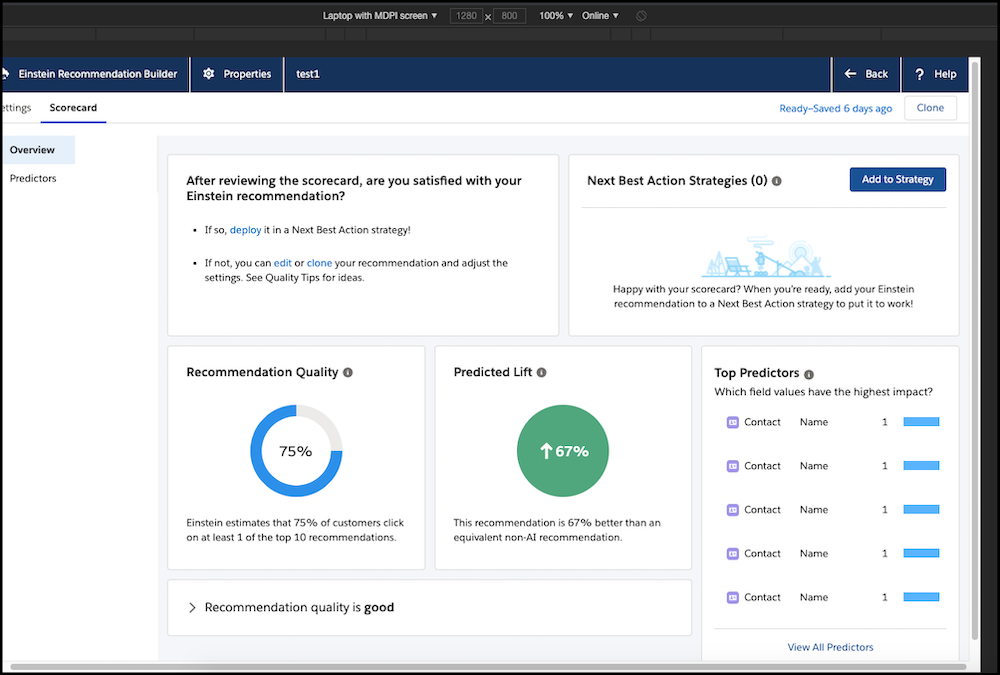
The Overview page shows the overall recommendation quality, predicted lift, and the top predictors in the model.
Einstein recommendations are personalized for each user. Recommendation Quality indicates how good your recommendation is likely to be. It shows the percentage of customers who click at least 1 of the top 10 recommendations. Predicted Lift is the improvement in hit rate when using an Einstein recommendation as compared to just recommending the most popular items to all users.
Depending on these metrics, you can decide whether to use your recommendation based on this information. If not, review the Predictors Page in the scorecard to get a closer look.
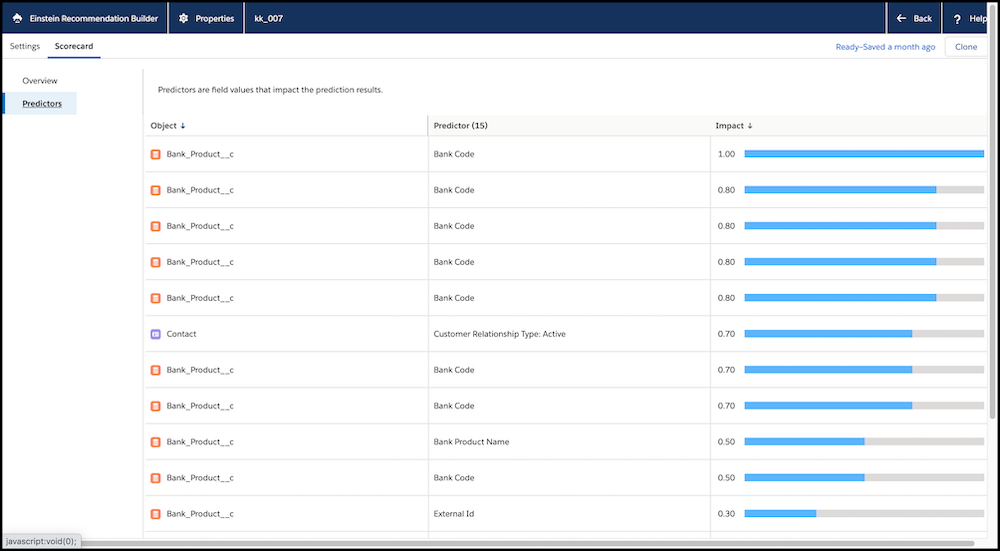
The Predictors page of the scorecard shows the impact of each predictor in your model. Impact indicates how strongly a field influences the model when compared to other fields. Impact is measured on a scale from 0 to 1. The impact value for the strongest predictor is set to 1.
Improve Your Recommendation Quality
Want to improve the quality of your recommendation? Here's how:
- Use Segments
You can improve your recommendation’s performance by segmenting your recipients or recommended items to focus only on relevant records. For example, if your recipient object is Contact and you’re interested only in contacts in the finance industry, segment your recipient object using a filter condition of Industry = Finance.
- Exclude Irrelevant Fields
By default, Einstein considers all fields on the Recipient and Recommended Items objects. You can exclude fields that aren’t relevant to your recommendation. Doing so can improve performance and mitigate some kinds of bias. A common data problem known as hindsight bias occurs when a field whose value could only be known after a predicted outcome occurs is used to predict that outcome. Such fields must be excluded from the recommendation.
- Change the Definition of Positive and Negative
The way you define positive and negative interactions can affect your recommendation’s performance. Defining a positive interaction as the desired outcome, such as a contact purchasing a product, can lead to better results. Negative examples aren’t required, but can help improve the recommendation as they provide useful predictive signals, when available. For example, a prospect explicitly rejecting a promotion is an example of a negative interaction.
- Add More Data
If your dataset has more than the required number of records for each object, use more interactions to improve your recommendation. Also, use additional fields on your Recipient and Recommended Items objects.
