
You are here:
Monitor Einstein Activity Capture Operations
Use the Einstein Activity Capture Status and Metrics page to monitor user connections and status, and review event and email sync reports.
Required Editions
| Available in: Lightning Experience |
| Available with Einstein Activity Capture Standard in Sales in Starter, Pro Suite, Professional, and Enterprise Editions |
| Available with Unlimited Edition, Einstein 1 Sales Edition, and Agentforce 1 Edition |
| Available with Einstein for Sales, which is included in Einstein 1 Sales Edition and available for an extra cost in Enterprise and Unlimited Editions |
| Available with Sales Engagement, which is included with Sales in Performance and Unlimited Editions, and available for an extra cost in Professional and Enterprise Editions |
| Available with Revenue Intelligence, which is available for an extra cost in Enterprise and Unlimited Editions |
| User Permissions Needed | |
|---|---|
| To check a user’s connection status: | Customize Application OR Modify All Data |
| To view the Einstein Activity Capture setup pages: | View Setup and Configurations AND Customize Application OR Modify All Data |
Connection Status
Review the status of your Einstein Activity Capture users, recommended actions, and the last data capture date and time. Scroll to see the last updated date and time.
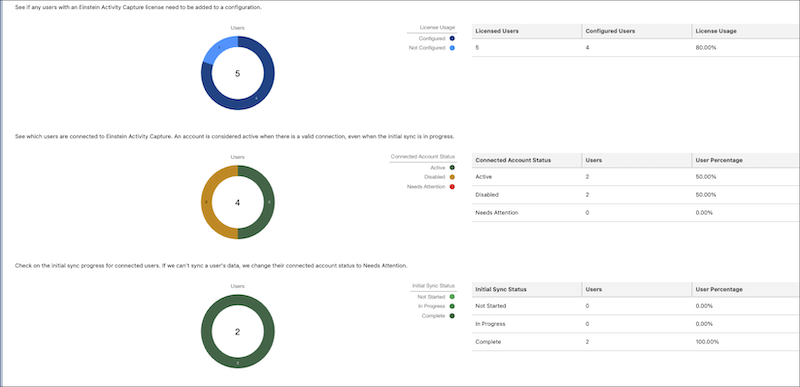
These metrics are for License Usage.
- Licensed Users
- Users assigned to the Standard Einstein Activity Capture permission or Einstein Activity Capture permission.
- Configured Users
- Users who are part of an active Einstein Activity Capture configuration.
- License Usage
- The percentage of licensed users that are configured.
These metrics are for Connected Account Status. A user’s connected account status updates when they log in to Salesforce.
- Active
- Users who have connected their email and are ready to capture data, or are capturing data already. This total is the sum of users with an initial sync status of Not Started, In Progress, and Complete.
- Disabled
- Users who disconnected their email or had their account disabled by an admin.
- Needs Attention
- Users whose accounts must be reconnected. For example, a user’s password has expired.

These metrics are for Initial Sync Status. Users in this area have connected their email already.
- Not Started
- Users who have never synced data.
- In Progress
- Users who have an initial sync in progress for events and contacts.
- Complete
- Users who have successfully synced data at least one time.
User Status
The default view shows all Einstein Activity Capture users who are in an active configuration. To refine your results, search for a user or filter by status. The Synced Today metrics are updated after 12:00 AM local time.
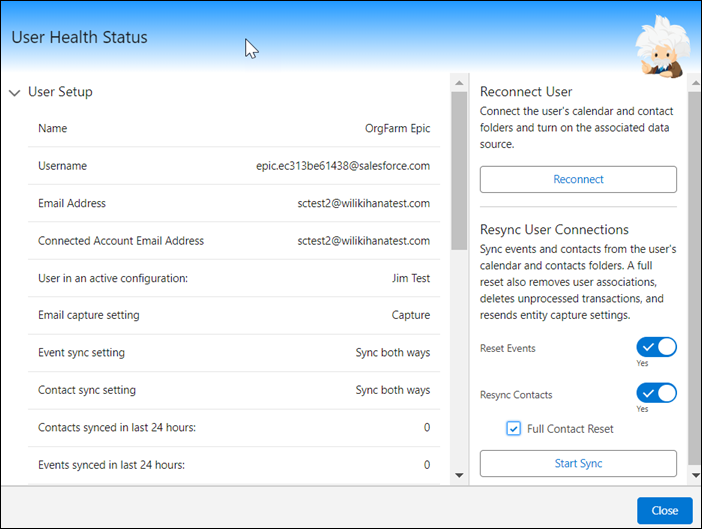
- If a user’s Connected Account Status is Needs Attention, you see details about the issue and ways to fix it.
- To reconnect the user or resync data, select Check User Health Status from the dropdown list. User Health Status also contains configuration details to help you troubleshoot.
- Resync of events and email is available only for org-level authentication connections.
- If you use an org-level OAuth 2.0 or a service account authentication method, you also see whether users accepted the terms of service that are required to capture emails. If the Terms of Service Status is Pending, select Check User Sync Status from the dropdown list to send the user a reminder. You can also check the user’s sync status, which is updated each time the user logs in to Salesforce.
- If you use user-level OAuth 2.0 and have upgraded the authentication method of Microsoft 365 from Exchange Web Services (EWS) to Microsoft Graph, you can use the Authentication Method filter to view users who are yet to reconnect their Microsoft accounts.
Reports
The Reports tab helps you monitor event and email sync times and statuses for the last 7 days. View event and email failure sync reports to understand the reason for the failure and determine next steps to resolve them. Admins can use these reports to self-diagnose and identify potential issues in setup or configuration.
Starting Spring ’26, the daily event sync time reports exclude no-operations events. No-operations events are non-meaningful changes that don't result in an actual update to the event in Salesforce. By excluding no-operations events, event sync times reflect only meaningful events. Salesforce admins can accurately assess whether the system processes significant events within published performance times.
- Inbound sync (from your email service provider to Salesforce): excludes events such as onboarding events, backfill events, and events not processed due to validation rules, workflow rules, or Apex triggers.
- Outbound sync (from Salesforce to your email service provider) excludes events such as private and recurring events.
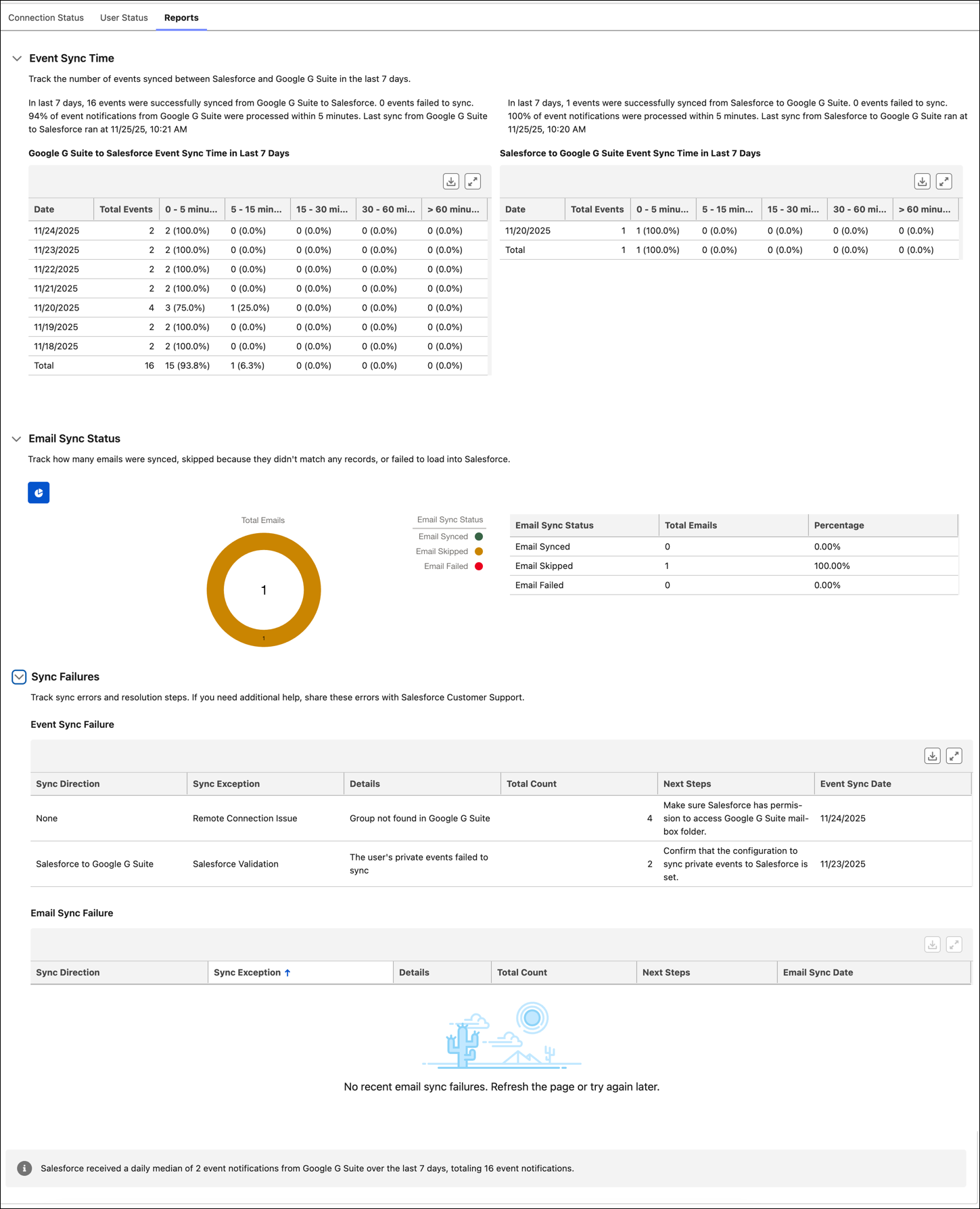
The failure count shows events that passed the org’s user settings validations, such as private event sync and permissions, but failed to sync. If private event sync isn't set up in the user configuration, private events created show up in the failure report, but aren't included in the failure count, as it adheres to the user configuration.
