You are here:
Start the Update and Migrate to Sync Email as Salesforce Activity
Before you begin, complete the recommended setting changes to make sure that all existing email migrates the way you want. Follow the prompts in Setup to start the process, which runs and completes automatically. You can’t stop the process or roll back to the previous version of Einstein Activity Capture. If you already have Sync Email as Salesforce Activity turned on, it’s not necessary to update or migrate.
Required Editions
| Available in: Lightning Experience |
| Available with Einstein Activity Capture Standard in Sales in Starter, Pro Suite, Professional, and Enterprise Editions |
| Available with Unlimited Edition, Einstein 1 Sales Edition, and Agentforce 1 Edition |
| Available with Einstein for Sales, which is included in Einstein 1 Sales Edition and available for an extra cost in Enterprise and Unlimited Editions |
| Available with Sales Engagement, which is included with Sales in Performance and Unlimited Editions, and available for an extra cost in Professional and Enterprise Editions |
| Available with Revenue Intelligence, which is available for an extra cost in Enterprise and Unlimited Editions |
| User Permissions Needed | |
|---|---|
| To view the Einstein Activity Capture setup pages: | View Setup and Configurations AND Manage Lightning Sync AND Customize Application OR Modify All Data |
| To create or edit an Einstein Activity Capture configuration: | View Setup and Configurations, Customize Application AND Modify All Data |

Agentforce Lead Nurturing and Einstein generative AI require access to email body content. Private or unshared emails migrate as header only email and aren't available to Agentforce. Unmigrated email bodies can't be retrieved later. You can't override a user's activity sharing settings. To make sure generative AI features work with captured email, complete these steps before migration.
- Turn on Share with Everyone as the Default Activity Setting.
- Tell users to turn on Share with Everyone in their personal settings.
In the updated version of Einstein Activity Capture, users can’t capture emails and events unless they’re included in a configuration. To give all users access to Einstein Activity Capture after the update, add users to a configuration, if necessary. In the configuration settings, decide how much event data to include for these users (up to the past 180 days). After you add users to a configuration, they must reconnect their accounts to continue using Einstein Activity Capture.
Starting in April 2026, if you have users outside of a configuration, we automatically create a configuration and add those users to it. The timeline for this automatic change is unique to each org. Check your Einstein Activity Capture settings to see if this applies to your org and for a specific date for the change.
- From Setup, in the Quick Find box, enter and then select Einstein Activity Capture.
-
From Settings, click Update & Migrate.
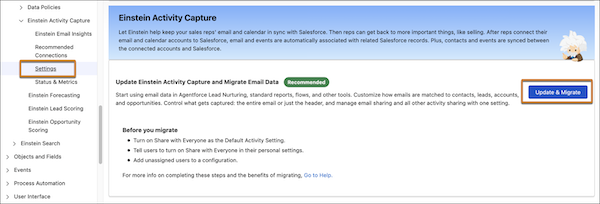
- Read the benefits of the update and email data migration to activity data.
- If you haven't before, consent to turn on enhanced email. Consent to turn off the features that aren't available with Sync Email as Salesforce Activity.
- Set the number of months' worth of previously captured email data to migrate. Your data retention period determines the maximum value. For a faster migration, choose 24 months or less.
-
Select the capture type for new email: the entire email (header, subject, and body) or just
the email header (sender, recipients, date, and time). You can't select header only capture if
Agentforce Lead Nurturing is enabled. These features aren't compatible.
 Note If Salesforce automigrates your org, it uses full email capture.
 - Click Start.
- Monitor the process. To find out when the process finishes, look for an email and an in-app notification.
Depending on the quantity of email data you want to migrate, the process can take up to several days.
When you start the update and migration process, new email is captured and synced as activity data and populates the activity timeline. You don't miss or lose any email data while the process runs. Users can continue to use their email without disruption, but replies to historical emails don't appear in the threaded view until the process completes.
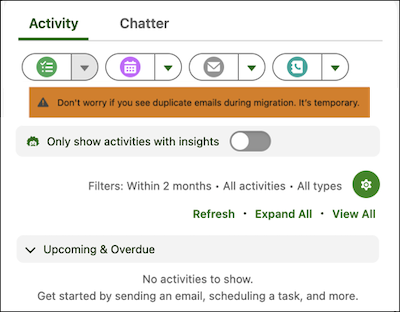
During the process, you can't change email capture preferences from Setup. Users can't change their email preferences from personal settings. Only users who own an email record can reply to the message from a Salesforce email composer during migration. Duplicate emails can appear on the activity timeline but automatically resolve into a single thread when migration is complete.
We recommended waiting until the migration finishes before creating users. If you can’t wait until the migration completes, wait at least two hours after the process starts. Waiting ensures that new user email syncs correctly. All users, including new users, see the duplicate email warning during migration.