
You are here:
Call Summaries and Generative Conversation Insights Powered by Einstein Generative AI
Einstein Conversation Insights (ECI) users can access generative call summaries and generative insights on voice and video calls. Powered by Einstein, the Summary tab on call records allows users to get automatic summaries that include next steps and customer feedback, and share summaries for easier team collaborations in the flow of work. All calls processed by Einstein Conversation Insights can also include generative conversation insights, leveraging an LLM to detect insights based on custom instructions and topics using natural language. Once the feature is on, a call summary and any generative insights configured will automatically be processed for all ECI calls.
| Available in: Lightning Experience |
|---|
| Available in Enterprise, Performance, Unlimited, and Agentforce 1 Sales Editions with Einstein Conversation Insights. |
Einstein Conversation Insights processes calls for anyone with an ECI license. All calls can have generative features applied when this feature is on.
Call Summaries
Use the Summary tab to access your automatically generated call summaries.
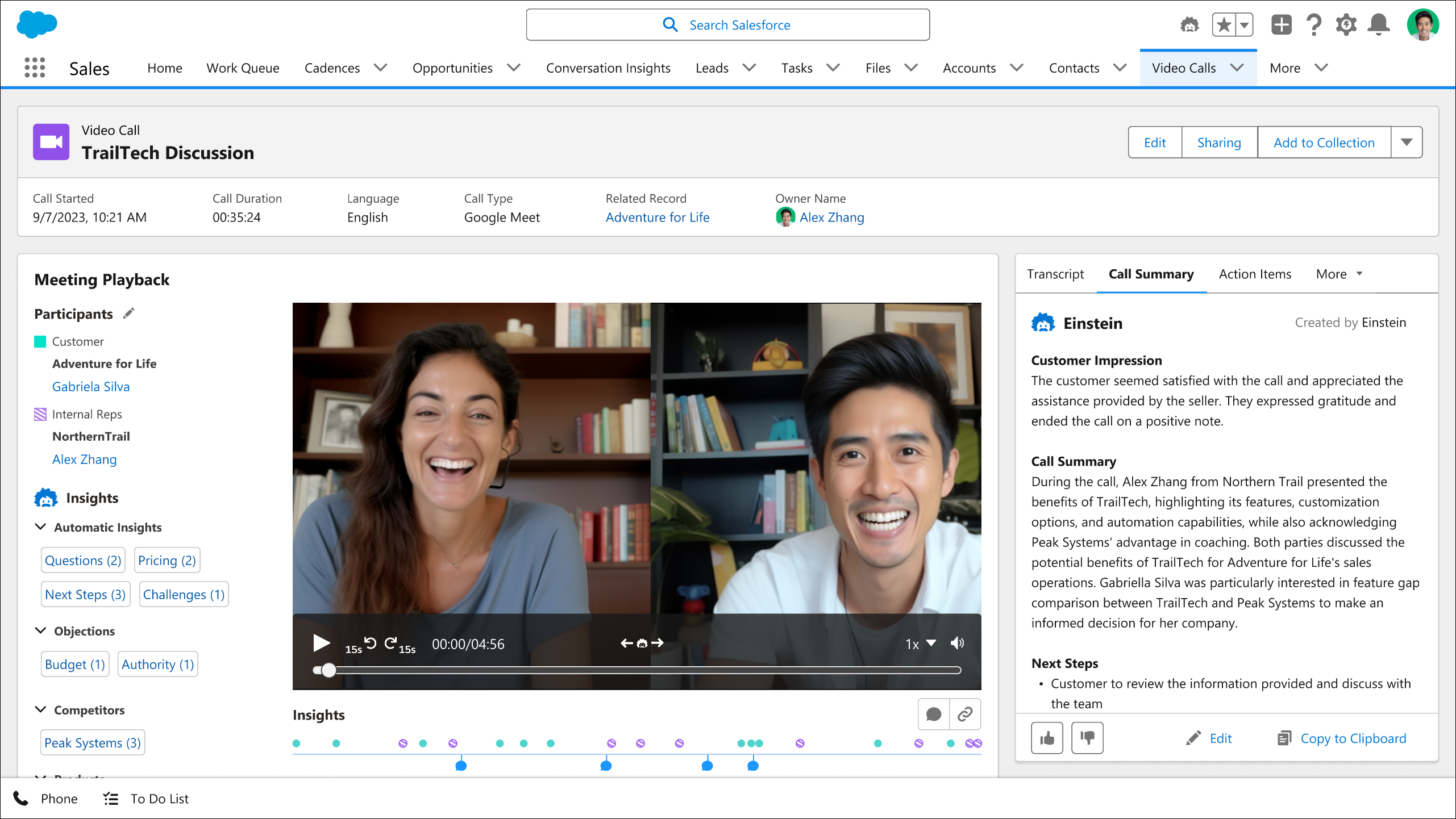
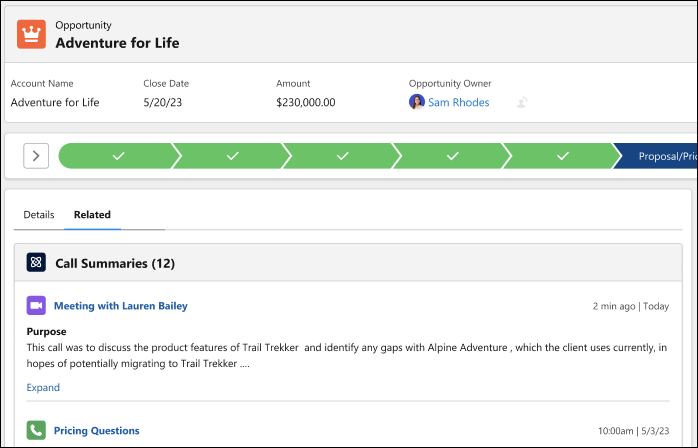
A standard call summary includes the summary itself, the customer impression, and any next steps. Click Edit to update a summary for a voice or video call.
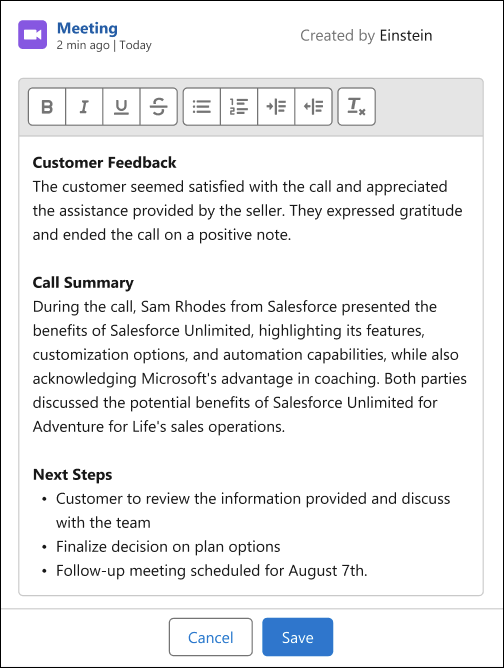
Users can see the calls and summaries related to a record with the Call Summaries Related List Lightning component. This component shows summaries for voice and video calls related to that specific record, using the same matching logic as the activity timeline.
Call summaries are sometimes not generated for lengthy calls.
Generative Conversation Insights
To bring up Generative Conversation Insights, select the tab. See the insights available on each call.
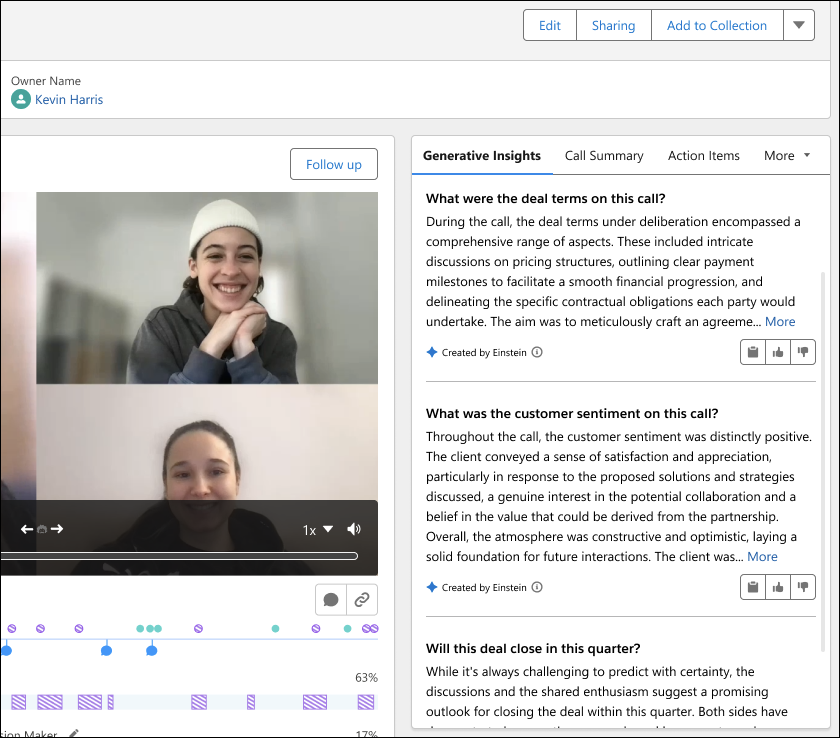
Turn on the feature from Setup. Select Salesforce Go from the Setup dropdown and navigate to the Einstein Conversation Insights feature. In the Unlock Advanced Functionality with Generative AI section, turn on Generative ECI. Generative AI must be turned on in order to use Generative ECI.
To create a generative insight, from Setup, in the Quick Find box, enter Call Insights, and then select Call Insights.
Select Configure Insight, and then click Generative Insight and follow the steps listed.
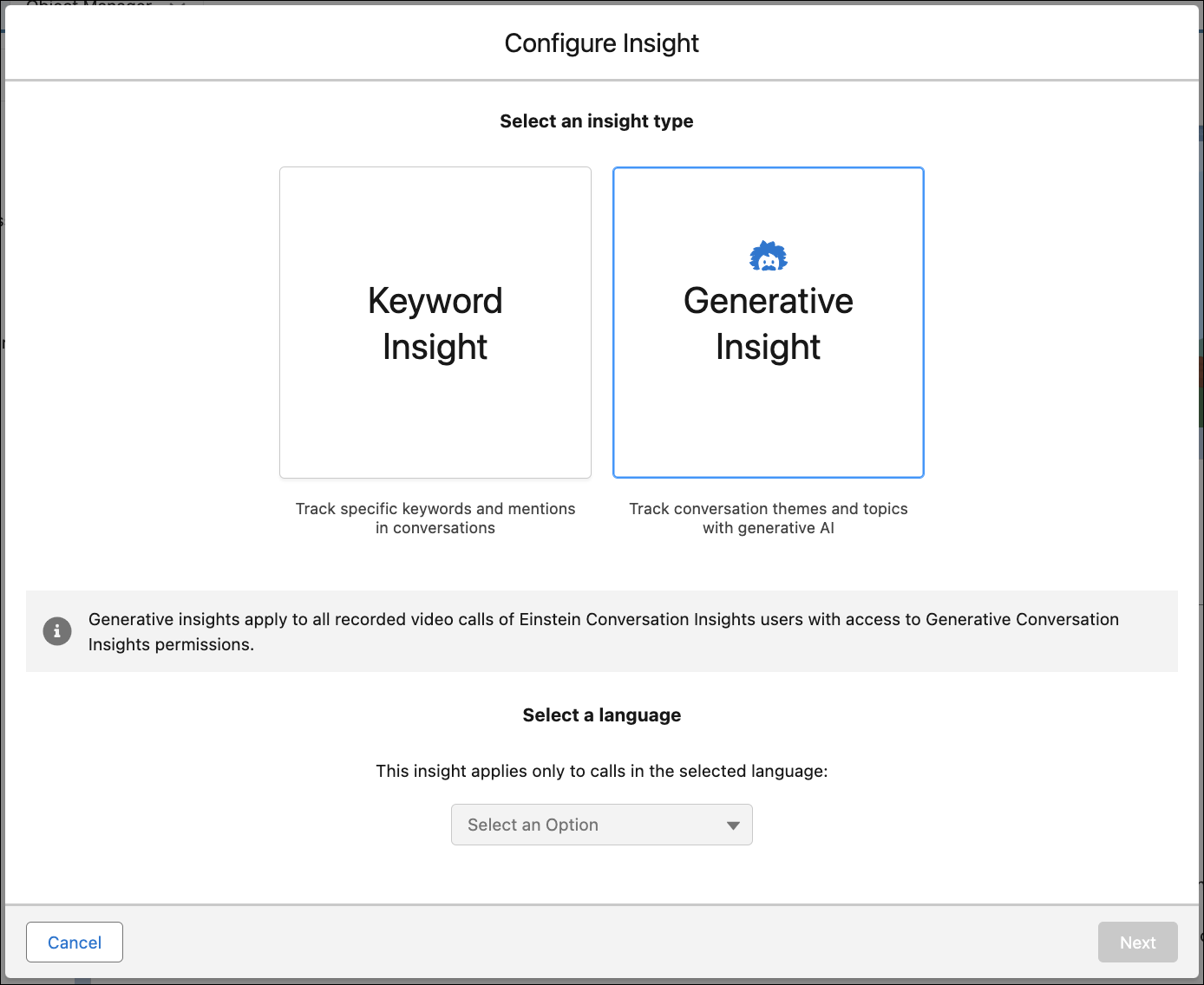
We recommend testing each insight in Call Explorer before activation. You’re limited to 5 active generative insights.
- Considerations for Call Summaries and Generative Conversation Insights
To use call summaries and generative conversation insights, consider supported functionality, usage, limitations and allowances, limits, and other issues. - Configure Generative Conversation Insights
Create generative insights from the Call Insights page in Setup. For best results, follow the steps listed in the setup wizard and test each insight in Call Explorer before activation.
