
You are here:
Enable Variable Phone Number Support for ECI Voice Connectors
To use variable phone number support for ECI Voice Connectors, make sure that the relevant user identifier fields are visible on the User object and these fields are added to the user layout.
Required Editions
| Available in: Lightning Experience |
| Available in Einstein Conversation Insights, which is available in Starter, Pro, Enterprise, Performance, Unlimited, and Agentforce 1 Sales Editions |
| User Permissions Needed | |
|---|---|
| To enable Einstein Conversation Insights: | Customize Application |
Add User Object Fields
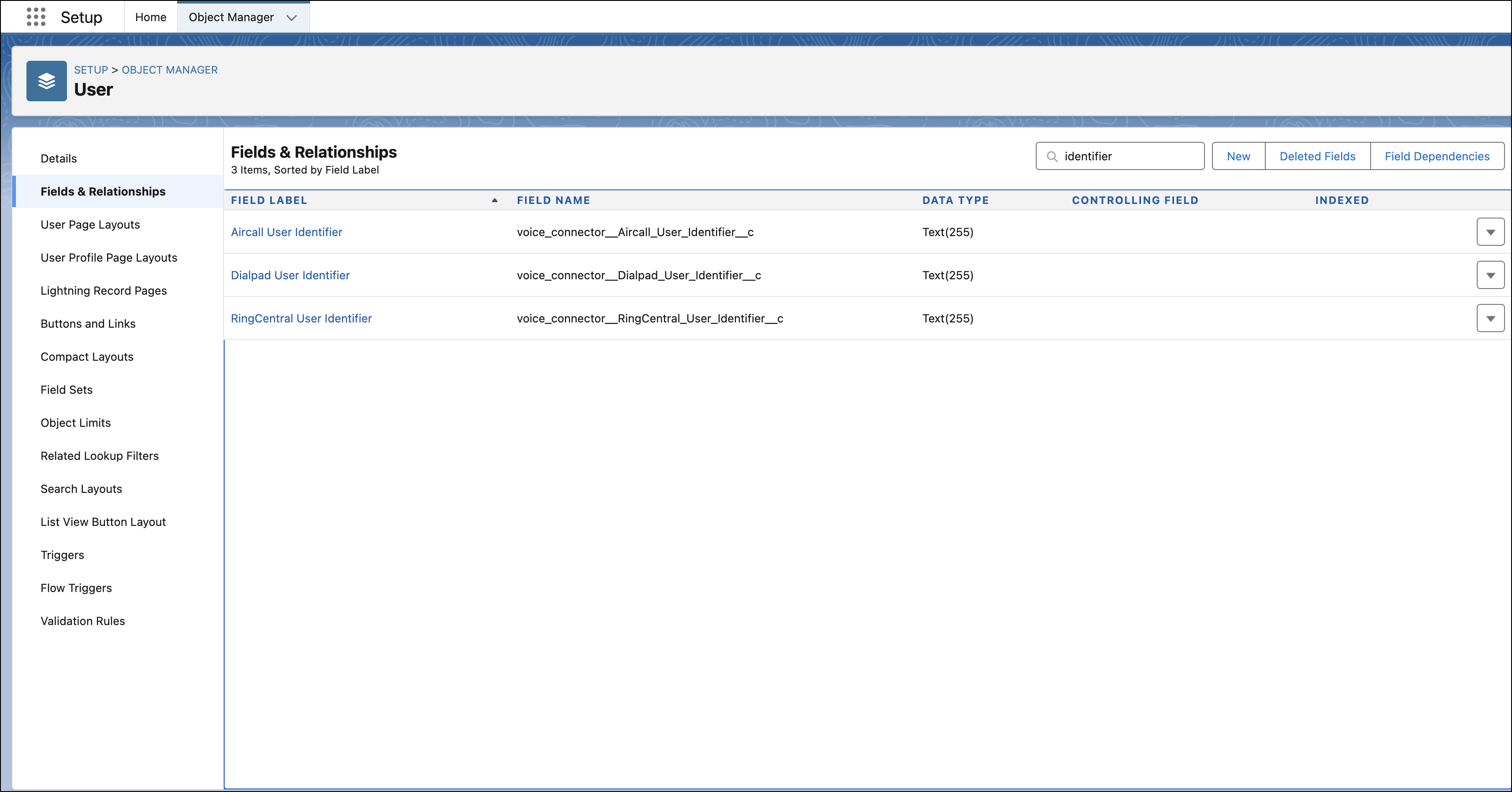
After installing the Voice Connector package, the User object has three new fields that are directly related to the information for CTIs: Aircall User Identifier, Dialpad User Identifier, and RingCentral User Identifier.
-
From Setup, enter Object Manager in the Quick Find box, and
then select Object Manager.
- From the Object Manager, enter User in the Quick Find box, and then select User.
- Select Fields & Relationships and enter Identifier in the Quick Find box.
- Select the required identifier and click Set Field-Level Security.
- Make sure that the visibility checkbox is selected for the required user profiles, and then click Save.
Additional steps are required to access the unique user identifier for these fields to match the user to their respective CTI account. The user identifier can be the user ID or user email address.
Access User Identifier for Aircall
For Aircall, both the user ID and user email are found on the user profile page. The user ID is visible in the Aircall dashboard URL. For example, if the URL is https://dashboard.aircall.io/users/931756/general, the user ID is 931756. To get the user email address, follow these steps.
- From the Aircall dashboard, click Users, and select the user profile.
- Scroll down to Account credentials and find the email address of the user.
Access User Identifier for Dialpad
For Dialpad, the user email address is available on the Dialpad user profile page. To get the user ID, you must have access to the API.
-
Do a GET fetch from the endpoint https://dialpad.com/api/v2/users.
It returns the list of your account's users.
- Find the user ID for the specific user you want. The key ID information is in bold. For example, "id": "5296465605984256".
Access User Identifier for RingCentral
For RingCentral, you can only use the user’s extension ID to match the user with the CTI account. To get this ID, complete these steps.
-
Go to the RingCentral API URL: https://developers.ringcentral.com/api-reference.
The landing page provides information about how to use the API.
-
From the left-menu bar, click Address Book | Internal Contacts | Get Company Directory Entries.
From this API endpoint, you can get all the call coaching user information.
- Click Sign in to try it out.
-
From the API Reference preferences window, select the environment that aligns with
your setup (Sandbox or Production) to
ensure correct functionality, and then click Authorize.
A success message confirms that you’re authorized to make API calls.
-
Click Try it out.
On the right-hand side of the screen, the metadata information is shown. It shows 200 OK, which means that your request was successful.
- Expand records to see the users that are set up with RingCentral and find the user that you want to match with the corresponding Salesforce user profile field.
- Get the "id" value for that user. For example, "id": "814243005".
