
You are here:
Get Started with Activity 360 Reports
Use the provided Activity 360 reports, or clone the reports to meet your business needs. Review the suggestions and tips for custom report types to help you create your own reports and dashboards.
Required Editions
| Available in: Lightning Experience |
| Available with Einstein Activity Capture in Einstein 1 Sales Edition |
| Available with Sales Cloud Einstein, which is available in Performance and Unlimited Editions and for an extra cost in Enterprise Edition |
| Available with Sales Engagement , which is included with Sales in Performance and Unlimited Editions and available for an extra cost in Professional and Enterprise Editions. Sales Engagement is also available for an extra cost in Service Cloud and Lightning Platform. |
| Available with Revenue Intelligence, which is available for an extra cost in Enterprise and Unlimited Editions |


Activity 360 reports support up to 50,000 records. You can show up to 6 months of data in activity reports. If you receive an error, add filters to limit the report size.
An email can be associated with up to 100 related Salesforce records. If records exceed the limit, then Salesforce associates the email to 100 of the records and ignores the rest.
Activity 360 Reports Folder
In the Reports tab, find the Activity 360 Reports folder. This folder contains prebuilt reports that show you all activities, including emails captured by Einstein Activity Capture, across Salesforce records such as accounts, opportunities, and contacts.
Activity 360 Dashboard
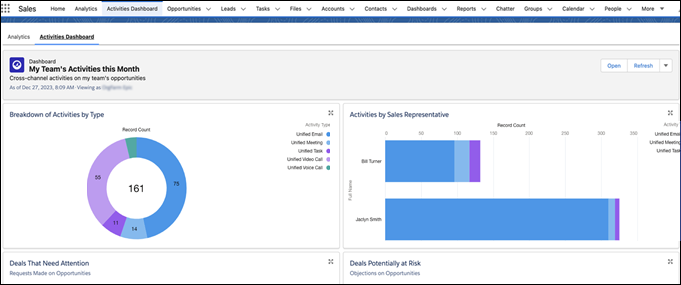
To get a bird’s-eye view of activities for the month, use the My Team’s Activities This Month dashboard. In the Dashboards tab, select the Activity 360 folder. The dashboard uses some of the prebuilt reports so that you can quickly monitor.
If you have Activities Dashboard enabled, you can see the My Team’s Activities This Month dashboard in the Activities Dashboard tab.
Custom Report Types and Reports for Activities and Insights
Build custom report types using the unified activity and insights objects.
Follow these guidelines when you build a custom report type.
- For the primary object, select a CRM object such as user, opportunity, contact, lead, or account with related activities.
-
For the secondary object, select Unified Activities to report on all activities. To report on a specific type of activity, select one of the subtypes of Unified Activities. For example, to report on emails only, select Unified Email.
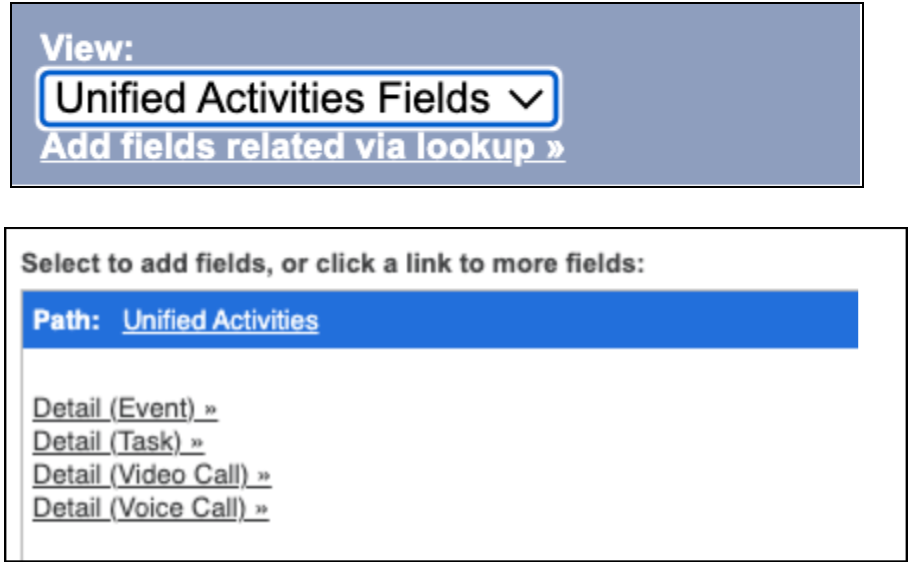
If you have custom fields for events or tasks, you can add them to your report via lookup. Edit the layout of available fields in the report type and select Add fields related via lookup.
- For the third-level object, select one of these objects.
- Insights: Report on key insights from emails and calls.
- Participants: Report on the contacts and users that participated in an activity and their role in the activity. For example, by selecting Participants you can see whether a user sent or received an email in the report.
- Relations: Report on other Salesforce records that are related to the activity. For example, you can show opportunities, contacts, and accounts associated with the activity. An email can be associated with up to 100 related Salesforce records. If records exceed the limit, Salesforce associates the email to 100 of the records and ignores the rest.
