Use Pre-Made Email Instructions to Draft a Sales Email
Ask Einstein generative AI to draft some of your most common types of emails, such as
introductions and follow-up nudges. Like email templates, Einstein pulls in a contact’s name and
information to customize your email. But unlike a static template, Einstein creates personalized
output every time.
Required Editions
Available in: Lightning Experience
Available with the Einstein for Sales add-on, which is available for an extra
cost in Performance and Unlimited Editions.
User Permissions Needed
To send sales emails using Einstein generative AI:
Einstein Sales Emails permission set
You can choose from pre-made email types and custom email types created by an admin.
Use Einstein to create emails in Salesforce and in Salesforce email integrations for
Outlook and Gmail.
In Salesforce, open the email composer anywhere in Lightning Experience.
In Gmail or Outlook integrations, locate the Einstein Sales Emails component in the
email application pane.
Enter a recipient with a contact or lead record in Salesforce.
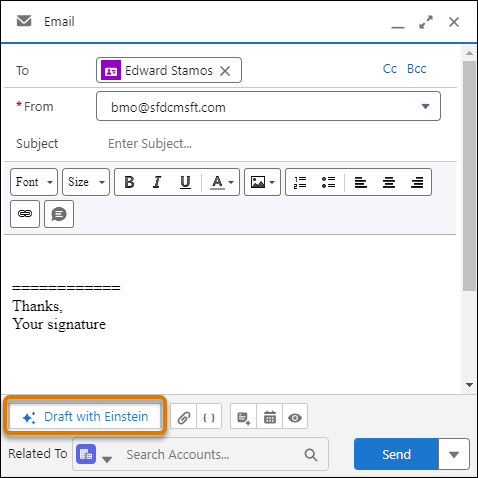
Click Draft with Einstein.
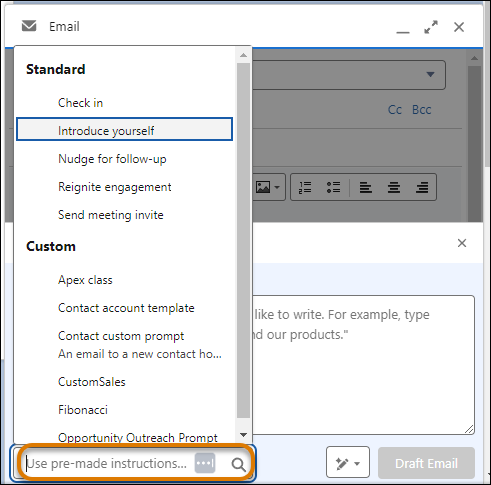
Select a pre-made email instruction.
Depending on the email type, you can be asked to include related object information, such as
product information. Select or search for a product and click
Continue.
After Einstein drafts the email, review the output and edit it as you like before sending.
Each time you choose pre-made email instructions, you get a personalized response.
Be sure to fill in any missing details where Einstein leaves a spot for you to customize
the email. For example, when the email suggests a meeting with the customer, you see
[Customize: DATE AND TIME] where you can add a possible meeting time.
Send the email.
Important This tool uses generative AI, which is known to
include inaccurate or harmful responses. Before sharing externally, review the output for
accuracy and safety. You assume responsibility for the output when sharing.
We use three kinds of cookies on our websites: required, functional, and advertising. You can choose whether functional and advertising cookies apply. Click on the different cookie categories to find out more about each category and to change the default settings.
Privacy Statement
Required Cookies
Always Active
Required cookies are necessary for basic website functionality. Some examples include: session cookies needed to transmit the website, authentication cookies, and security cookies.
Functional Cookies
Functional cookies enhance functions, performance, and services on the website. Some examples include: cookies used to analyze site traffic, cookies used for market research, and cookies used to display advertising that is not directed to a particular individual.
Advertising Cookies
Advertising cookies track activity across websites in order to understand a viewer’s interests, and direct them specific marketing. Some examples include: cookies used for remarketing, or interest-based advertising.