
You are here:
Considerations for Scheduling Events with Insert Availability in the Outlook and Gmail Integrations with Inbox
To avoid back-and-forth emails when scheduling events, insert open time slots from your calendar directly in an email. Recipients can select which time works best, and the event is automatically scheduled. Review the considerations about inserting availability.
Required Editions
| Available in: Lightning Experience |
| Certain features are available with Sales and included in Starter, Professional, Enterprise, Performance, and Unlimited Editions |
| All features are available with Inbox, Sales Engagement, or Sales Cloud Einstein. |
To access the availability features when composing an email in the Outlook or Gmail integrations with Inbox, select an option in the Availability section of the email application pane.
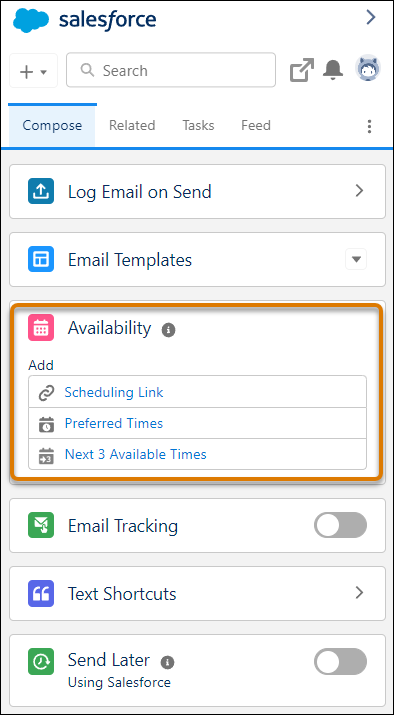

- Let recipients select any available time on your calendar by inserting a scheduling link.
- Each link is unique, created when you insert it.
- You can’t copy a link and use it elsewhere.
- Scheduling links aren’t supported in automatic email signatures.
- Links are valid for 90 days.
- When selecting available times, the event owner’s calendar is the primary calendar from their connected email account. Events from the connected account’s primary calendar, not from the Salesforce calendar or other additional calendars, are reflected on the calendar grid when selecting available times.
- The suggested times that the recipient sees update as the event owner’s availability changes. The available times are based only on the event owner's availability. The options available in the email don't live update as other attendees calendars become booked.
- A user’s availability is set to 9 AM–5 PM. To change their availability, go to personal settings, find Meeting Settings, and make any changes.
- The default time zone is based on the Salesforce user's time zone, not their computer's time zone.
- If there are multiple attendees, the event time is set when the first recipient selects a free time slot. The invite is then populated on all attendees’ calendars.
- If a coworker has shared their calendar with you, you can view their calendar to schedule around their availability. Your coworker doesn’t need an Inbox license to share their calendar.
- If a coworker has given you write permissions to their calendar, you can use Insert Availability to schedule meetings on their behalf. Select a different meeting owner in the Insert Availability window. In Outlook, to be available as a meeting owner, the owner of the shared calendar must also be an attendee on the invitation.
- Make sure that recipients are using up-to-date email clients and browsers. If the recipient's email client or browser doesn’t support TLS 1.2, they receive an error message when they select an available time in the email.
- The attendee calendar doesn’t recognize Google Calendar Out of Office events.
- If Zoom video integration is enabled, connect your Zoom account and select to have a Zoom meeting link automatically added to the generated event invitation.
If you’re using the Availability feature from the Gmail integration with Inbox, a Google Meet link is created by default when the event invitation is generated. If Zoom is your chosen virtual conferencing solution, be sure to select to include a Zoom link instead. If you use a different virtual conferencing solution, manually generate the meeting link using that solution’s tools and add it after the event invitation is generated.
