
You are here:
Considerations for Customizing the Email Application Pane for Outlook and Gmail
You can customize the email application pane to better reflect your reps’ workflow and your company’s processes. Keep these considerations in mind when customizing the various components.
Required Editions
| Available in: Salesforce Classic and Lightning Experience |
| Available with Sales Cloud, Service Cloud, and Lightning Platform in: Essentials, Group, Professional, Enterprise, Performance, Unlimited, and Developer Editions |

Tip We recommend modifying one of the default panes to meet your needs. Start
with a base pane, or if you’re using Inbox in the integration, start with a pane with
Inbox features.
You can customize any of these parts of the pane.
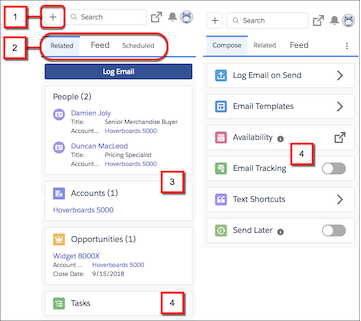
- Create records (1)
- Let sales reps create accounts, cases, leads, opportunities, and custom objects directly from their email. A quick action menu assigned to a publisher layout determines which record types reps can create. The menu also includes other actions, such as logging a call. Your Salesforce edition determines how you set up an action menu and whether you can customize the menu’s options.
- Organize tabs (2)
- Control which components are available in each tab, the tab order, tab names, and whether they’re available when reps are reading or composing emails. You can also set a default tab to display when reps are reading or composing an email. These tab customizations apply only to the tabs shown in the main email integration pane. You can’t change the tab order or tab names in the record detail shown when a user clicks a related record to access its details.
- Choose available objects (3)
- Select the objects available for email and event logging and returned through search. You can include standard objects, such as accounts, opportunities, and people, and custom objects that you created. We recommend grouping the objects on a single tab. Place the object type that your reps log emails and events to most often at the top so it’s easy to access. The objects display the first three fields included in their assigned compact layout.
-
 Note If you use Einstein Activity Capture, you can also add quote and contract objects to your email application pane. To include these objects, make sure that you enable quotes and set up contracts.
 - Add features (4)
- Include the features available to email integration users, such as the Log Email button, tasks, and email templates. If you use Inbox, you can include Inbox features such as calendar availability and text shortcuts. Only the features contained in a tab are available to email integration users. You can also use filters to determine which components are available during read mode and compose mode. For the best experience, group components based on whether they apply to reading or composing emails.
Did this article solve your issue?
Let us know so we can improve!
