
You are here:
Outlook and Gmail Integration Tour
The integration appears as a side panel next to an open email or event in your email.
Required Editions
| Available in: Salesforce Classic and Lightning Experience |
| Available with Sales Cloud, Service Cloud, and Lightning Platform in: Essentials, Group, Professional, Enterprise, Performance, Unlimited, and Developer Editions |
 Connecting to Salesforce in Outlook (English Only)
Connecting to Salesforce in Gmail (English Only)
To access the integration side panel, click  . In desktop versions
of Outlook, the icon is available in the Ribbon. In Outlook on the web, find the icon in the
toolbar on open emails and events. In Gmail, the icon is next to your email inbox or calendar
along with other extensions.
. In desktop versions
of Outlook, the icon is available in the Ribbon. In Outlook on the web, find the icon in the
toolbar on open emails and events. In Gmail, the icon is next to your email inbox or calendar
along with other extensions.
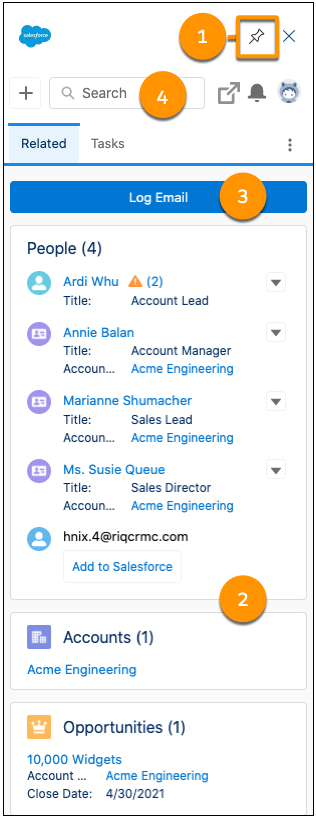
In Outlook, to keep the panel open as you move through your email, click the pin icon (1). The pin option is available in Outlook 2016 on Windows that is installed using Click-to-Run with build 7900 or later, later versions of Outlook, and in Outlook on the web. In Gmail, the pane stays open until you close it.
The side panel updates to show Salesforce records, such as accounts, opportunities, contacts, and leads that match an address in the open email or event (2). Your Salesforce admin determines the components available in the integration, but it typically includes a place to view the people associated with an email, related accounts, and opportunities. To view more details, such as Chatter feeds, the activity timeline, and related lists, select a matching record. You can also edit record details directly in the pane. The content and fields available to you in the record details are based on access permissions in Salesforce. To keep Salesforce up to date, log the email or event to a matching record (3). Select the records to log the email or event to before saving.
When you’re composing an email, the content and components in the integration pane change to include components such as email templates.
Use the navigation bar in the integration pane to create Salesforce records, search for records, launch Salesforce for more information, and to view notifications (4).
