
You are here:
Guidelines for Logging Events from Outlook and Gmail to Salesforce
Log your calendar events from Outlook or Google Calendar to Salesforce contacts, leads, and other records.
Required Editions
| Available in: Salesforce Classic and Lightning Experience |
| Available with Sales Cloud, Service Cloud, and Lightning Platform in: Essentials, Group, Professional, Enterprise, Performance, Unlimited, and Developer Editions |
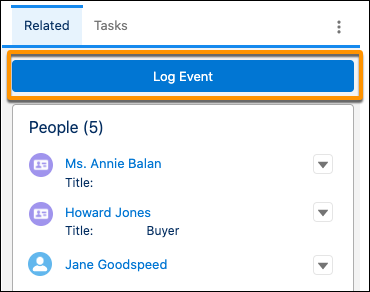
The integration shows up to 15 matching records in the side panel. Depending on your system configuration, you can log an event to up to 50 contacts or 1 lead, even if the list only shows 15 matches. If you’re able to log an event to only one contact, ask your Salesforce admin about enabling Shared Activities. You can also log the event to one other record, such as an account or opportunity.
Keep these other considerations in mind when logging events.
- For events you’re creating, save the event first, and then log it to Salesforce.
- You can log only nonrecurring, public events.
- The matching contacts are automatically selected when you click Log Event. You can unselect all contacts or individual contacts before logging the event.
- Users with a matching email address on the event are included in the related records list. However, you can’t log events to user records from the integration.
- The event is logged to the selected records, and an event record is created in Salesforce. Attendees who are also Salesforce records (such as Contacts) are included as attendees in the event record. The event attendees’ RSVP statuses and the event attachments aren’t included or logged.
- All attendees see the same invite on their Salesforce calendar.
- If the title changes after the event is logged, the information in the event record in Salesforce doesn’t update automatically. Either edit the event record in Salesforce to reflect the change or log the event again.
- If the list of matching records shows the maximum 15 records, you can still search for other records to log the event to. The list still shows only 15 records. However, any record that was selected before you searched is included when you log the event.
Syncing Events with Einstein Activity Capture
If you’re part of an Einstein Activity Capture configuration that’s set to sync events, you don’t have the option to manually log the event. However, you can update the automatically created relationships between the event and Salesforce records from Outlook and Gmail.
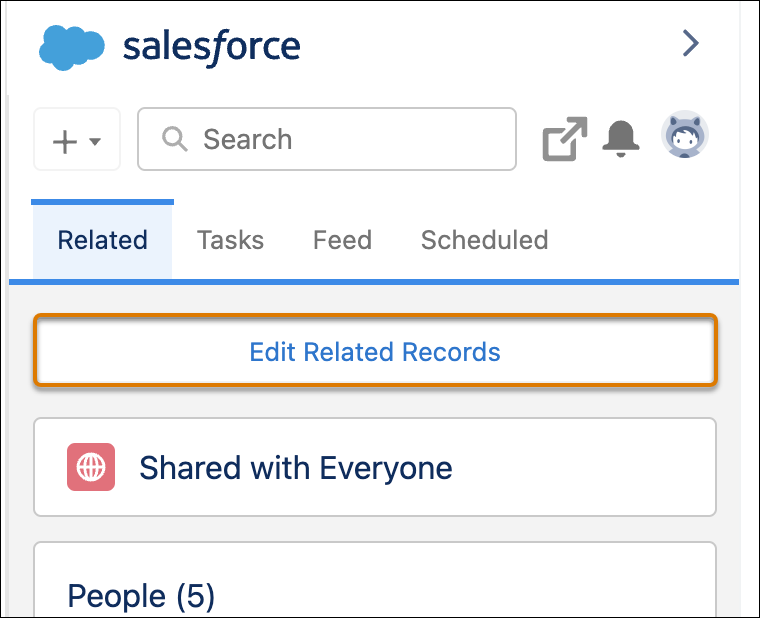
Your Activity Sharing settings determine whether events are shared with other users or kept private. You can update your default sharing setting in your personal settings in Salesforce. Ask your Salesforce admin for more information about your Einstein Activity Capture configuration.
