
You are here:
Send a List Email in Lightning Experience
Create and send a list email, which sends an individual email to each recipient in the list.
Required Editions
| Available in: Lightning Experience |
| Available in: Essentials, Professional, Enterprise, Performance, Unlimited, and Developer Editions |
| User Permissions Needed | |
|---|---|
| To send and view list emails: | Allow sending of List Emails |
Before creating the list email, verify that you have a contact or lead list view, or a campaign, with the recipients you want. To email everyone on a report, run the report and add the resulting records to a campaign. Then send a list email to that campaign.
To use an email template from Salesforce Classic, create the template before creating the list email. You can’t create a list email in the Salesforce app, but you can see the activity in the Activity History related list.
-
Go to a contact or lead list view, or a campaign member view.
Unless you want to email all campaign members, filter the campaign members list or select individual campaign members.
-
Select the checkbox next to the individual records that you want to email, or select
all records on the page.
If you’re on any view except Recently Viewed, and there are no records selected, clicking Send Email selects all the records as list email recipients.
-
Click Send Email, then Sales List
Email.

-
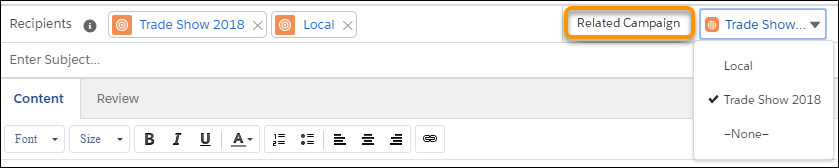
If you want, add the names of list views or campaigns in the Recipients field. You can add
contact and lead list views for the same list email.
If you’re sending a list email to at least one campaign, use the Related To field to select a campaign. The campaign tracks all the engagement metrics from the list email, such as total sent.
- Add content or insert an email template.
- Customize the content or add attachments.
-
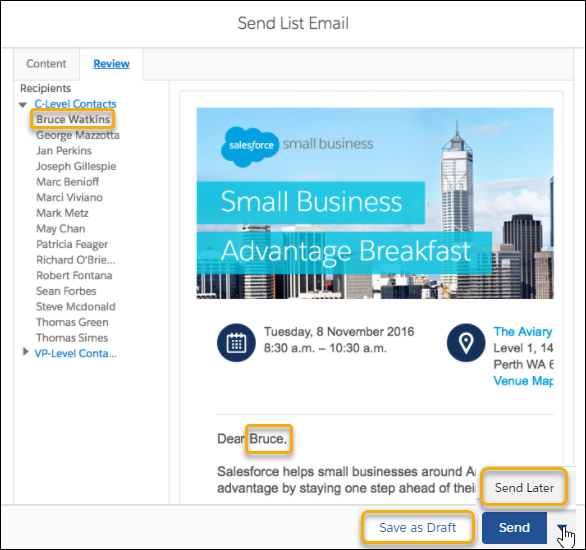
On the Review tab, confirm that the preview looks correct. Click
each recipient’s name to see any personalization.
-
Click Save as Draft, Send, or Send
Later.
To continue editing a list email draft or updating a schedule, go to the List Emails home page.
If you choose Send Later, you get an email when the list email is sent. You can also see that the email was sent by looking in the recipient’s activity timeline, or on the List Emails home page.If Roll up activities to a contact’s primary account is enabled, the list email appears in the activity timeline for the recipient and the recipient’s account. Click the activity to see more details. A sample of the sent list email is stored in its original format along with details like recipients and attachments, and statistics such as total sent.
To see the HTML Email Status report, go to the Reports page, click New Report, and search for HTML. Select HTML Email Status. This report shows the results of all list emails.
See Also
- Considerations for Sending List Email in Lightning Experience
- Schedule Emails with Send Later
- What Are the Differences Between Activity Timeline and Activity History?
- Video: Send Personalized Emails to a Group (English Only)
- Knowledge Article: ContentDocumentLink error when Trying to Send List Email
- Knowledge Article: List Email - Engagement Metrics
- How do I add contacts and leads to campaigns?
