
You are here:
Guidelines for Using Email Template Builder
Review these guidelines for using Email Template Builder.
Required Editions
| Available in: Lightning Experience for email templates created in Email Template Builder and Email Content Builder |
| Available in: Professional, Enterprise, Unlimited, Performance, and Developer Editions. |
| Available in: Account Engagement Lightning App for all Account Engagement editions |
Active Content
You can’t use active content in an HTML or Rich Text component. Active content doesn’t appear correctly, and it can compromise your org’s security.
Active content is a type of interactive, dynamic website content. This content includes items such as:

- Programs such as Java and JavaScript
- Animated images
- ActiveX controls
- Streaming video and audio
- Embedded objects
- HTML comments
Merge Fields
The merge field picker doesn't work when editing a rich text editor component in Source Mode. However, you can manually type merge fields to add them.
There’s no merge field picker for the subject line, but you can manually type merge fields to add them.
The <style> tag isn’t supported in rich text fields that also have merge fields. If you have code that handles sending email and inserting email templates, keep this difference in mind.
Not every merge field can be used with every email recipient. For example, the {{{Recipient.Department}}} merge field can be used with contacts only, while no recipient merge fields can be used when a user is the recipient.
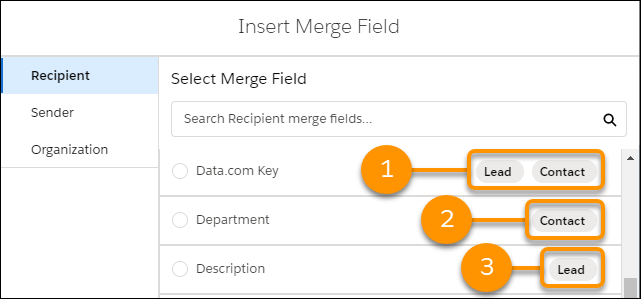
The Insert Merge Field window shows you which fields work with both Lead and Contact (1), with Contact only (2), or with Lead only (3).
Images
To insert a Salesforce File as an image in a component, use the Select From Files button. Images are converted from Content Document links to Content Asset links when you save the template.
The image upload selector doesn't work when editing a rich text editor component in Source Mode.
The .SVG image type isn’t supported.
When using the src attribute to add an image in an HTML
<img> tag, start the URL with https://.
Editing Templates
In the email composer, you can choose to Save as new template. The new template is a Lightning email template, not an Email Template Builder template.
On the Email Templates home page, you can clone an existing Email Template Builder template. If the user has the Access Drag-and-Drop Content Builder user permission, the cloned template is an Email Template Builder template. If the user doesn’t have the Access Drag-and-Drop Content Builder user permission, the cloned template is a Lightning email template.
After a template is edited in Email Template Builder, it can only be edited in Email Template Builder. However, unlocked sections of the template can be edited in the email and list email composers after the template is inserted.
Users with an Account Engagement (Pardot) License
To use CMS when choosing an image in a component:
- A default channel must be selected in setup.
- The user must be a contributor to a CMS workspace that is associated with the Lightning Content Builder channel.
- The image size can be up to 25 MB.
To insert an Account Engagement file into a component, manually input the public image URL.
General
Salesforce discourages customers from entering raw personally identifiable (PII) or privacy violation data in any email template or email content. Avoid using free-form fields for private data, especially on the free form fields like RTE and HTML Editor. Instead, include customer data by using merge fields.
Responsive rendering is triggered when the width is less than 320 px. At less than 320 px, the template renders as if it’s in phone mode and columns in the same row are stacked.
- A docked email composer shows a template in phone mode.
- A popped-out email composer shows a template in desktop mode.
To see keyboard shortcuts and accessibility options in the rich text editor, press Alt + 0 (Windows) or Option + 0 (Mac).
Having two instances of Email Template Builder open in two tabs can result in unsaved or overwritten changes. If more than one user edits the same Email Template Builder template at the same time, changes can be overwritten *
When using an iPad, use the + icon to add components instead of dragging them from the components panel.
Forwarding an email that uses an Email Template Builder template breaks responsiveness in some email clients, such as Gmail.
To assign no color in the property panel, remove the hexadecimal value.
