
Considerations and Limitations for Enrolling Users in Enablement Programs
When you assign users to an Enablement program, certain factors can determine how assignments behave, such as permissions, assignment and selection limits, filters, and the user’s time zone. These factors can also affect users who self-enroll in programs.
Required Editions
| Available in: Lightning Experience |
| Enablement is available in Developer Edition with a limited number of add-ons. It is also available with Sales, Service, or the Salesforce Platform in: Enterprise, Performance, Unlimited, and Einstein 1 Sales Edition Editions for an additional cost |
| Enablement Lite is available with Sales in: Enterprise, Performance, and Unlimited Editions |
| Partner Enablement is available in Developer Edition with a limited number of add-ons. It is also available with Sales, Service, or the Salesforce Platform in: Enterprise, Performance, and Unlimited Editions for an additional cost. A supported PRM add-on license is required. |
Permissions
For an Enablement admin to assign a program to a user, or for a user to self-enroll in a program, the user needs the appropriate permission depending on the type of program.
| Program Type | Required Permission |
|---|---|
| Enablement Lite | Take Enablement Lite Programs |
| Enablement | Take Enablement Programs |
| Partner Enablement | Take Partner Enablement Programs |
Enrollment Limits
- For a sales program in Lightning Experience, up to 1,000 users can be assigned or self-enrolled. To increase this limit, submit a Salesforce Customer Support case.
- For a Partner Enablement program in Experience Cloud sites, up to 10,000 partner users can be assigned or self-enrolled. To increase this limit, submit a Salesforce Customer Support case.
- When you assign users to a program, you can select up to 1,000 users individually. This limit applies to sales programs in Lightning Experience and to Partner Enablement programs in Experience Cloud sites.
- After a user completes a program, they remain assigned to or enrolled in the program. If you’ve reached the enrollment limit, remove some users.
- You can’t assign a program to a user who’s enrolled in that program. A user can’t self-enroll in a program that’s already been assigned to them.
To check the enrollment status of specific users on a program, and manage enrollment if necessary, go to the Enrolled Users related list on the Enablement Program record detail page.

Filtering Enablement Users in the Assignment Window
The assignment window displays when you select Assign Programs from the program details page or from the dropdown on the Enablement Programs page. The assignment window provides these options for filtering available users to assign to the program.
- For sales programs in Lightning Experience, you can filter the available users by profile, role, or public group.
- For Partner Enablement programs in Experience Cloud sites, you can filter the available users by account, profile, role, or public group.
- You can apply multiple filters at one time, but not multiple values of the same filter. For example, you can filter by one profile and one role, but not multiple profiles.
- You can filter only by values that you have permission to view. For example, if you enter the name of a profile that you can’t access, that profile isn’t matched.
- If you don’t have permission to view an entire filter category, a lock icon appears and the filter isn’t available. For example, the lock icon appears if you don’t have permission to view any roles.
- If you apply filters, select users from the results, and then apply filters again, the selections you made previously are cleared. This clearing occurs even if you apply the same filters.
Selecting Users in the Assignment Window
The assignment window provides these options for selecting users to assign to the program.
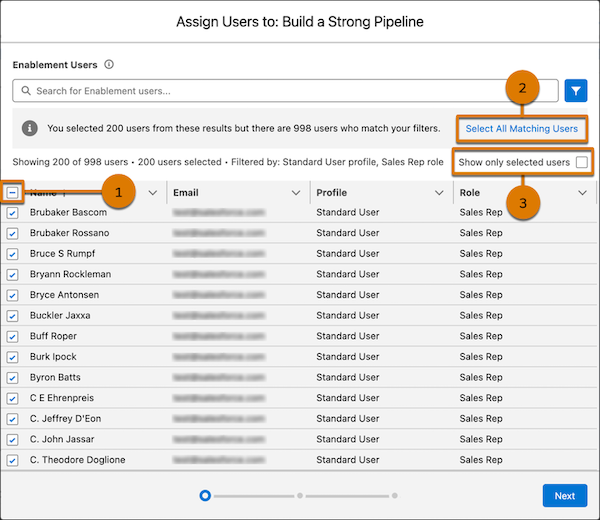
- The assignment window first loads up to 200 users who match the applied filters. To load more users, in groups of 200 at a time, continue scrolling. The assignment window can show up to 1,000 users.
- You can select users individually or select multiple users. To select all users shown in the
window, select the checkbox in the header (1). If you click the checkbox but both of these
conditions are true, a banner can appear with an option to select all matching users with one
click (2).
- More users are available who match your filters.
- You haven’t yet reached the enrollment limit for the program.
- If the number of matching users exceeds your org’s enrollment limit, the banner with the option to select all matching users doesn’t appear. You can apply filters to reduce the number of available matching users in the results.
- After you’ve selected some users, you can simplify the view in the assignment window to show only those users that are selected (3).
- If you start selecting users and you reach your org’s enrollment limit, a warning message appears.
- If you select 1,000 users individually, a warning message appears and prompts you to finish assigning the selected users before you can try assigning more.
Start Dates and Due Dates for Assigned Programs
After you select the users to assign to a program, you select the program's start date. The assignment window only allows you to select a weekday. If you use an invocable action to assign users and you select a weekend day, the start date is automatically adjusted to the next weekday.
The program’s due date is calculated based on the start date that you assign and the length of the program, excluding Saturdays and Sundays. The due date is scheduled for the end of the user’s day, based on the time zone they specify in their personal settings. For example, if you schedule a 20-day program with a start date of Monday, January 1, the program is due end of day Friday, January 26. This projection skips the 6 weekend days that fall after Monday, January 1. A user still gets credit for completing exercises or milestones on a Saturday or Sunday.

A user receives an email notification at approximately 5 AM on the program’s start date, based on their selected time zone. If the start date is the same day it’s assigned, the notification is sent immediately. However, other resource-intensive activity in your org, such as scheduled Apex jobs, can affect when the notification actually arrives. The user can open the program starting at 12 AM on the start date.
The start date and due date also determine when other notifications are sent. See Manage Notifications for Enablement Programs, Outcomes, and Milestones.
Start Dates and Due Dates for Self-Enrolled Programs
When users self-enroll in a program, the program’s start date is the day they enrolled, including weekend days.
The program’s due date is calculated based on the start date and the length of the program. If a user enrolls on a weekend day, Day 1 of the program includes both that weekend and the following Monday. Subsequent Saturdays and Sundays are excluded when calculating the program’s due date.
Enrollment Type and Assignment Status
On the Enablement Program record detail page, the Enrolled Users related list includes these columns.
- Enrollment Type indicates whether the user was assigned to the program or self-enrolled in the program.
- Assignment Status indicates whether an issue occurred when the Enablement admin tried to assign the program to the user.
The Assignment Status column can show these values.
| Status | Description |
|---|---|
| Succeeded | The user was assigned to the program and can access the program on the start date. This status also appears when a user self-enrolls in a program. |
| Failed | The user wasn’t assigned to the program. This result can occur when you close the assignment window before reaching the final confirmation step, no matter how many users you try to assign. Remove the user from the program and try assigning them again. |
| In Progress | The assignment operation isn’t completed yet. |
