Guidelines for Digital Experiences Content in Enablement Programs
The Enablement workspace in the Digital Experiences app provides specific functionality for managing content used in Enablement program exercises. If your org already has Digital Experiences enabled, only the provisioned Enablement workspace supports content for Enablement programs.
Required Editions
| Available in: Lightning Experience |
| Enablement is available in Developer Edition with a limited number of add-ons. It is also available with Sales, Service, or the Salesforce Platform in: Enterprise, Performance, Unlimited, and Einstein 1 Sales Edition Editions for an additional cost |
| Enablement Lite is available with Sales in: Enterprise, Performance, and Unlimited Editions |
| Partner Enablement is available in Developer Edition with a limited number of add-ons. It is also available with Sales, Service, or the Salesforce Platform in: Enterprise, Performance, and Unlimited Editions for an additional cost. A supported PRM add-on license is required. |
Enablement Workspace
The Enablement add-on license provisions a workspace named Enablement in the Digital Experiences app, where you manage the content that you want to use for exercises in Enablement programs. There’s no requirement to first enable the Digital Experiences app. To access the workspace and manage content, you must be assigned the appropriate contributor role by a Salesforce admin.
Only the provisioned Enablement workspace supports content for exercises in programs. If you already use Digital Experiences outside of Enablement, other workspaces that you create or already use aren’t compatible with Enablement programs.

The Enablement workspace supports all types of programs, including Enablement Lite and Partner Enablement programs.
The Enablement workspace is also available by default in a Full sandbox. In a Developer, Developer Pro, or Partial Copy sandbox, an extra step is required to create the workspace. See Sandbox Support for Enablement.
Contributor Roles
To give permission to users who manage content for Enablement programs, a Salesforce admin can assign these contributor roles in the Enablement workspace.
- Content Admins can create and publish content in the workspace, and manage contributor roles for other users.
- Content Managers can create and publish content in the workspace.
- Content Authors can create content in the workspace, but can’t publish.
Because only published content can be used in Enablement programs, we recommend that you assign the Content Manager contributor role to all users who contribute to programs. This role provides the appropriate access for Enablement. See Assign a Contributor Role in the Enablement Workspace.

Permissions and Roles Required for Creating Content
To manage content for exercises in Enablement programs, a user must have an appropriate contributor role in the Enablement workspace in the Digital Experiences app or an appropriate combination of permissions.
| User Type | If the user has... | Then the user can... | ||
|---|---|---|---|---|
Design and Deliver Enablement Programs OR Design and Deliver Enablement Lite Programs |
Content Manager contributor role | Save drafts and publish content (one click) from Program Builder | Save Drafts and Publish content (Two Clicks) from the Enablement workspace | |
| Standard user |

|
|
|
|
|
|
— |

|
|
|
| Salesforce admin |
|
|
|
|
|
|
— |
|
|
|
Ways to Create Content
To publish content for use in a program, you can start either in the Enablement workspace in Digital Experiences or add content directly from Program Builder. Starting in the Digital Experiences app provides more options for managing content records, but starting in Program Builder requires fewer clicks and less navigation.
- To add content in Digital Experiences, you first create content in Draft status, and then you manually change content to Published status. Adding content with this workflow requires two separate manual steps. To learn more, see Create a Link or Video for an Exercise from Digital Experiences and Create Rich Text for an Exercise from Digital Experiences.
- To add content from Program Builder, an option to create content is available when you search for content to use for a specific exercise. Adding content with this workflow saves content in Draft status and moves the content to Published status with one click. To learn more, see Create Content for an Exercise from Program Builder.
Content Types
The Enablement workspace defines content types that are compatible only with Enablement programs. These content types support specific exercise types in Program Builder. For a list of exercise types and corresponding content types, see Exercise Types in Enablement Programs.
Content Status
Outside of the Enablement add-on license, the Digital Experiences app allows you to move content through a workflow with different statuses, such as Draft, Published, Revised, and Archived. However, because the Enablement license provides limited functionality in Digital Experiences, follow these guidelines for content in Enablement programs.
- An exercise in an Enablement program can only reference content that’s in the Published status.
- To optimize storage of your managed content, only publish content that you plan to use in a program. Leave all other content in Draft status.
- The Enablement workspace supports unpublishing or deleting content that was previously published, but only if that content isn’t used in a published program.
- In Program Builder, you can only add and publish new content or edit previously published content. You can’t unpublish or delete previously published content from Program Builder.
Content Installed from a Managed Package
If you install Enablement programs from a managed package, the package can also install a separate Digital Experiences workspace with a name that the package owner defines. This workspace contains content for exercises in the packaged programs. For this content, you can change its publication status, but can’t edit the content otherwise. New versions of the managed package can upgrade content in this workspace.
Versions
The detail page of any content in the Enablement workspace includes a version history list. With this list, you can view the publication history of content and restore a previously published version.
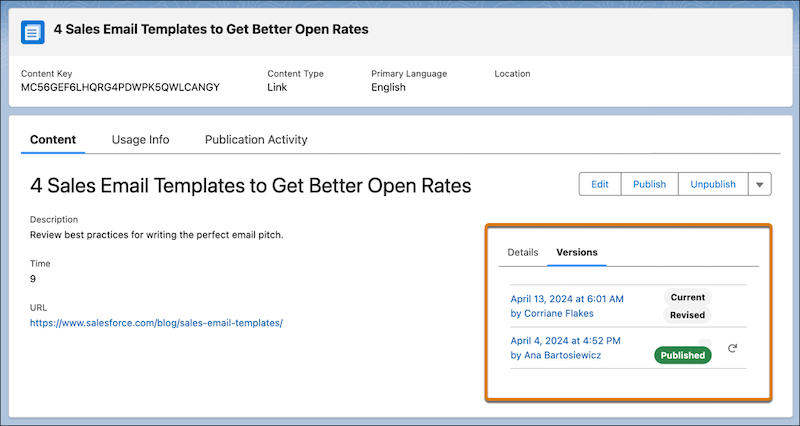
For example, when you first publish a link, the version history on the link’s content
detail page shows one version, with a status of Published. When you edit the published link,
the version history shows a second version, with a status of Revised. When you publish the
edited link, the version’s status updates to Published. If you later decide that you want to
revert to the first version of the link, you can click the Restore  icon. The Restore option creates a third version, the content of which is
the same as the first version.
icon. The Restore option creates a third version, the content of which is
the same as the first version.
If you insert images in rich text, the images are published as separate Image content type records in the workspace. You can iterate and revert images independently from the rich text that references them.
When you publish a new version of content referenced by an exercise in a published program, the program shows the new version automatically. Assigned users receive your updated content right away.
When you edit content directly from an exercise in Program Builder and save your changes, a new version of the content is created and published.
Usage Info
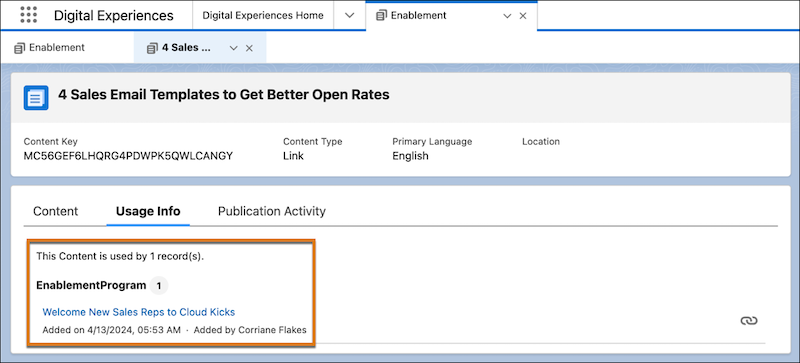
The Usage Info tab on the detail page of a content record in the Enablement workspace lists the published programs where the content is used. Before you unpublish content records, check whether the content is used in a published program.

Collections
The Enablement workspace supports Salesforce CMS collections, which you can use to group multiple records of the same content type together in a single container.
With a collection, you can publish multiple records at the same time. However, in a program, you can still reference only one published link, video, or rich text record per exercise. For example, you can’t publish a collection and then automatically reference all records in that collection from a program.
Importing and Exporting Content
The Enablement workspace supports the Salesforce CMS capabilities for importing and exporting content. You can export content in .zip files that you can import back into the workspace. You can import only the specific content types that the Enablement workspace supports: links, videos, rich text, and images. To learn more about the import requirements and the export format, see Import and Export Content with Salesforce CMS.
Localization
The Enablement workspace supports only English for content.
Storage
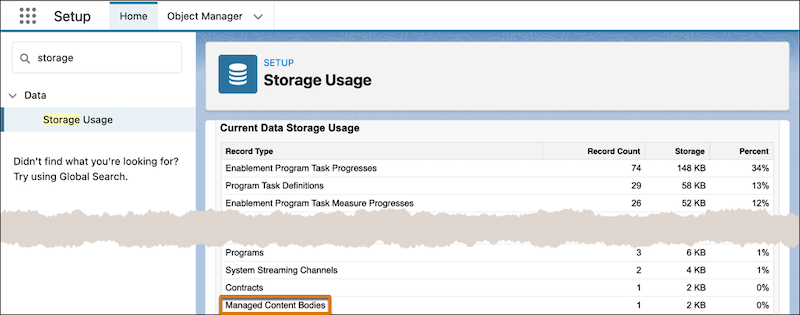
The Enablement add-on license allows a minimum of 10 GB for content storage in Digital Experiences.
You can view your company’s current storage. From Setup, in the Quick Find box, enter Storage, and then select Storage Usage. Scroll to the Current Data Storage Usage section, and find the Managed Content Bodies item.