
Create Rich Text for an Exercise from Digital Experiences
In the Digital Experiences app, you can add the rich text content that you want to use for a Lesson exercise in a program before you start working in Program Builder. You can also insert images in the rich text content body.
Required Editions
| Available in: Lightning Experience |
| Enablement is available in Developer Edition with a limited number of add-ons. It is also available with Sales, Service, or the Salesforce Platform in: Enterprise, Performance, Unlimited, and Einstein 1 Sales Edition Editions for an additional cost |
| Enablement Lite is available with Sales in: Enterprise, Performance, and Unlimited Editions |
| Partner Enablement is available in Developer Edition with a limited number of add-ons. It is also available with Sales, Service, or the Salesforce Platform in: Enterprise, Performance, and Unlimited Editions for an additional cost. A supported PRM add-on license is required. |
| User Permissions Needed | |
|---|---|
| To manage content for program exercises in the Enablement workspace: | Content Manager contributor role in the Enablement workspace in Digital Experiences |
First, make sure that you have an appropriate contributor role assigned in the Enablement workspace in the Digital Experiences app.

- In the Digital Experiences app, select the Enablement workspace.
- Select Add | Content.
- In the Create CMS content window, select Rich Text, and click Create.
- Complete the required metadata fields.
Field Value to Enter Title An internal title for the content. Search for this title when adding content to an exercise in Program Builder. Description A short description for the content. This description is visible to Enablement admins when they add a Lesson exercise in Program Builder and search for the rich text record to use. This description is also visible to users when they take a program and open the lesson. - Complete at least one section.
Field Value to Enter Key Concept A brief summary (150 characters or fewer) of the major takeaways that you want users to understand after they read the section. This information is visible to users when they take a program and open the lesson. Lesson Content The rich text content for the section, including formatting, images, and links.
- You can paste formatted content from another source, but some formatting doesn’t persist. Carefully review pasted content and correct any errors.
- You can insert images that are either already published in the Enablement workspace or not yet published. If you insert an unpublished image, you’re prompted to also publish the image when you publish the rich text. To learn more about publishing images outside of the Rich Text content type, see Add and Publish an Image for Rich Text Content from Digital Experiences.
- For images, you can add a BMP, GIF, PNG, JPG, or JPEG file up to 25 MB.
- For sales programs in Lightning Experience, the Guidance Center panel provides a content area that’s 350 px wide by default and 626 px wide when expanded. We recommend that you choose image files that look good at these sizes.
- For Partner Enablement programs in supported Experience Cloud sites, work with your site developer to determine appropriate image sizes for the page and column sizes they’re creating.
- You can’t embed a video in body text. To include a video in a program, use the standalone Video exercise type in Program Builder and create a corresponding video record in the Enablement workspace in Digital Experiences.
These fields update as you enter content in the section.
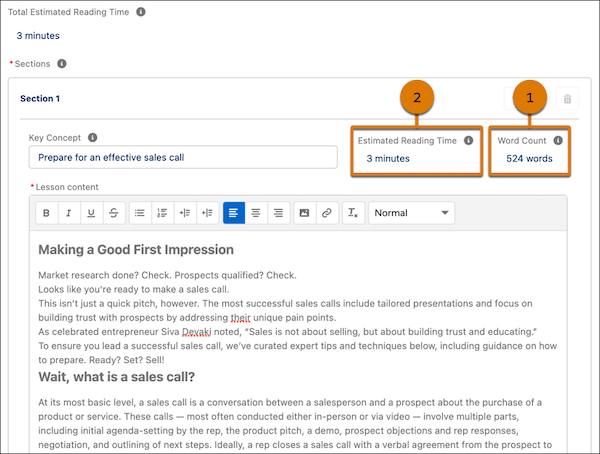
- Word Count (1) shows the number of words you entered.
- Estimated Reading Time (2) shows the estimated time for a user to read the section, based on an average reading speed of 200 words per minute. The editor shows a warning when a section exceeds 1,000 words and an estimated 5-minute reading time. This warning helps content creators add text that follows research-backed guidelines for how users best consume and understand content.
- Optionally, create more sections.
The Total Estimated Reading Time field shows an aggregated count of the estimated time for a user to read all sections together.
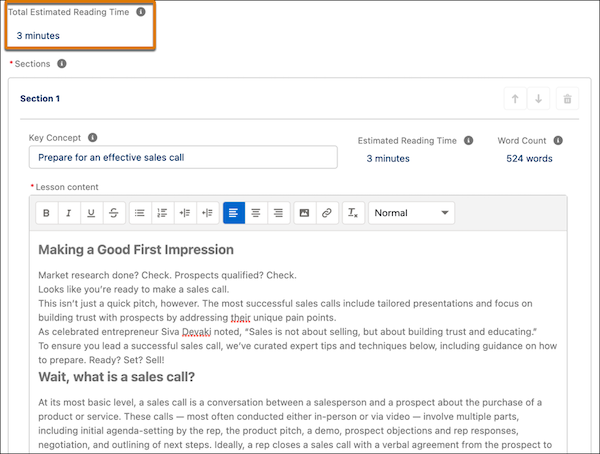
The editor shows a warning when the total for all sections exceeds 3,000 words and an estimated 15-minute reading time. This warning helps content creators add text that follows research-backed guidelines for how users best consume and understand content.
- Optionally, rearrange your sections.
- Save your work.
- If you’re confident that you want to include the content in a program, click
Publish.
 Tip To optimize storage of Digital Experiences content, only publish content that you plan to use in an Enablement program. Leave all other content in Draft status. To learn more, see Guidelines for Digital Experiences Content in Enablement Programs.
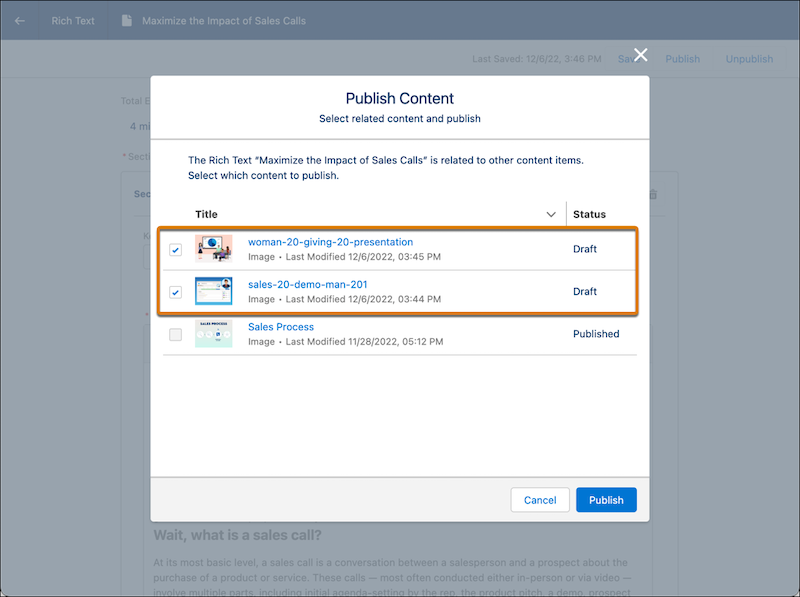
 - If you inserted any unpublished images in your sections, you’re prompted to review the list
of unpublished images and publish them alongside your rich text. Make sure that any unpublished
images are selected, and click Publish again.
- To return to the Enablement workspace, click the back arrow
 in the header menu.
