Add a Feedback Request Exercise with an Assessment Survey for Peers and Managers
Enablement admins add the Feedback Request exercise to a program and specify the
assessment survey that reviewers complete and the number of reviewers that an Enablement user must
select. After the program is published and made available, users submit their content for review
and select the required number of reviewers.
Required Editions
Available in: Lightning Experience
Enablement is available in Developer Edition with a limited number of add-ons.
It is also available with Sales Cloud, Service Cloud, or the Salesforce Platform in:
Enterprise, Performance, and Unlimited, Editions for an additional
cost
User Permissions Needed
To add assessment surveys to Feedback Request exercises:
Read on Surveys (enabled on the default Manage Enablement Essentials permission set
and the default Manage Enablement Lite Essentials permission set)
AND
Sharing access
to assessment surveys
AND
Design and Deliver Enablement Programs OR Design and
Deliver Enablement Lite Programs
If you’re trying Enablement Lite, surveys aren’t included like
they are with the full Enablement license. The default assessment survey, Discovery Call
Assessment, isn’t provided. The Enablement Lite default permission sets still provide read
access to surveys and create, read, edit, and delete access to related survey objects. You can
give access to create surveys outside of these default permission sets. When you upgrade to full
Enablement, the Enablement Resources Manager permission set group becomes available and includes
access to create surveys by default.
Important Feedback Request exercises aren’t
supported in Partner Enablement programs in Experience Cloud sites.
In Program Builder, add the Feedback Request exercise to a program and reference your
assessment survey.
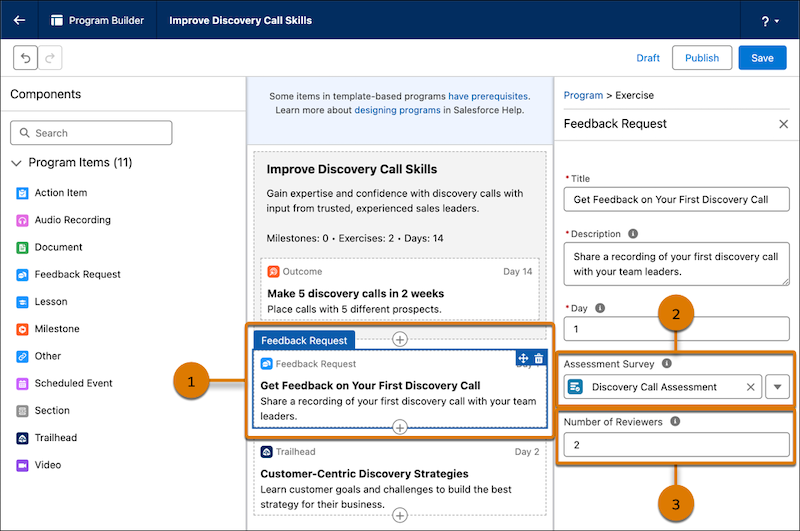
Add the Feedback Request exercise to the program canvas (1).
In the exercise properties, for Assessment Survey, select the assessment survey you want
to use (2).
For Number of Reviewers, specify the number of peers, managers, or other users that you
want Enablement users to select for gathering feedback (3).
Finish assembling the program, and then publish it and assign it to Enablement users. See
Launching Enablement Programs.
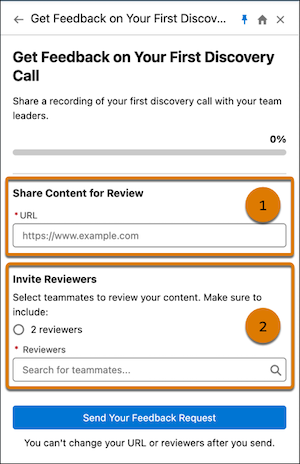
When Enablement users take the program with the Feedback Request exercise, they’re required to
specify the URL to the content they want reviewed (1) and select the specified number of
reviewers (2).
The selected reviewers receive an email invitation to complete the corresponding assessment
survey. When reviewers submit their feedback, a flow is triggered for sending an in-app
notification to the Enablement user. In the Guidance Center, Enablement users can view the
submitted feedback.
Enablement admins can analyze reviewer responses against changes in user behavior using these
reports.
Feedback Responses to All Questions
Feedback Responses to Rating Questions
Enablement admins can also monitor Feedback Request exercise progress from these widgets in
the latest Enablement dashboard folder.
We use three kinds of cookies on our websites: required, functional, and advertising. You can choose whether functional and advertising cookies apply. Click on the different cookie categories to find out more about each category and to change the default settings.
Privacy Statement
Required Cookies
Always Active
Required cookies are necessary for basic website functionality. Some examples include: session cookies needed to transmit the website, authentication cookies, and security cookies.
Functional Cookies
Functional cookies enhance functions, performance, and services on the website. Some examples include: cookies used to analyze site traffic, cookies used for market research, and cookies used to display advertising that is not directed to a particular individual.
Advertising Cookies
Advertising cookies track activity across websites in order to understand a viewer’s interests, and direct them specific marketing. Some examples include: cookies used for remarketing, or interest-based advertising.