
You are here:
Make Adjustments to Pipeline Forecasts
Adjusting overstated or understated Best Case, Most Likely, or Commit forecast values gives you a more accurate picture of the path to hitting your forecast or quotas. Updating the rollup values on the forecasts page doesn’t change the underlying amounts or quantities in the opportunities that make up the forecast.
Required Editions
| Available in: both Salesforce Classic and Lightning Experience |
| Available in: Professional, Performance, and Developer Editions and in Enterprise and Unlimited Editions with Sales |
| User Permissions Needed | |
|---|---|
| To use Salesforce Forecasting: | View All Forecasts OR Allow Forecasting OR Delegated forecast manager status |
| To access role-based forecasts in Lightning Experience: | View Roles and Role Hierarchy |
| To adjust forecasts: | Override Forecasts |
Your Salesforce admin can choose to allow only managers to adjust subordinates and child territory forecasts, or allow all forecasts users to adjust their own forecasts and territory forecasts. The Salesforce mobile app supports owner adjustments only. You can’t adjust data in a custom forecast column added to a forecast type.
-
On the forecasts page in the desktop site, hover over the forecast that you want to
adjust, and then click
 . If
Salesforce is configured to show adjustments as columns, make your own adjustments in the
My Commit, My Best Case, or My Most Likely columns.
In the Salesforce mobile app, on the Forecasts screen, tap. You can also start by tapping the
forecast that you want to adjust, and then tap .
. If
Salesforce is configured to show adjustments as columns, make your own adjustments in the
My Commit, My Best Case, or My Most Likely columns.
In the Salesforce mobile app, on the Forecasts screen, tap. You can also start by tapping the
forecast that you want to adjust, and then tap . -
Enter the adjusted value and notes about why you made the adjustment.
Each blank line (carriage return) in your note text counts as 2 characters. For example, if you copied and pasted text from another editor, the paragraphs can cause you to reach the character limit earlier than anticipated.
-
Save your changes.
An
 icon appears in the cell to show that you adjusted the forecast.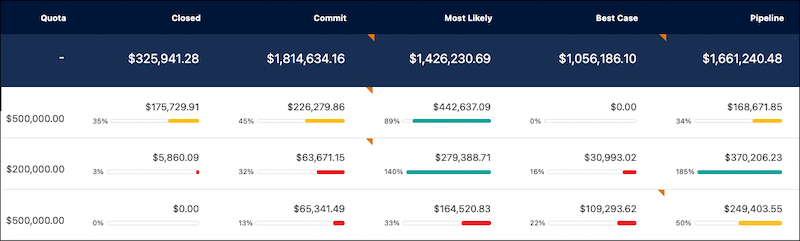
To remove an adjustment you made (desktop site only), click , and then click
Remove.
In Salesforce Classic, adjustments are indicated with the following icons:
| Icon in Salesforce Classic | Definition |
|---|---|

|
You adjusted the forecast. You see this indicator only on your forecasts page. |

|
One of your subordinates adjusted the forecast. You see this indicator on your forecasts page and your subordinates’ forecasts pages. |

|
You and one or more subordinates adjusted the forecast. You see this indicator only on your forecasts page, because when you drill down to a subordinate’s page, you see the page as that user sees it. |

|
Save your adjustment. |

|
Undo your adjustment, and restore the previous value of the forecast. Hover over the button to see a tooltip that tells you if the previous value includes an adjustment. |

|
The adjustment includes a note. |
| remove | Remove your adjustment, and restore the previous value, which can include someone else’s adjustment. |
