
You are here:
Use the Handlebars Merge Language in Lightning Email Templates, Enhanced Letterhead, and Email Template Builder
Use the Handlebars Merge Language—available in Summer ‘18—to add dynamic content to your Lightning and Email Template Builder email templates.
Required Editions
| Lightning Email Templates are available in: Lightning Experience |
| Available in: All Editions |
List email not available in: Personal, Contact Manager, and Group Editions |
| Available in: Lightning Experience for email templates created in Email Template Builder and Email Content Builder |
| Available in: Professional, Enterprise, Unlimited, Performance, and Developer Editions. |
| Available in: Account Engagement Lightning App for all Account Engagement editions |

In Summer ‘18, we introduced the Handlebars Merge Language (HML) for email templates in Lightning Experience. If your email template has merge fields with three curly braces ({{{), you’re using an HML email template. If the merge fields have one curly brace ({), or an exclamation mark (!), you’re using a SML (Salesforce Merge Language) email template. Lightning templates created since Summer ‘18 are HML email templates.
Although based on the Handlebars template language, our HML implementation doesn’t contain every Handlebars feature.
New ways to use merge fields include:
- Recipient merge fields that work with contact, lead, and person account records, in one email
templateNote
Not every merge field can be used with every email recipient. For example, the {{{Recipient.Department}}} merge field can be used with contacts only, while no recipient merge fields can be used when a user is the recipient.
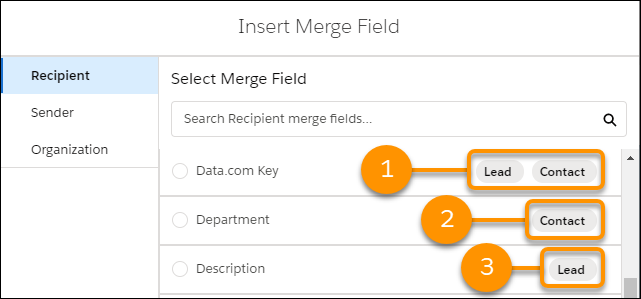
The Insert Merge Field window shows you which fields work with both Lead and Contact (1), with Contact only (2), or with Lead only (3).
- ID merge fields that create links to Salesforce records
- More organization-level fields, such as FY Start Month
Email templates using HML can be used in list emails.
Guidelines for Syntax and Formatting
The syntax consists of three open curly braces, followed by the object name, a period, the field name, and three closing curly braces.
For example, to include your recipient’s first name, the merge field is {{{Recipient.FirstName}}}. If you want to include the account ID number of the account related to the email, enter or choose this merge field: {{{Account.Id}}}. When you preview or send the email, ID: 001234567890123 displays where you inserted the merge field.
If two or more custom objects have matching names or labels, only one of the objects appears when you select from available merge fields. Make sure that all custom objects have unique names and labels so that you can select merge fields from any of the objects.
To make sure you’re using the correct syntax, select merge fields from the merge field picker.

To use the merge field {{{Sender.Signature}}}, have users set up their signature in My Email Settings.
