
You are here:
Create an Automated Action
Save time by automating common cadence target-related tasks with processes that manage cadence targets and associated records you own. With simple if-this-then-that logic, you can automatically add, remove, pause, or resume cadence targets and change target assignees based on criteria that you choose. If you’re a manager, you can create automated actions for your subordinates.
Required Editions
| Available in: Lightning Experience |
| Available with Sales Engagement, which is included with Sales in Performance, Einstein 1, and Unlimited Editions, and available for an extra cost in Professional and Enterprise Editions. Sales Engagement is also available for an extra cost in Service and Lightning Platform. |
| User Permissions Needed | |
|---|---|
| To create automated actions: | Sales Engagement User OR Sales Engagement User Included OR Sales Engagement Cadence Creator OR Sales Engagement Cadence Creator Included AND Automated Action User |
You can trigger your automated actions from changes to records you or your subordinates own. When your automated actions run, they perform their actions on behalf of you or your subordinate, as if they had performed the action manually. For example, if your automated action adds an inbound lead to a cadence, Salesforce shows that the lead was added by you.
Before you begin using any of the included automated actions or ones you create, you must activate them.
Managers can create up to 25 automated actions for their subordinates. Sales Reps can create up to 50 automated actions for themselves. There’s a daily limit of 250 automated action executions per user and 20k executions for all users. When the limit is exceeded, the automated action stops executing until the start of the following day.
- In the Automated Actions tab of the Sales Engagement app, click New.
-
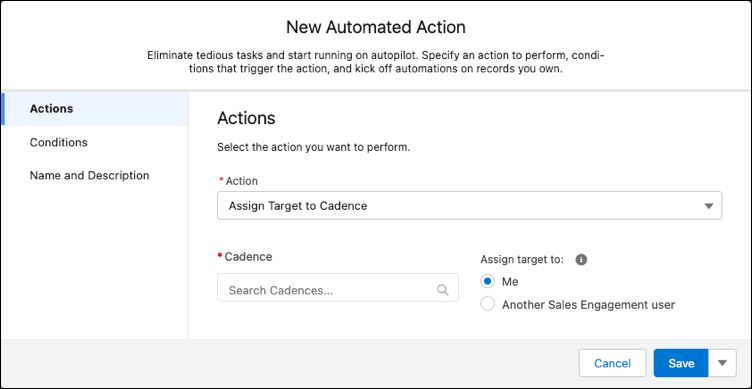
Under Actions, select the action you want to automate.
For example, automatically assign a target to a cadence.
-
Fill in the details of the action that you want to automate.
For example, select which cadence you want to add targets to.
-
Choose whether to perform the action automatically, or remind the record owner to
choose whether to run the action.
Reminders appear in the Automated Action Reminders component on a record detail page when the record meets the conditions for the action. The record owner can choose to run the action, ignore it, or snooze it.
- Select the object that you want to trigger your automated action.
- Select how often you want the automated action to check whether to perform your action based on the conditions you select in the next step.
-
Select the field values that trigger your automated action.
For example, to add all new leads generated from your website to a cadence, select the Lead Source field and enter a value of Web.
-
Select when to take action.
- All conditions are met (AND)—This option triggers your action only when every one of the field values you specify are present.
- Any conditions are met (OR)—This option triggers your action when any one or more of the field values you specify are present.
- Custom logic (AND + OR + NOT)—This option triggers your action when a combination of the field values you specify are present or not present.
-
To use fields on objects related to your primary object, click Show Advanced
Conditions.
These fields are sometimes called cross-object fields. For example, for leads, you can select the Converted Contact ID field and then the Email Opt Out field.
- Select when to take action for cross-object fields.
- Enter a name and description for your automated action.
-
Choose who the automated action is assigned to.
- When you assign the action to yourself, it acts only on records you own.
- When you assign the action to subordinates, it acts on records they own.
-
Choose who can activate the action.
- Creator—Only you the author can activate or deactivate the action.
- Assignees (Default On)—The action is active for assignees, but they can choose to deactivate it.
- Assignees (Default Off)—The action is inactive for assignees, but they can choose to activate it.
- When you’re finished, click Save or Save & Activate. Your automated actions must be activated in order to execute. You can activate and deactivate an automated action at any time in the Automated Actions tab in the Sales Engagement app.
You can create automated actions from other locations in the Sales Engagement app.
- When you manually add a target to a cadence, you can automate adding records to that cadence by selecting Add an Automated Action?.
- When you create a quick cadence, you can automate adding records to the quick cadence by selecting Add an Automated Action?.
