You are here:
Cadence Builder Classic Cadences
Managers can build sales best practices right into Salesforce, optimizing prospecting outcomes. Cadences guide new and veteran reps alike through the prospecting and opportunity nurturing processes—including when to email a prospect, when to call, when to wait, and more. Managers can specify call scripts and email templates for each step, and create branched cadences with different outreach depending on the results of sales calls or emails.
Required Editions
| Available in: Lightning Experience |
| Available with Sales Engagement, which is included with Sales in Performance, Einstein 1, and Unlimited Editions, and available for an extra cost in Professional and Enterprise Editions. Sales Engagement is also available for an extra cost in Service and Lightning Platform. |

For reps, cadences bring together all their pending activities in one view and automatically log activities as reps complete them. After reps start using cadences, managers can report on which cadences result in the best sales outcomes.
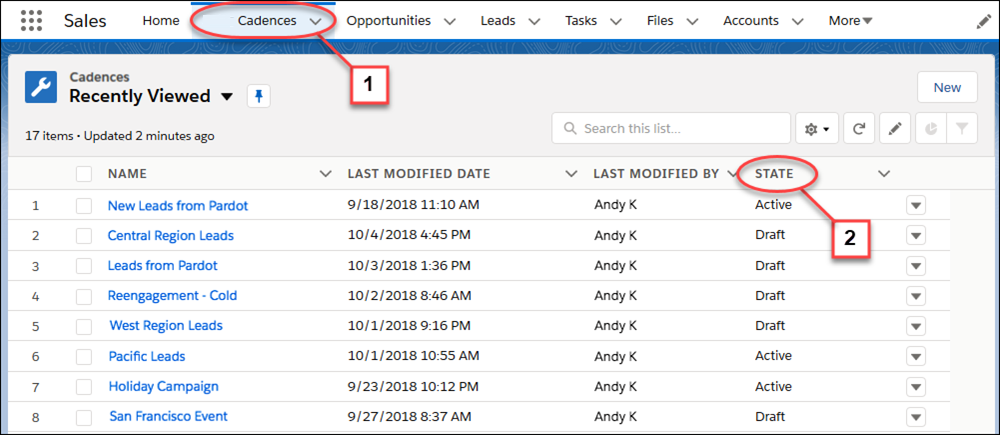
The Cadences tab (1) shows details for each cadence, including whether it is in draft, active, or deactivated (2). When in draft, a sales manager can edit the cadence. After the cadence is activated, the sales manager can assign leads, contacts, and person accounts to the cadence.
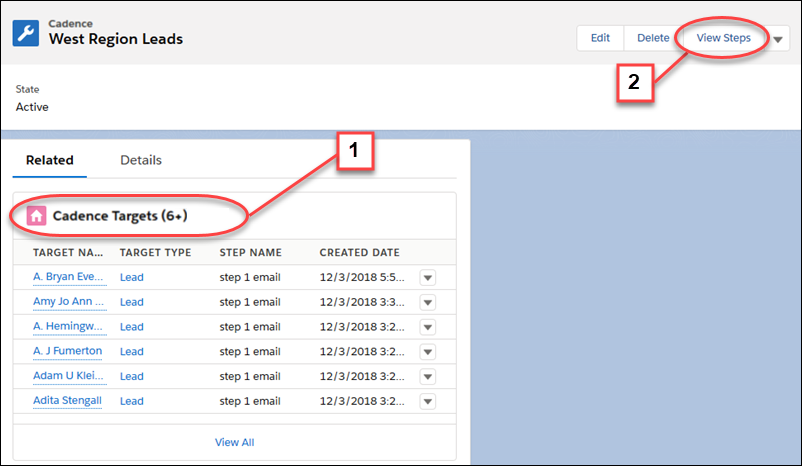
On the cadence record detail page, the Cadence Targets related list shows the leads, contacts, and person accounts currently active in the cadence (1). The Cadence Targets list doesn't include targets that have completed the cadence or have an error. To see the details of each cadence step in the Cadence Builder, Managers can click View Steps (2).
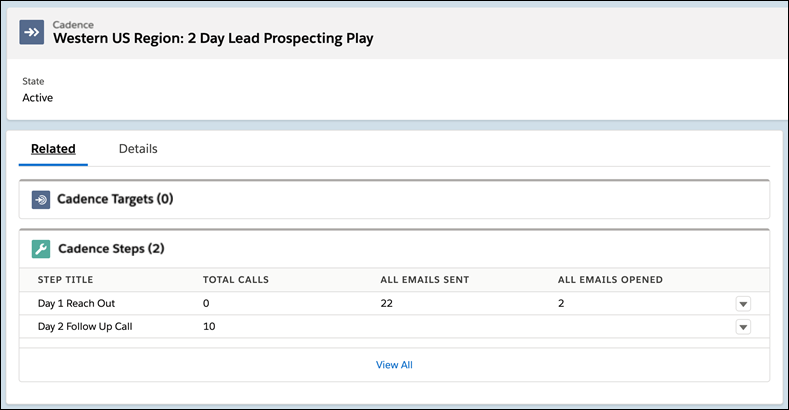
The Cadence Steps related list shows the prospect engagement for each call and email step.
For example, a sales manager could build a cadence guiding reps to make two back-to-back calls, wait a half-day, and then call again or send an email.
Sales managers use the Cadence Builder to create each scheduled outreach plan.
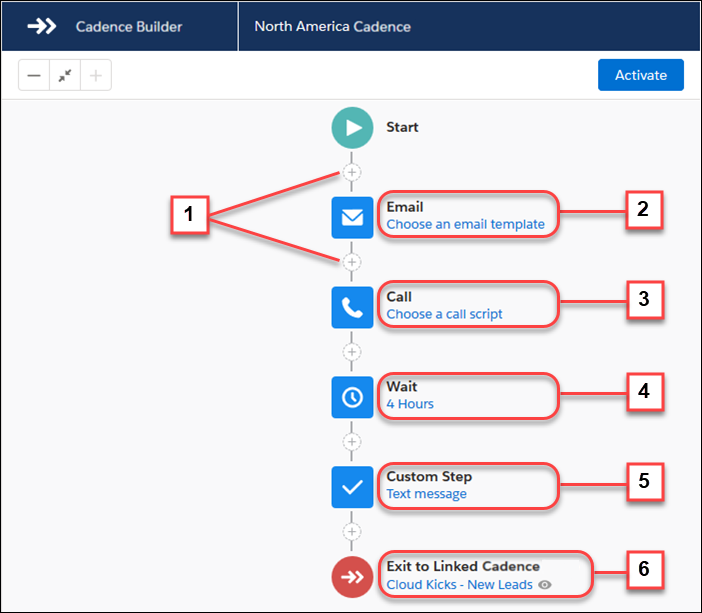
Click the plus (+) icons (1) to add an email (2), call (3), wait period (4), or a custom step (5), such as setting up a meeting or sending a text message. When prospects complete a cadence, you can add them to another one automatically (6).
To make your sales outreach more responsive to prospect engagement, you can build a branched cadence. Branches allow different outreach steps depending on the results of a call or an email.
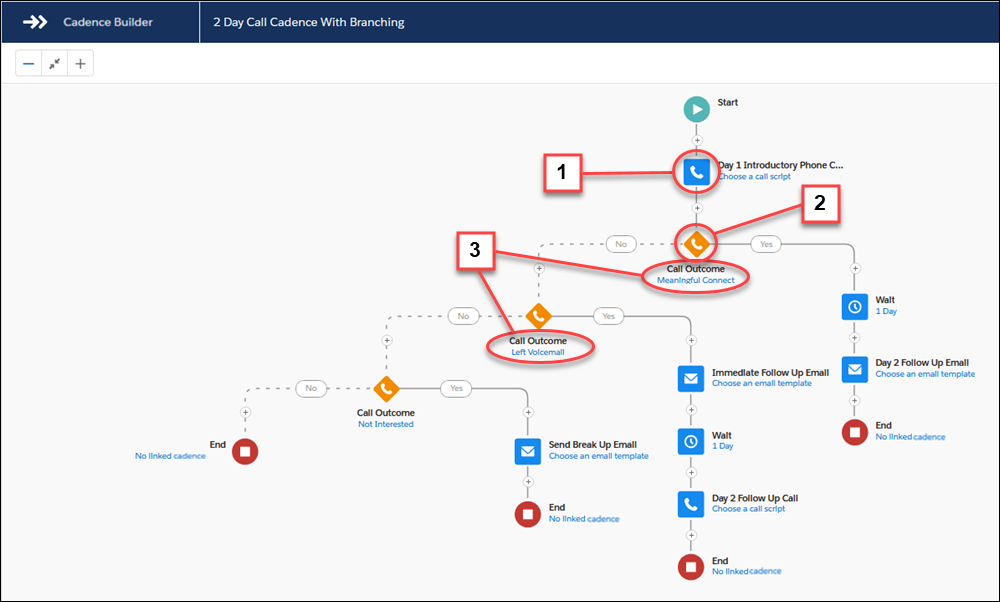
To build a cadence that takes prospects through different sales steps based on a call result, add a call step (1) followed by a branch step (2). For each call result branch step, choose which Call Outcome value to look for, such as Meaningful Connect or Left Voicemail (3).
Cadences can also take prospects through different sales steps based on whether the prospect engages with an email. Use a listener branch step (1) after an email to send the prospect down the correct branch.
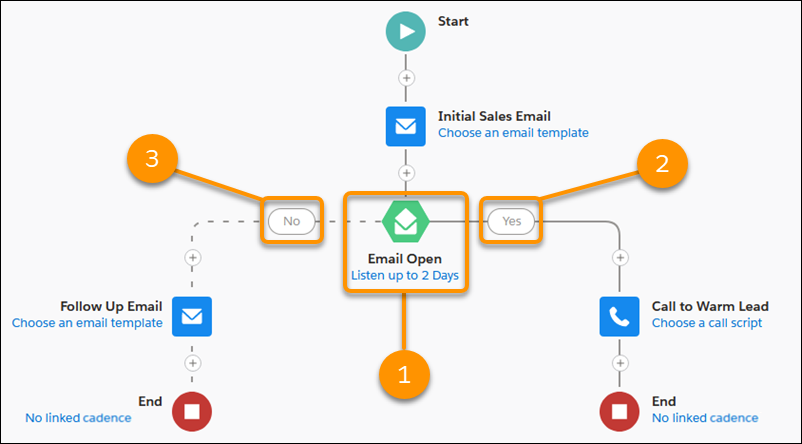
To create a branch based on email engagement, add a listener branch step (1) after an email step. The listener branch step waits to see whether the prospect opens the email or clicks a link in the email, and sends the prospect down the correct branch. If the prospect opens the email, the cadence takes them through the steps in the Yes branch. If they don’t open the email, they follow the No branch.
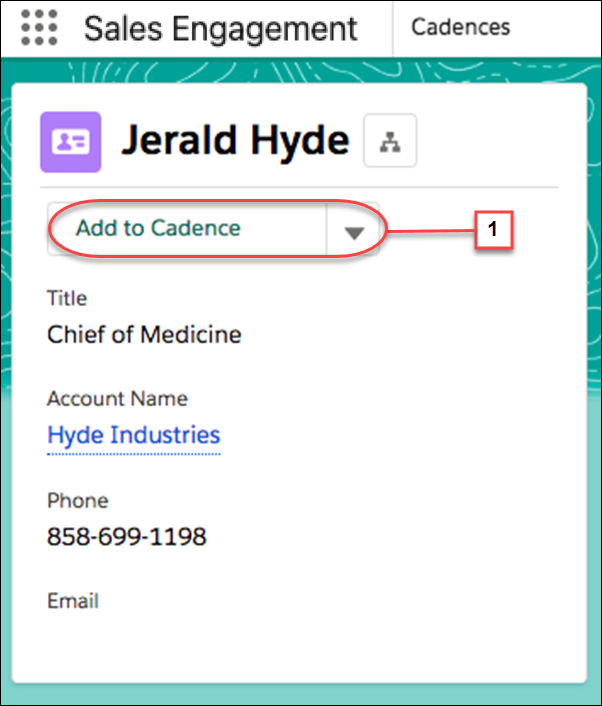
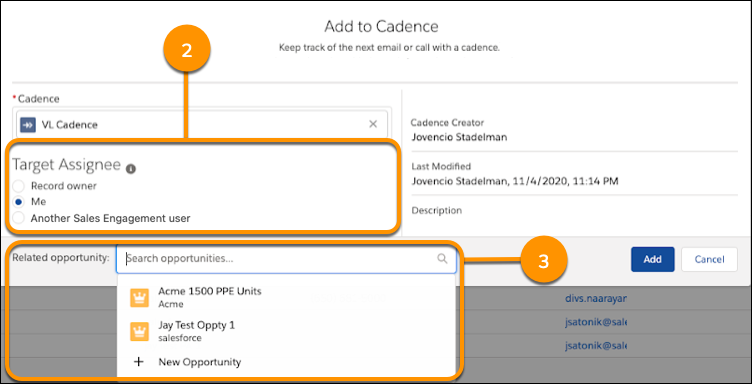
After a cadence is activated, sales managers or reps can add prospects right from a lead, contact, or person account detail page by clicking the Add to Cadence action (1). Then choose a cadence to start the prospect on a specific set of scheduled outreach. Choose a target assignee (2) to perform the sales outreach for the prospect. If the target is a contact on an opportunity, you can add the related opportunity (3). The cadence outreach steps appear automatically in the target assignee’s work queue as they come due. The record owner is the default target assignee.
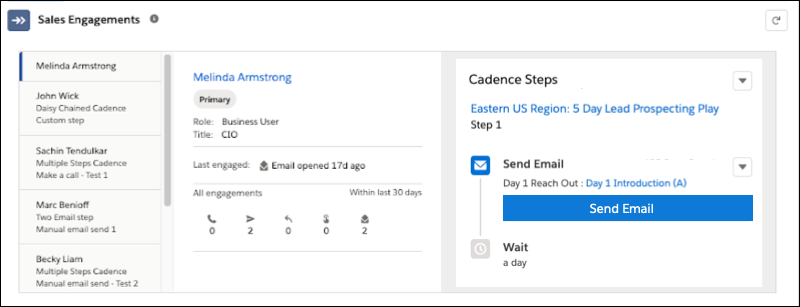
When your Salesforce admin adds the Sales Engagements component to lead, contact, and person account page layouts, sales reps and managers can see prospect engagement activity and cadence progress. Sales reps can act on the next sales step right from the record detail page.