
You are here:
Use Cadences for a Commerce Reorder Portal
A Commerce reorder portal provides a streamlined way to sell to repeat customers. After you create the reorder portal, you can configure a cadence with a preconfigured screen flow so that your reps can start inviting their contacts to place self-service reorders. You can use a standard cadence or a quick cadence.
Required Editions
| Available in: Lightning Experience |
| Available with Sales Engagement, which is included with Sales in Performance, Einstein 1, and Unlimited Editions, and available for an extra cost in Professional and Enterprise Editions. Sales Engagement is also available for an extra cost in Service and Lightning Platform. |
| User Permissions Needed | |
|---|---|
| To add prospects to cadences: | Sales Engagement User OR Sales Engagement User Included |
-
In the Sales Engagement app, go to the detail page of the contact that you want
to invite to use the reorder portal.
Each contact that you add to the reorder portal must have a unique email address. The contact’s email address is set as their username for the reorder portal. If another user has the same email address, you can't complete the invitation.
- From the Actions menu, select Add to Cadence.
-
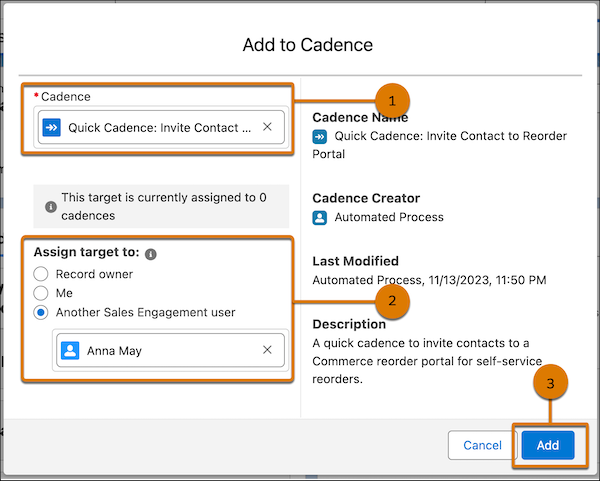
Fill out the cadence details.
- For the cadence (1), enter and select Quick Cadence: Invite Contact to Reorder Portal. Or, to use a standard cadence, enter and select Invite Contact to Reorder Portal.
-
For the target assignee (2), choose the user who monitors the cadence
steps for the prospect that you’re adding.
You can assign the record owner, yourself, or any other Sales Engagement user. The cadence steps for the prospect that you’re adding appear in the assignee’s work queue as they come due.
- Click Add (3).
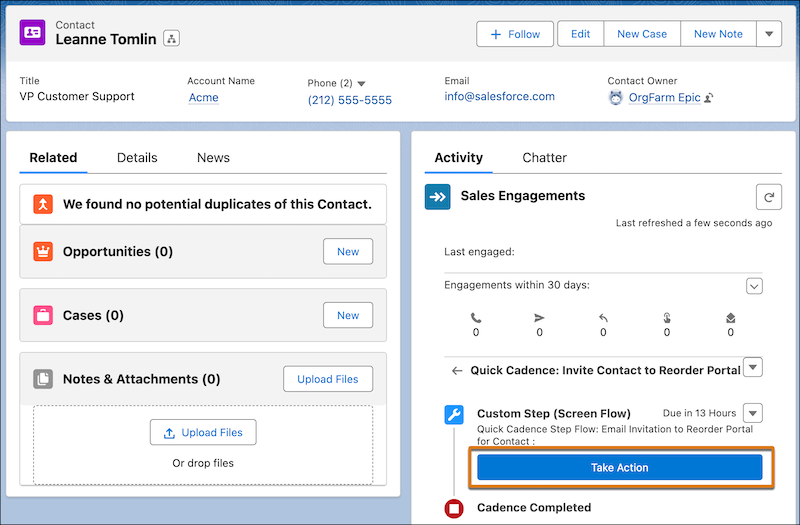
- From the Sales Engagement component on the record detail page, the target assignee can launch the cadence by clicking Take Action.
- From the reorder portal dropdown list, select your reorder portal.
-
To view the product pricing displayed to the contact, click Review Pricing.
If the contact is the first user of their account’s reorder portal, the last purchase price of each product determines the pricing. After the initial invitation, the price book assigned to the account determines the pricing. You can manage pricing in the Commerce app. See
- To continue to the email composition screen, click Invite.
-
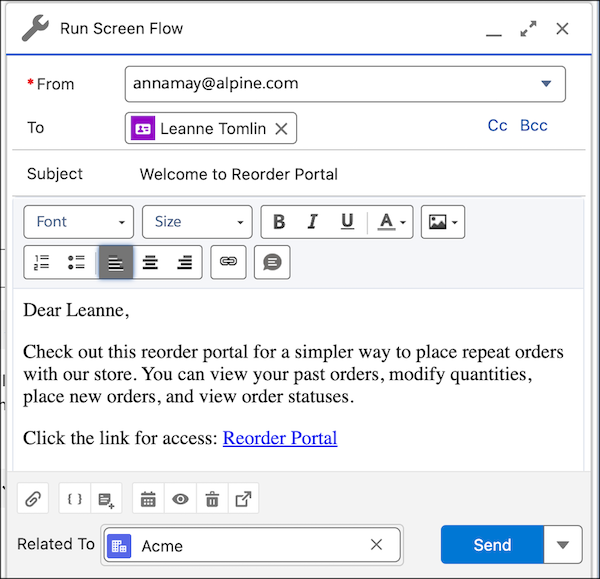
Customize the invitation email.The default email is created based on the Commerce Reorder Portal: Invitation
template. When you're done, click Send.
You can also use Einstein to generate a draft of the invitation email.
Did this article solve your issue?
Let us know so we can improve!
