Easily remind yourself to reach out to prospects in specific ways with quick cadences.
Create a quick cadence to send an email with a specific template or to make a call with a call
script. To add the task to your Work Queue and To Do List, assign the quick cadence to a lead,
contact, or person account.
Required Editions
Available in: Lightning Experience
Available with Sales Cloud and included in Professional, Enterprise,
Performance and Unlimited Editions
Available in Sales Engagement with Sales Cloud, in Performance and
Unlimited Editions, and available for an extra cost in Professional and
Enterprise Editions. Sales Engagement is also available for an extra cost in Service
Cloud and Lightning Platform.
User Permissions Needed
To create quick cadences:
Sales Engagement User AND Sales Engagement Quick Cadence Creator
OR
Sales
Engagement User Included AND Sales Engagement Quick Cadence Creator
OR
Sales
Engagement Cadence Creator
OR
Sales Engagement Cadence Creator
Included
OR
Sales Engagement Basic
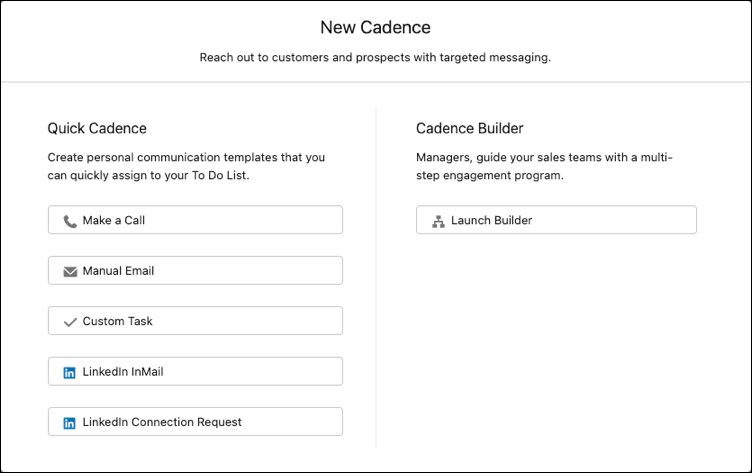
In the Cadences tab of the Sales Engagement app, click New
Cadence.
Under Quick Cadence, select the type of outreach you want to include.
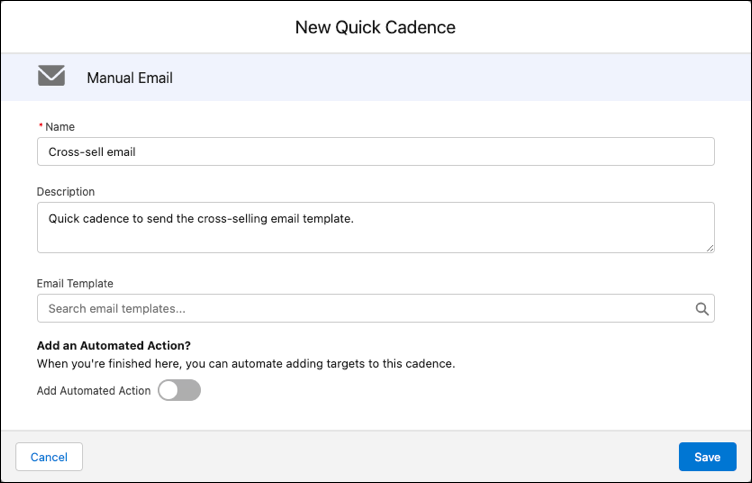
Provide the details for the outreach. For example, enter a name, description, and optional
template for an email.
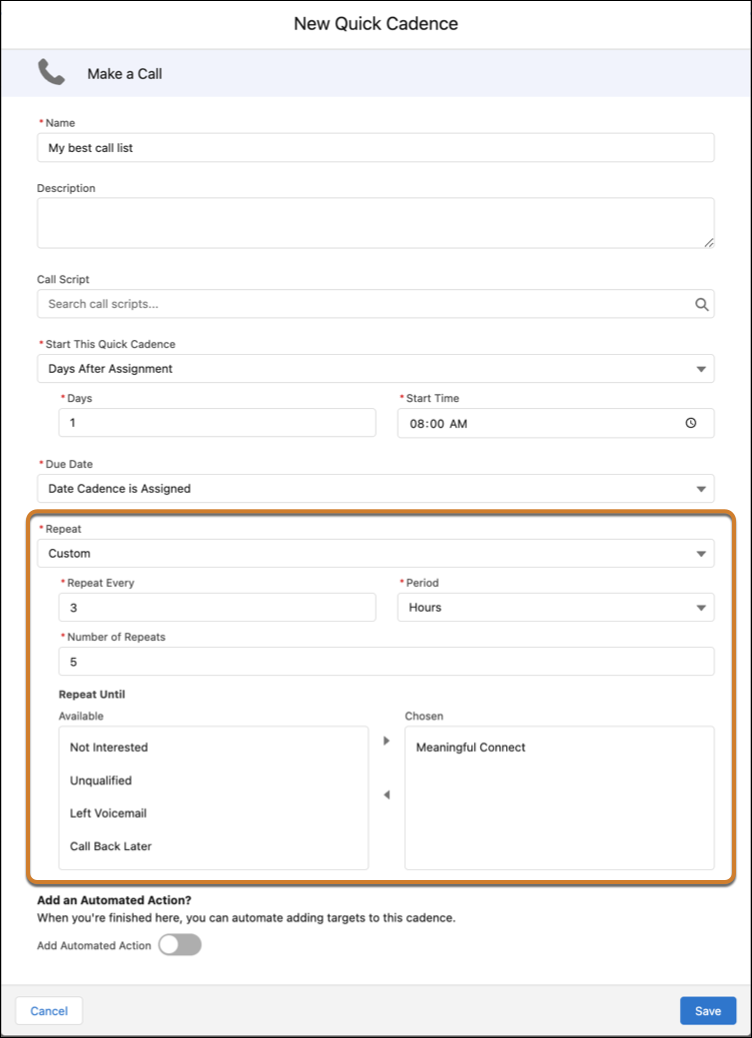
Choose whether to repeat the quick cadence for assigned targets.
Enter how often to repeat and how many times. You can set the quick cadence to stop
repeating when a specific engagement occurs. For example, for a phone call, you can stop
repeating when a call results in a meaningful connect.
Click Save.
Your quick cadences are saved in your My Private Cadences folder in the Cadences tab
of the Sales Engagement app.
Optionally, you can also create an automated action to add targets to the new quick
cadence.
When you've created a quick cadence, assign prospects to it by selecting
Add to Cadence from the Action menu on leads, contacts, and person
accounts, or from list views and reports. The outreach task appears in your Work Queue and To Do
List so you can follow up later.
Note If your Salesforce admin adds a required custom
field to the Action Cadence object, you can't create quick cadences. If you see this error, ask
your admin to create a validation rule for the custom field instead of setting the field as
required.
Did this article solve your issue?
Let us know so we can improve!
Loading
Salesforce Help | Article
Cookie Consent Manager
General Information
Required Cookies
Functional Cookies
Advertising Cookies
General Information
We use three kinds of cookies on our websites: required, functional, and advertising. You can choose whether functional and advertising cookies apply. Click on the different cookie categories to find out more about each category and to change the default settings.
Privacy Statement
Required Cookies
Always Active
Required cookies are necessary for basic website functionality. Some examples include: session cookies needed to transmit the website, authentication cookies, and security cookies.
Functional Cookies
Functional cookies enhance functions, performance, and services on the website. Some examples include: cookies used to analyze site traffic, cookies used for market research, and cookies used to display advertising that is not directed to a particular individual.
Advertising Cookies
Advertising cookies track activity across websites in order to understand a viewer’s interests, and direct them specific marketing. Some examples include: cookies used for remarketing, or interest-based advertising.