Test Different Email Templates or Call Scripts on a Single Cadence Step
Use cadence steps to test different versions of an email template or a call script
to see which is most effective with target prospects. The cadence sends each email or
displays each call script according to the proportions that you choose when you build the cadence.
Required Editions
Available in: Lightning Experience
Available with Sales Engagement, which is included with Sales in
Performance, Einstein 1, and Unlimited Editions, and
available for an extra cost in Professional and Enterprise Editions.
Sales Engagement is also available for an extra cost in Service and Lightning
Platform.
User Permissions Needed
To create and edit cadences:
Sales Engagement Cadence Creator
OR
Sales Engagement Cadence Creator
Included
To use variant testing in a cadence, Allow Email Template and Call Script Variant
Testing must be turned on in Sales Engagement Setup. In most cases, this setting is turned on
by default.
From Sales Engagement Setup, turn on Allow Email Template and Call Script
Variant Testing. When managers add an email or call step to a cadence, they
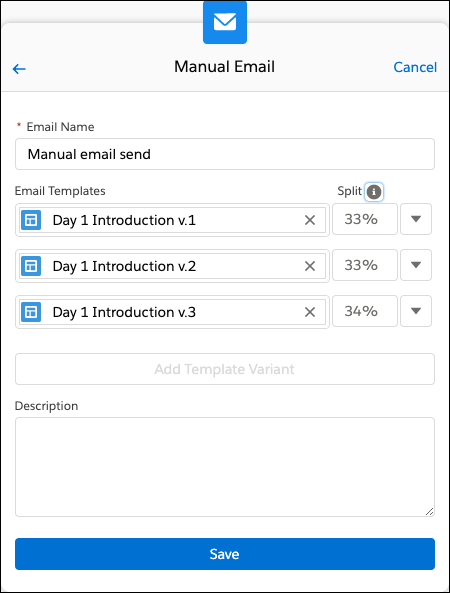
can include up to three email templates or call scripts for the step. They can specify the
percentage of targets that see or hear each variant.
Create a cadence or click Modify Steps on an existing cadence record.
In the Cadence Builder, add an email or call step.
Add the first email template or call script that you want to test.
Sales reps who work with the cadence must have access to each email template or call
script.
Click Add Template Variant.
Choose the second email template or call script that you want to test.
Add a third variant if needed.
For each variant, enter the percent of emails to send or calls to make with each
variant.
The total of your split percentages must equal 100%.
Save your changes for the email or call step.
After you finish editing a new cadence, click Activate. If
you’re editing an active cadence, click Update.
Note If a sales rep
doesn’t have access to the email template that’s used for a step, an error appears in the Work
Queue and on the target record. If you reassign the target to a different user with access, the
error still appears, but the new assignee can send the email.
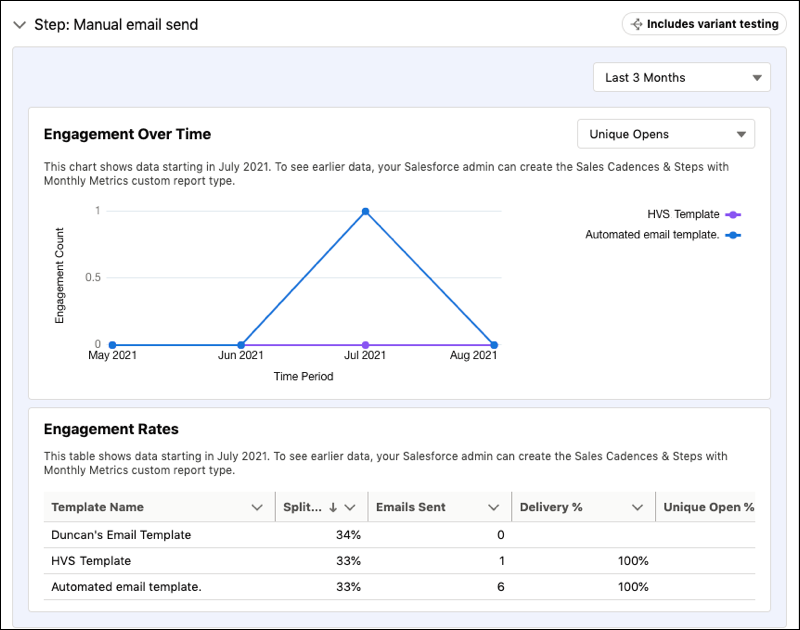
On the cadence record,
the Engagement tab shows the amount of target engagement for each variant on each step.
Did this article solve your issue?
Let us know so we can improve!
Loading
Salesforce Help | Article
Cookie Consent Manager
General Information
Required Cookies
Functional Cookies
Advertising Cookies
General Information
We use three kinds of cookies on our websites: required, functional, and advertising. You can choose whether functional and advertising cookies apply. Click on the different cookie categories to find out more about each category and to change the default settings.
Privacy Statement
Required Cookies
Always Active
Required cookies are necessary for basic website functionality. Some examples include: session cookies needed to transmit the website, authentication cookies, and security cookies.
Functional Cookies
Functional cookies enhance functions, performance, and services on the website. Some examples include: cookies used to analyze site traffic, cookies used for market research, and cookies used to display advertising that is not directed to a particular individual.
Advertising Cookies
Advertising cookies track activity across websites in order to understand a viewer’s interests, and direct them specific marketing. Some examples include: cookies used for remarketing, or interest-based advertising.