
You are here:
Get Started with the Sales Prospecting Bot
Create a fully featured bot with the Sales Prospecting Bot template. Ease the load on your sales reps with the bot’s prebuilt
Required Editions
| Available in: Lightning Experience |
| Available with Sales Engagement, which is included with Sales in Performance, Einstein 1, and Unlimited Editions, and available for an extra cost in Professional and Enterprise Editions. Sales Engagement is also available for an extra cost in Service and Lightning Platform. |
| User Permissions Needed | |
|---|---|
| To build and manage Einstein Bots: | Customize Application OR Modify Metadata OR Manage Bots |
| To create a sales prospecting bot: | Sales Engagement User or Sales Engagement User Included OR Sales Engagement Cadence Creator Included |
- From Setup, in the Quick Find box, enter Einstein Bots, and then select Einstein Bots under Service Cloud Einstein. To get started with Einstein Bots, click the toggle and accept the terms. Then click Try Einstein.
- Launch the Guided Setup Flow from the Einstein Bots main page. For your first bot, click Create a New Bot. Otherwise, click New.
-
Select Sales Prospecting Bot from the options provided. Click
Next.
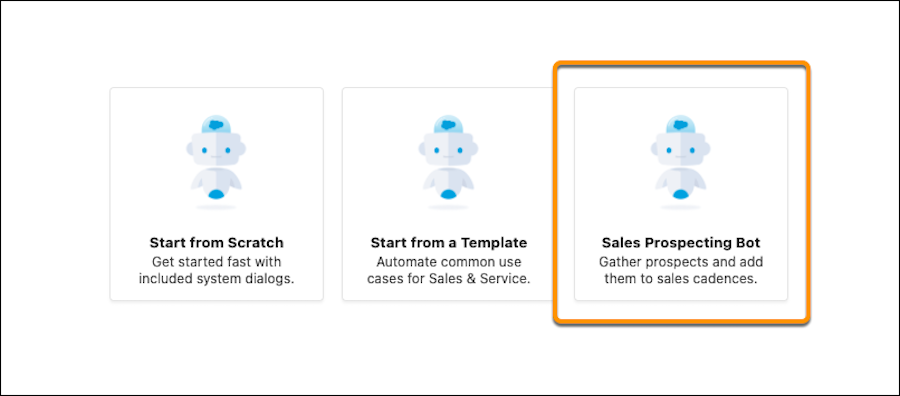
- Give your bot a name. This name is visible to customers, so select something that fits your company’s voice and tone. You can edit this name later on the Bot Overview page.
- Select your bot’s primary language. Click Next.
- Select your bot’s actions. You can include Company and Products, Connect with Sales, or both. Each action creates a dialog and adds it to the bot Main Menu. Click Next.
- Select an Embedded Service Deployment for your bot. Each bot requires a unique deployment. Selecting a deployment that is already in use can disrupt other services. If you don’t link a deployment, the Bot Preview page doesn’t automatically work.
- To start intent model training, click Proceed and then Finish. The intent model requires a few hours to build. Until the model is built, text input into the bot isn’t processed for intent. When the Model Management page is updated with metrics, the intent model is ready to use.
Did this article solve your issue?
Let us know so we can improve!
