
Add Leads, Contacts, or Person Accounts to Your Work Queue with Cadences
Add prospects to cadences from list views, record detail pages, or reports. When you add
prospects to a cadence, the emails, calls, and other tasks defined in the cadence appear in the
Cadences tab of the target assignee's Work Queue. You can also add separate activities not
directly related to a cadence. These tasks appear on the My List tab of the Work
Queue.
Required Editions
Available in: Lightning Experience
Available with Sales Engagement, which is included with Sales in
Performance, Einstein 1, and Unlimited Editions, and
available for an extra cost in Professional and Enterprise Editions.
Sales Engagement is also available for an extra cost in Service and Lightning
Platform.
User Permissions Needed
To use Sales Engagement:
Sales Engagement User or Sales Engagement User Included
OR
Sales Engagement Cadence Creator Included
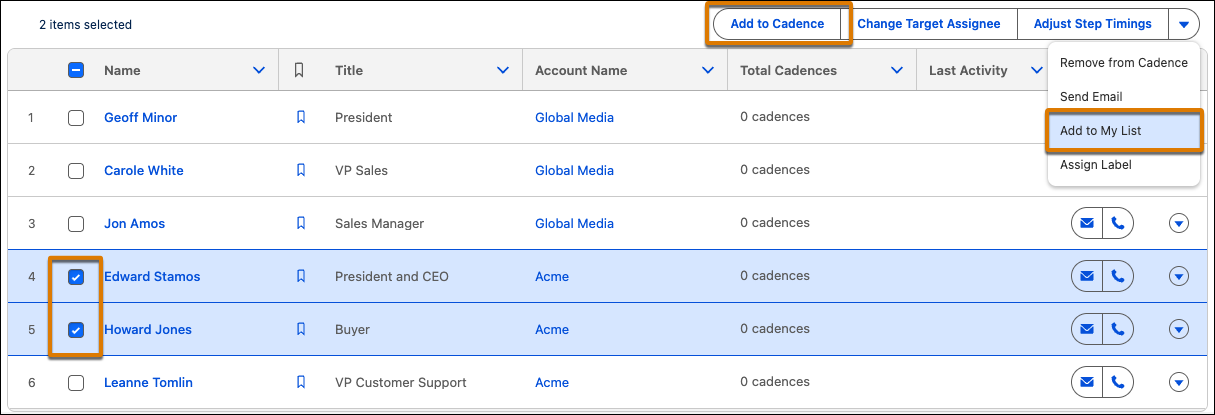
Add leads, contacts, or person accounts to your Work Queue from record detail pages, list
views, or reports. If you’re trying to add multiple records at a time, it’s easiest to add
records from a list view or a report. In a list view, switch to a table view, select the
records you want to add, and add records using the actions available.
To add a prospect to an existing cadence, select Add to Cadence.
You can add a prospect to more than one cadence at a time. For example, you can use one
cadence to sell new products and another to sell upgrades to an existing product.
To add a separate call or email, select Add to My List from the
actions dropdown.
To add leads, contacts,
or person accounts from a report, the report can include only leads, contacts, or accounts as
the primary object, and can't include any grouping. Reports that include a secondary object
don't support adding prospects to cadences. If you edit a report to meet these conditions, save
and then run the report before adding prospects to a cadence.
You
can add up to 200 records to a cadence at a time. To add more than 200 records from a report,
add the cadence State field to the report and filter the results to exclude records with a
cadence State of Active. This way the report shows only records that haven’t yet been added to a
cadence.
The Total Cadences field on lead, contact, and person account list views shows how many
cadences each prospect is assigned to.
Did this article solve your issue?
Let us know so we can improve!
Loading
Salesforce Help | Article
Cookie Consent Manager
General Information
Required Cookies
Functional Cookies
Advertising Cookies
General Information
We use three kinds of cookies on our websites: required, functional, and advertising. You can choose whether functional and advertising cookies apply. Click on the different cookie categories to find out more about each category and to change the default settings.
Privacy Statement
Required Cookies
Always Active
Required cookies are necessary for basic website functionality. Some examples include: session cookies needed to transmit the website, authentication cookies, and security cookies.
Functional Cookies
Functional cookies enhance functions, performance, and services on the website. Some examples include: cookies used to analyze site traffic, cookies used for market research, and cookies used to display advertising that is not directed to a particular individual.
Advertising Cookies
Advertising cookies track activity across websites in order to understand a viewer’s interests, and direct them specific marketing. Some examples include: cookies used for remarketing, or interest-based advertising.