Use Insert Availability to Optimize Meeting Scheduling
Finally got a response from that prospect you’ve been hunting down for weeks? To avoid
back and forth emails when trying to schedule a meeting, use the insert availability feature.
Don’t have time to email your availability? Give a teammate calendar access to schedule your
meetings.
Required Editions
Available in: Lightning Experience
Certain features are available with Sales and included in Starter,
Professional, Enterprise, Performance, and Unlimited
Editions
All features are available with Inbox, Sales Engagement, or Sales Cloud
Einstein.
Compose an email and add the recipients.
Tap Smart Tools, and then select
Availability.
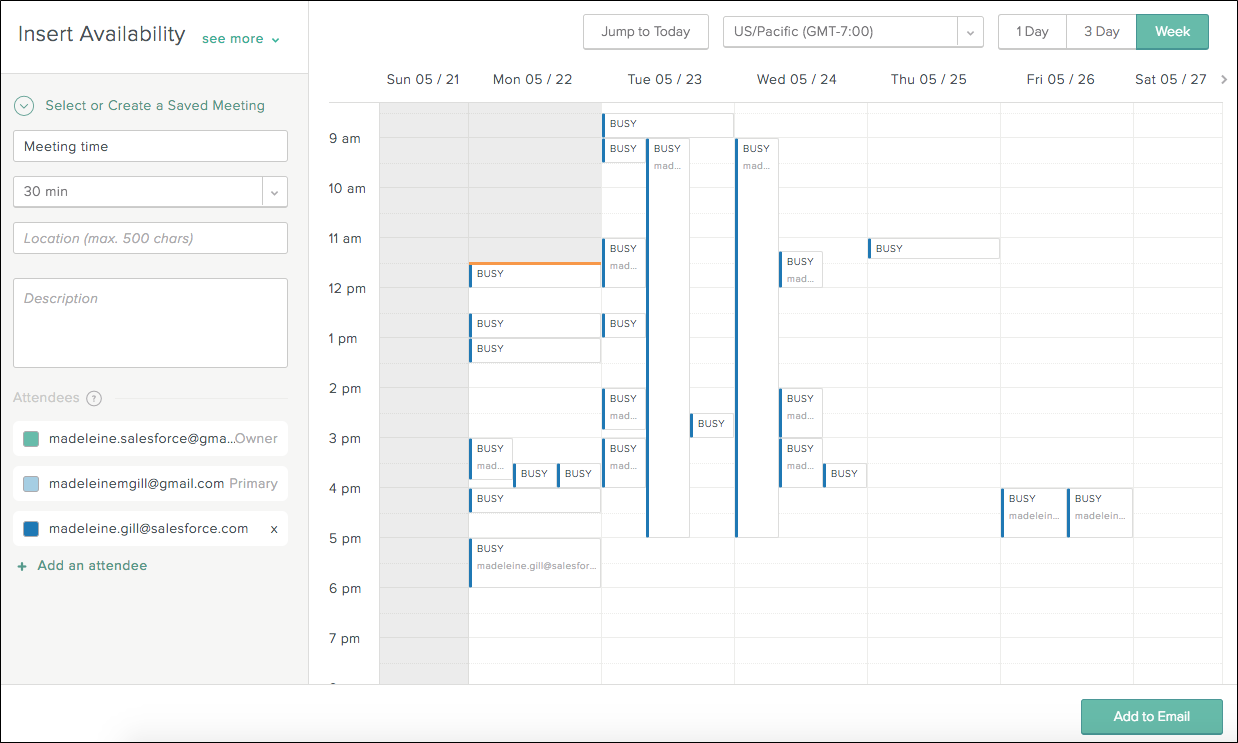
Select open times from your calendar or times that are open for all other attendees who
have shared their calendars with you.
When selecting available times, the event owner’s calendar is the primary calendar from
their connected email account. Events from the connected account’s primary calendar, not from
the Salesforce calendar or additional calendars, are reflected on the calendar grid when
selecting available times.
You’re able to select any time slot that you’re open even if others aren’t free.
If you’re using Inbox features in the Outlook and Gmail integrations, the selected time
zone defaults to the time zone set on your computer. However, you can select a different one.
The recipient receives the meeting times in the time zone that you select, and the meeting is
scheduled in the selected time zone.
To show or hide other calendars, select the checkboxes in the
Attendees list.
To see a coworker's availability, add the coworker to the Attendee
list. To see other Inbox users’ availability, each Inbox user must either share calendar
access or be a part of the same Salesforce org.
To schedule a meeting on behalf of someone else, change the meeting owner to another
person on the meeting. The new meeting owner, who must be a member of your Salesforce org,
controls the communications and changes to the invitation. For Microsoft accounts, you need
access to a person’s calendar to make them the owner of a meeting.
Make sure that recipients are using up-to-date and modern email clients and browsers. If
the recipient's email client or browser doesn’t support TLS 1.2, they receive an error
message when they select an available time in the email.
After the email is sent, the recipient can click one of your options to immediately book
a slot. If your calendar fills up in the meantime, the recipient only sees the times your still
available.
We use three kinds of cookies on our websites: required, functional, and advertising. You can choose whether functional and advertising cookies apply. Click on the different cookie categories to find out more about each category and to change the default settings.
Privacy Statement
Required Cookies
Always Active
Required cookies are necessary for basic website functionality. Some examples include: session cookies needed to transmit the website, authentication cookies, and security cookies.
Functional Cookies
Functional cookies enhance functions, performance, and services on the website. Some examples include: cookies used to analyze site traffic, cookies used for market research, and cookies used to display advertising that is not directed to a particular individual.
Advertising Cookies
Advertising cookies track activity across websites in order to understand a viewer’s interests, and direct them specific marketing. Some examples include: cookies used for remarketing, or interest-based advertising.