
Loading
Sales Productivity
Table of Contents
Select Filters

          No results
          No results
          Here are some search tips

          Check the spelling of your keywords.
          Use more general search terms.
          Select fewer filters to broaden your search.

          Search all of Salesforce Help
          Move Your Settings from Lightning Sync to Einstein Activity Capture

          Move Your Settings from Lightning Sync to Einstein Activity Capture

          After you get a clean report from the migration readiness check, move your Lightning Sync settings to Einstein Activity Capture. Accept the terms of service agreement and start your move. If you need more time to prepare, you can pause your migration and return to this step later. If you connect to Salesforce using Google, before you start your move, work with your Google admin to give the service account access to your Google users’ data.
          Required Editions

          User Permissions Needed
          To access the Lightning Sync migration tool:

          Manage Users

          AND

          Manage Lightning Sync

          Remember that your users can notice a pause in contact and event sync while we move settings, but users can continue working as usual. The migration tool ensures that no contact or event changes are lost during the transition. Any items that were updated in the interim sync after your settings are moved. Depending on the complexity of your configurations, the move could take some time.

          For a reminder of what specifically is moved, see How Does the Lightning Sync Migration Tool Work?

          There’s no button for reverting to Lightning Sync after you’ve started moving your settings. But don’t worry: If you’re not feeling ready, you can cancel the tool for now and return at any time.

          1. If you connect to Salesforce using Google, Salesforce provides a service account for you. You don’t need your Lightning Sync Google project or service account. Work with your Google admin to give the service account domain-wide authority and access to your users’ Google data. When prompted, copy the service account client ID and comma-delimited list of the OAuth scopes from the tool. Then, navigate to your Google Admin Console and add the service account client ID and OAuth scopes to your Google Workspace environment. See the Google documentation about delegating domain-wide authority to a service account.
            We recommend that you keep your Lightning Sync Google project and service account active during the migration process. After you turn off Lightning Sync, you can delete your Google project and service account.
          2. Accept the terms of service agreement for Einstein Activity Capture when ready. Then click Next. If you connect to Salesforce using Microsoft, you see the terms of service agreement after the readiness check.
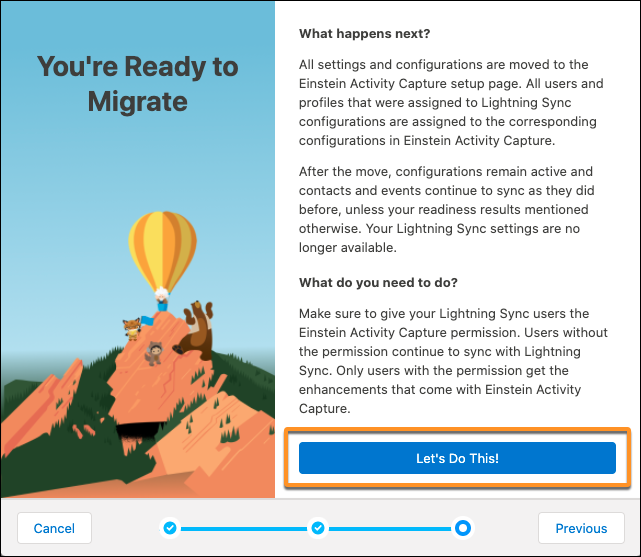
          3. Review the migration summary on the Ready to Migrate page. When you’re ready to move forward, click Let’s Do This!.
            Let's Do This Button on the Lightning Sync migration tool

          The tool confirms that your move is underway. When you close the tool, you return to your Lightning Sync settings in Setup. You can see your migration progress from both the Lightning Sync settings page and the Einstein Activity Capture settings page.

          When migration is complete, your settings and configurations are moved the Einstein Activity Capture settings page, and syncing resumes for users. Next let’s locate your configurations. When you’re ready, you can update your previous Lightning Sync features or add Einstein Activity Capture features.

           
          Loading
          Salesforce Help | Article