
You are here:
Send SMS Messages
To send SMS messages to customers and prospects, use the Activity Composer on lead, contact, and person account detail pages. If you use Sales Engagement cadences, you can complete SMS message steps from the To Do List or Work Queue.
| REQUIRED EDITIONS |
|---|
| View supported editions. |
To allow SMS messaging from the Activity Composer, your Salesforce admin must add the Send Message action to the composer on your lead, contact, or person account page layouts.
- To send a message from a record detail page, choose the Send Message action in the Activity Composer. Click on the phone number that you are assigned as a sales rep and then press Start Conversation. If you have more than one phone number enabled for enhanced messaging, choose the number you want to use from the menu.
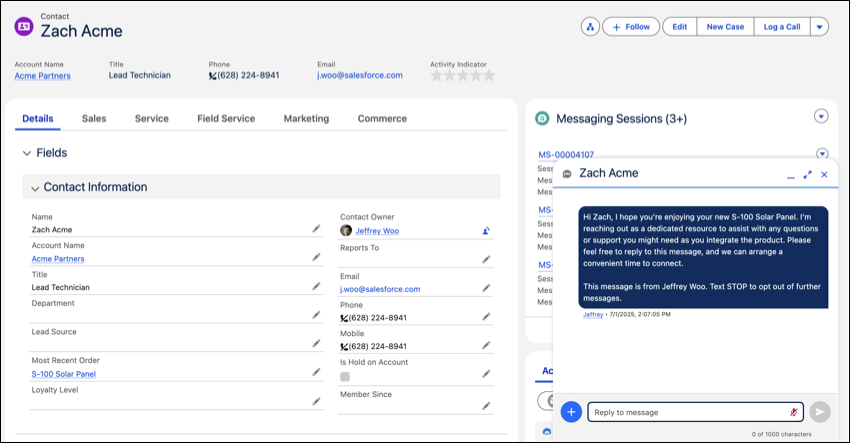
When a customer replies to your message, go to Conversation History to continue your messaging session.
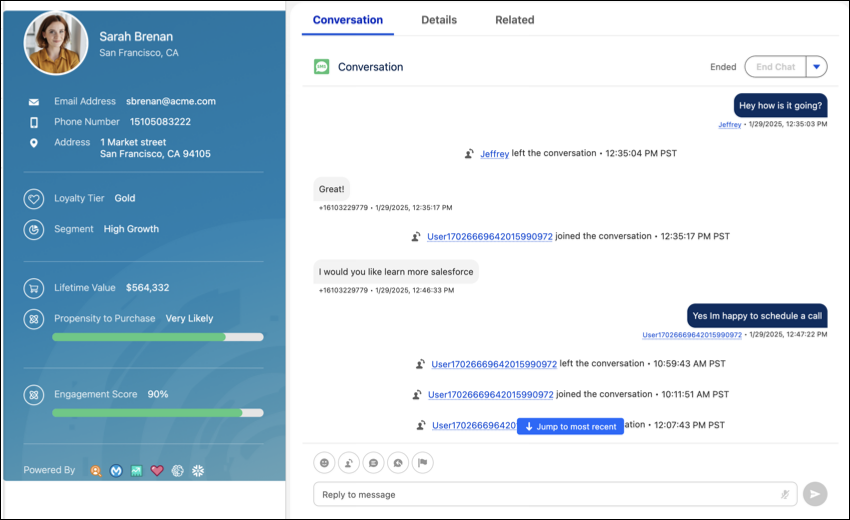
When an SMS messaging step comes due for a target in a Sales Engagement cadence, it appears as a task in the your To Do List and Work Queue. You can click the task to send a message.
Did this article solve your issue?
Let us know so we can improve!
