
You are here:
Create Quizzes in Trailmaker Content
Each unit in a module ends with a quiz to gauge how well users absorbed the content. Taking the quiz is also how users earn points. You create each quiz from the unit page in Trailmaker Content.
Required Editions
| Available in: Enterprise, Performance, and Unlimited Editions |
| User Roles and Permissions | |
|---|---|
| Enablement Site User Roles | |
| This topic supports these enablement site roles: | Content Creators |
| Required System Permissions | |
| To create and edit content with Trailmaker Content: | Create Content |
-
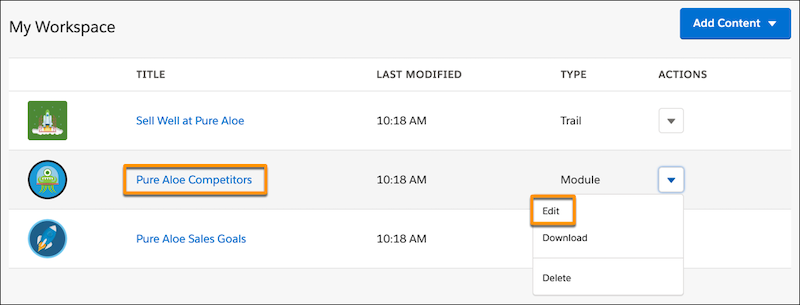
In the Trailmaker Content workspace, click a module title (1). Or, select
Edit from the module’s actions menu (2).
-
On the module page, click a unit title, or click the edit button
 for the
unit that you want to open.
for the
unit that you want to open.
- On the unit page, click New Assessment.
-
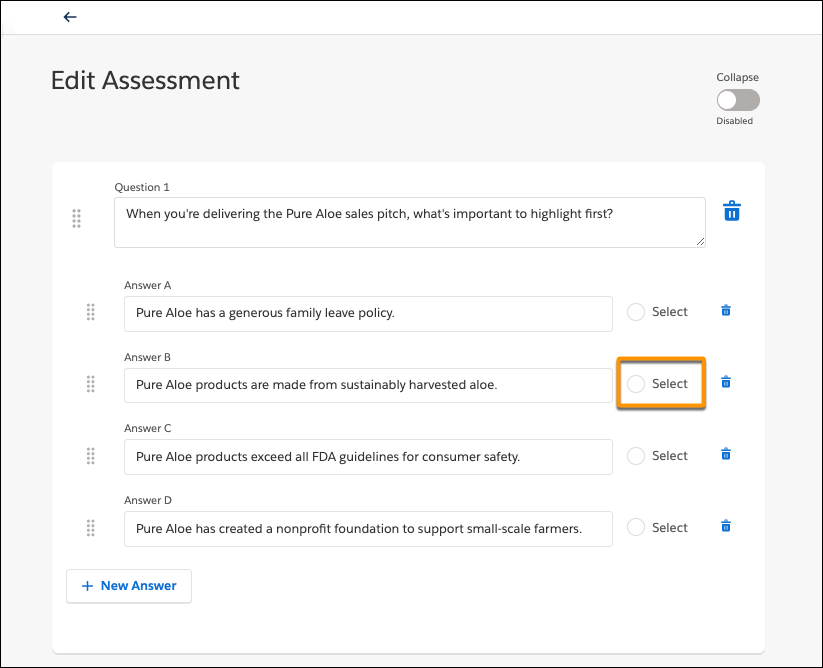
On the Edit Assessment page, click New Question, and enter
details for the question’s answers.
- In the question field, enter the question.
- For the first answer, click New Answer, and enter the text.
- To add each remaining answer, click New Answer.
-
Next to the correct answer, click Select.
- Repeat these steps for the remaining questions.
-
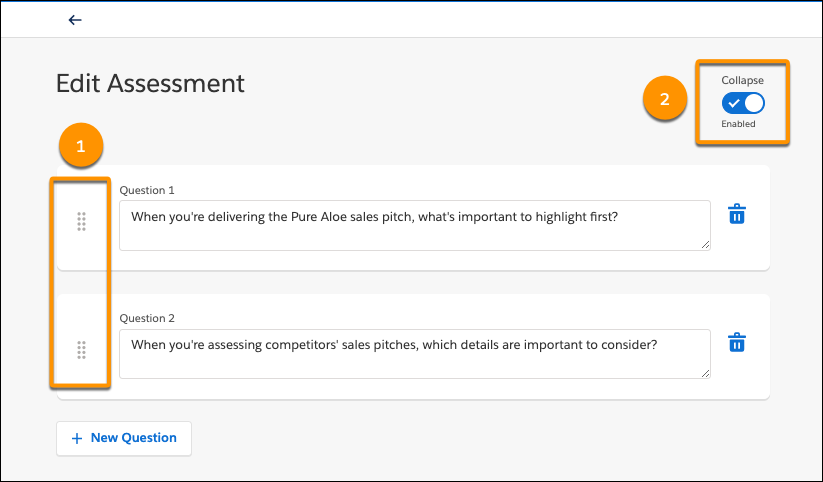
To rearrange questions or answers in the quiz, use the grabber handles (1). To view
only the questions, use the Collapse switch (2) to hide the answers.
-
To return to the unit text, click the back arrow
 .
.
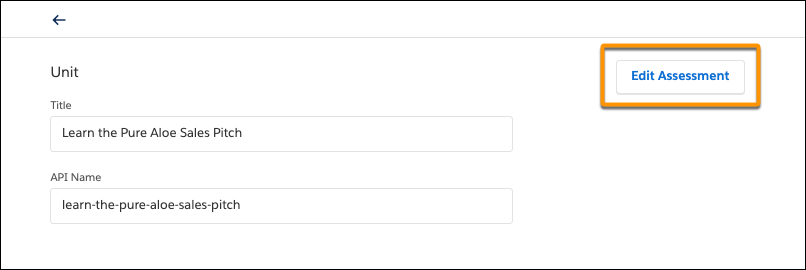
To edit a quiz question or add more questions, click Edit Assessment on the unit page.
When you preview a module in Trailmaker Content, you can view a unit’s quiz (read-only) and see the correct answers.
When you view the full release preview from Trailmaker Release, you can complete the quiz as if you were taking it as a learner. Quizzes answered in the release preview don’t count towards your user profile’s points.
Did this article solve your issue?
Let us know so we can improve!
