
You are here:
Customize the Logo or Today Page Banner
Style your company’s enablement site with a logo and banner image. The logo appears at the top of every page, while the banner appears across the top of the Today page.
Required Editions
| Available in: Enterprise, Performance, and Unlimited Editions |
| User Roles and Permissions | |
|---|---|
| Enablement Site User Roles | |
| This topic supports these enablement site roles: | Salesforce Admins |
| Required System Permissions | |
| To customize the branding on your enablement site: | Manage Site Settings |
For either image type, use a PNG, JPG, or GIF file that’s smaller than 5 MB.
Select files that fit these criteria:
| Image | Dimensions (Width × Height) | ||
|---|---|---|---|
| Minimum | Recommended | Maximum | |
| Logo | 80 px × 80 px | 200 px × 200 px | 5,000 px × 5,000 px |
| Banner | 1,000 px × 200 px | 1,800 px × 200 px | 12,000 px × 12,000 px |

Important All images are resized to the recommended dimensions when displayed on a
page. For the best results, use files that match these recommended dimensions. If an image is
smaller, Trailmaker stretches the dimensions to fit, which can result in a distorted image. If
an image is larger, Trailmaker shrinks the dimensions to fit.

Tip For the banner, we recommend that you use a file that:
- Has a width-to-height aspect ratio of 9:1 so the image fits the recommended dimensions without distortion.
- Maintains your brand’s visual identity rules even when the size of the user’s browser window changes. For example, select an image that works well when the browser window’s width is 1,980 px but retains important details when the width is cropped to 1,080 px. For this reason, we recommend that you avoid images that contain text, which can be clipped at smaller browser window sizes.
- Click the avatar next to your name on your enablement site, and select Trailmaker.
- Click Settings.
-
On the Branding page:
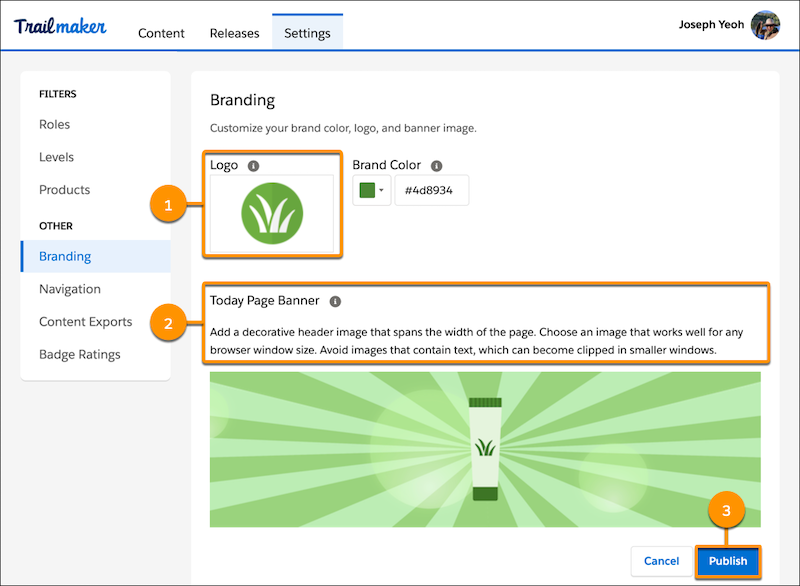
- To select a logo, click the Logo field (1), and navigate to the image file that you want to use.
- To select a banner for the Today page, click the Today Page Banner field (2), and navigate to the image file that you want to use.
- Click Publish (3).
- Click Publish again in the confirmation window.
After you publish the changes, they become visible on your enablement site.
Ratkaisiko tämä artikkeli ongelmasi?
Anna palautetta, jotta voimme kehittyä!
