
You are here:
Assign Users’ Sync Folders in Microsoft® Outlook®
You can assign your Salesforce for Outlook users’ contact, event, and task sync folders in Outlook to simplify their setup process and keep sync folders consistent across your company. You can specify Outlook sync folders from Salesforce Outlook configurations.
Required Editions
| Available in: Salesforce Classic |
| Available in: Lightning Experience, if Salesforce Classic is available in your org. |
| Available with the purchase of Sales Cloud or Government Cloud in: Personal, Contact Manager, Professional, Enterprise, Performance, Unlimited, and Developer Editions |
| User Permissions Needed | |
|---|---|
| To create and edit Outlook configurations: | Configure Application |

By default, users can change the Outlook folders where their Salesforce contacts, events, and tasks sync from the Settings menu in their Salesforce for Outlook system tray. You can prevent users from changing their Outlook sync folders when you clear this default setting for contacts, events, and tasks, and assign specific Outlook sync folders from users’ Outlook configurations.

- From Setup, enter Outlook Configurations in the Quick Find box, then select Outlook Configurations.
- Open an Outlook configuration.
- To assign a folder where users sync contacts, in Data Settings, deselect Outlook folder for syncing contacts on the Allow users to modify: setting.
-
In the text box that appears, type the name of the Outlook folder where you want your
users’ contacts to sync with Salesforce. Type the name of a common folder that exists in the
Outlook directory for each of your users, at the same directory level as the Outlook default
contacts folder. Folder names are case sensitive. If you type the name of a folder that doesn’t
exist at that level for each user, Salesforce creates the folder in Outlook for those users. To
have Salesforce for Outlook sync with a nested Outlook folder, type a filepath, including
backslashes (\).
For example, to assign the Outlook folder “sfdc_sync_contacts” as a nested directory under your users’ default Outlook contacts folder, type Contacts\sfdc_sync_contacts in the Outlook folder for syncing contacts text box, where Contacts is your users’ default contacts folder, and sfdc_sync_contacts is the folder where you want your users’ Salesforce contacts to sync.
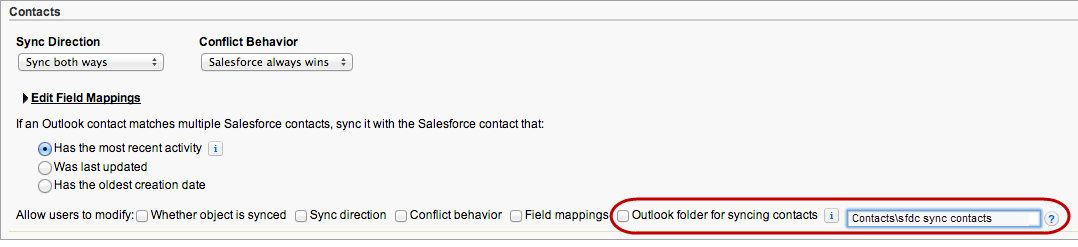 If the folder exists in your users’ Outlook directories, Salesforce for Outlook syncs your contacts with it. If the folder doesn’t exist, Salesforce for Outlook creates a folder at “Contacts\sfdc_sync_contacts.”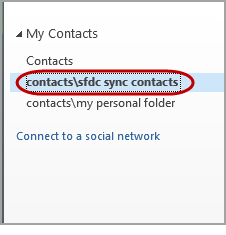
- Click Save.
-
Instruct your users to save their Salesforce for Outlook settings again to confirm the
changes that you’ve made to their systems. To do so, instruct your users to:
-
In the settings wizard, right-click the Salesforce for Outlook icon (
 ) in their system tray, and then click
Settings.
) in their system tray, and then click
Settings.
- Click Next from Review Your Sync Direction.
- Click Next from Control Which Outlook Items Sync.
- Click Save from Syncing Private Items.
Salesforce for Outlook locates Outlook folders that exist in your users’ Outlook directories or creates them for your users. -
In the settings wizard, right-click the Salesforce for Outlook icon (
- Instruct your users to move the Outlook contacts that they want to sync to the folder that you specified.
To change the Outlook folder locations where users sync events and tasks with Salesforce, repeat steps 3 through 7 in the events and tasks sections.
