
You are here:
Things to Know Before Replacing Your Contact Sync Product
Before you move from Salesforce for Outlook to Einstein Activity Capture, review these contact sync considerations and add suggested guidelines to your migration plan.
Required Editions
| Available in: Lightning Experience |
| Available with Einstein Activity Capture Standard in Sales in Starter, Pro Suite, Professional, and Enterprise Editions |
| Available with Unlimited Edition, Einstein 1 Sales Edition, and Agentforce 1 Edition |
| Available with Einstein for Sales, which is included in Einstein 1 Sales Edition and available for an extra cost in Enterprise and Unlimited Editions |
| Available with Sales Engagement, which is included with Sales in Performance and Unlimited Editions, and available for an extra cost in Professional and Enterprise Editions |
| Available with Revenue Intelligence, which is available for an extra cost in Enterprise and Unlimited Editions |

Similar to Salesforce for Outlook, you define reps’ contact sync settings in Einstein Activity Capture sync configurations. Read about considerations and guidelines related to each sync setting.
Choose a Contact Sync Direction
To avoid a delay during your reps' first sync, we recommend initially selecting the Exchange to Salesforce sync direction. If you eventually want contacts to sync both ways, you can enable that sync direction later, after all reps are actively syncing.
When choosing the Both Directions contact sync direction, there are guidelines to avoid syncing over the Company field in Outlook contacts. If you roll out Einstein Activity Capture after contact sync has been disabled for a significant amount of time, take this additional step: Have reps confirm that any Outlook contacts that include data in the Company field are also represented as an account record in Salesforce. Ideally, the first time a contact syncs from Outlook to Salesforce, Einstein Activity Capture locates a matching Salesforce account and relates it to the contact automatically. Otherwise, if the Outlook Company field doesn't match the Salesforce account, when a rep updates the Salesforce version of the contact, Company can be removed from Outlook.
When choosing the Exchange to Salesforce sync direction, Einstein Activity Capture isn’t moving data from Salesforce to Outlook, so the Outlook contact Company field isn’t removed when there isn’t a matching account in Salesforce. However, when unmatched contacts are created in Salesforce, contacts are added to the Unresolved items list upon their first sync. After rollout, instruct users to manually relate contacts to an account or the contact remains visible only to that syncing user. See Resolving Your Synced Contacts.
Set Contact Sync Filters for Performance
Einstein Activity Capture doesn’t offer as many filter options as Salesforce for Outlook. For details, see the contact sync filters row in Learn about the Feature Differences Between Salesforce for Outlook (Retiring) and the Next-Generation Products.
Keep in mind that syncing on a large scale can introduce sync delays. Large-scale contact sync can be impacted by the number of syncing users or by any Salesforce automated processes you’ve implemented that create or update contacts automatically for your users. If you feel that this describes your Salesforce implementation, or it’s important to your users that contact sync occurs rather quickly, follow this recommendation: If you decide to sync both ways, from your Einstein Activity sync configurations, on the Advanced Sync Settings tab, filter to limit syncing to contacts that the rep owns. If you’re not sure how many contacts reps sync, choose your preferred contact setting and change it later if contact sync is slow.
Prepare Contact Fields for Sync
Unlike Salesforce for Outlook, at this time, Einstein Activity Capture doesn’t sync custom Salesforce fields, nor does it support customizing field mappings for standard fields. However, before rolling out Einstein Activity Capture, compare Salesforce for Outlook field mappings to the list of contact fields that sync with Einstein Activity Capture. Record any inconsistencies. See Field Mappings for Contact Sync. Then, consider these options for managing the differences before your rollout.
- Confirm with someone familiar with your company’s sales process whether it’s key to your business processes to sync any of the unsupported fields. If important to sync, come up with a plan for changing your sales process so that reps tracked these details in fields that sync. Then, communicate those process changes to your sales reps so that they know to expect them.
- If Einstein Activity Capture begins supporting these features in the future, you can return to your previous process, if you prefer.
Prepare Reps for Contact Sync
Similar to Salesforce for Outlook, you define reps' sync settings in Einstein Activity Capture configurations. Before you do so, have reps prepare their contacts for migration to avoid creating duplicate contacts.
No matter which direction you're syncing, have reps follow these steps. Otherwise, you introduce duplicate contact records in Outlook, which users have to identify and remove manually.
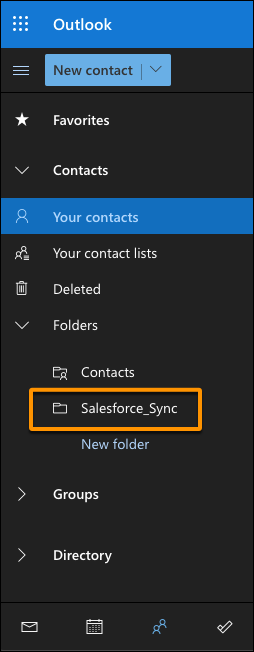
- Have reps create a folder nested directly under their Outlook contact directories called
Salesforce_Sync. Reps must nest the folder directly under their Outlook
Contacts directory. It's ideal if your IT admin can manage and deploy creating this folder
programmatically, but if not, reps can do it themselves manually. This image shows where the
folder must be created.
- To add the appropriate contacts to the Salesforce_Sync folder, reps can
refer to their Salesforce for Outlook categories, Sync with Salesforce or
Don't Sync with Salesforce.Important If you start migrating before Salesforce for Outlook retirement, consider the timing for these steps when planning your rollout. Reps can prepare their contacts before you add them to an active Einstein Activity Capture configuration. But after reps take this step, their contacts stop syncing with Salesforce for Outlook. If reps are still using Salesforce for Outlook, have reps create the Salesforce_Sync folder, then immediately update Salesforce for Outlook settings to sync from that folder. See step 6 in Install and Set Up Salesforce for Outlook.
After you add reps to an active Einstein Activity Capture configuration, any contacts in Salesforce_Sync sync between Salesforce and Outlook in the sync direction you set on the configuration.

If you want to give your admins more specific instructions, see the Salesforce for Outlook topic, Manage How Microsoft Outlook Items Sync with Salesforce.
If they like, reps can remove the Sync with Salesforce or Don't Sync with Salesforce categories after moving their contacts into the Salesforce_Sync folder.
If reps don't create the Salesforce_Sync folder before rollout, Einstein Activity Capture creates the folder for reps after you add them to an active configuration, and immediately start syncing contacts, introducing duplicates.
Train Reps on Managing Private Contacts
With Einstein Activity Capture, reps manage private contact sync like they manage manual contact sync: By not adding contacts that shouldn’t sync to the Salesforce_Sync folder. Unlike Salesforce for Outlook, Einstein Activity Capture has no user setting to enable or disable private contact sync.
Train Reps on Person Account Sync
If person accounts are enabled in Salesforce, your Salesforce person accounts create Outlook contacts, and the two continue to sync.
When you train your reps, let them know these details about syncing Outlook contacts with person accounts.
- If reps are set up to sync person accounts both ways or from Exchange to Salesforce, train reps to create person accounts in Salesforce, rather than creating contacts in Outlook. Because Outlook doesn't offer a feature like person accounts, new contacts created from Outlook sync to Salesforce as contacts. Creating person accounts from Salesforce only keeps your company’s person account and contact data clean and organized.
- To match person accounts and contacts, Einstein Activity Capture compares the Salesforce First Name and Last Name fields to the Outlook Company field. After person accounts are matched for sync, changes reps make to First Name, Last Name, and Company don’t sync between applications.
