
You are here:
Manage Your Repeating Events for Migration
To avoid sync issues with repeating events when you migrate to Einstein Activity Capture, connect with your Salesforce admin about how you’re impacted. Then, follow the steps recommended for your sync direction.
Required Editions
| Available in: Lightning Experience |
| Available with Einstein Activity Capture Standard in Sales in Starter, Pro Suite, Professional, and Enterprise Editions |
| Available with Unlimited Edition, Einstein 1 Sales Edition, and Agentforce 1 Edition |
| Available with Einstein for Sales, which is included in Einstein 1 Sales Edition and available for an extra cost in Enterprise and Unlimited Editions |
| Available with Sales Engagement, which is included with Sales in Performance and Unlimited Editions, and available for an extra cost in Professional and Enterprise Editions |
| Available with Revenue Intelligence, which is available for an extra cost in Enterprise and Unlimited Editions |

Why Do I Have to Manage My Repeating Events?
Repeating events are events you schedule one time but that occur multiple times. For example, your teams’ monthly sales meeting or your weekly 1:1 with your manager are likely scheduled as repeating events. When your admin migrates you from Salesforce for Outlook to Einstein Activity Capture, you experience issues with repeating events. Issues are different depending on your assigned sync direction and which Salesforce user interface the repeating events were created in (Salesforce Classic or Lightning Experience).
Your admin must take initial setup steps to kick off either of these solutions, so make sure that you connect with your admin before beginning these steps. Your admin tells you which guidelines to follow, when you’re cleared to begin, and other instructions on what to expect.
Depending on how many repeating events are assigned to you, these processes can be tedious and take some time. But following these steps lets you preserve event relationships to other key records and any details you saved in nonsyncing Salesforce event fields. Keep in mind that the Salesforce event fields Last Modified By and Created By are updated with the date and time that you execute these steps.
Remove Repeating Event Duplicates After Migration (for Users Assigned to Sync Outlook to Salesforce or Both Ways)
If you’re assigned to the sync directions Outlook to Salesforce or Both Ways, when you’re migrated, you see duplicate repeating events on your Lightning Experience calendar. However, after migration, follow these steps to identify and remove duplicates.
- Wait until your admin instructs you to start addressing duplicates. Verify that the initial event sync is complete by comparing your Outlook and Salesforce calendars and checking that you have duplicates of some of your repeating events.
- Open your Outlook calendar and two web browser windows. In the browser windows, open your calendar in Salesforce Classic in one and Lightning Experience in the other so that you can view your calendar in both experiences simultaneously. For help with switching between Salesforce user interfaces, see Salesforce Classic Doesn’t Go Away When You Move Users to Lightning Experience.
- From your Salesforce Classic calendar, find a set of duplicate repeating events. We recommend you start from today’s date, but you can remove duplicates on past events, too.
- Identify the original recurring event that was previously syncing with Salesforce. In
Salesforce Classic, original recurring events have a recurrence icon and hover text that says
“Recurring Event.”
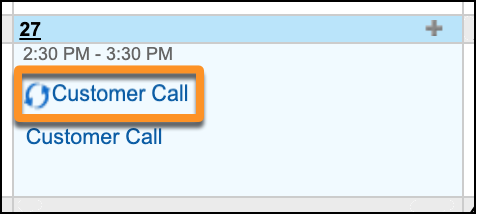
The duplicate event series have the same title, but no icon or hover text. Open the old recurring event.
- From the Lightning Experience calendar, open the new event series. To make sure you choose
the right version, click Edit. (If you don’t see Edit, check the action
menu dropdown arrow on the top right of the event page.) If the event edit page shows no
message near the Repeat field, you opened the event series, which is the version you want. If
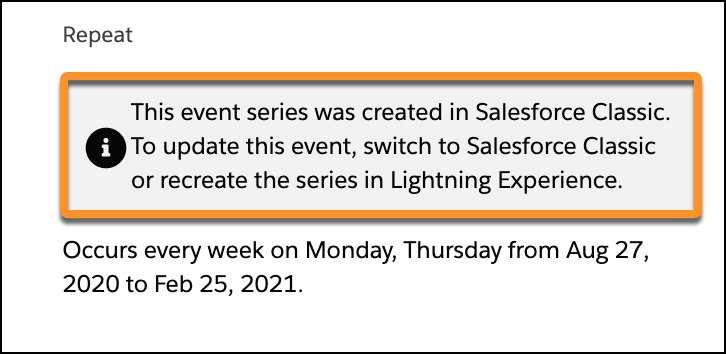
you see this message near the Repeat field, close the event and open the other one: This event
series was created in Salesforce Classic. To update this event, switch to Salesforce Classic or
re-create the series in Lightning Experience.
- With both versions of the event open, compare related records and field data. From the Lightning Experience calendar, make any necessary updates to the new event series. Relate any preferred records that aren’t related to the event series. See Find Your Way Around Related Lists in Lightning Experience. Add any field data that you want to retain that didn’t sync to the new series (likely because data was saved in a nonsyncing field). If your updates belong in all occurrences of that series, follow prompts to update the whole series, which results in fewer events for you to clean up manually. Whew!
- Return to your Salesforce Classic calendar and delete the original recurring event. If
you’re certain that you checked all occurrences of the series (or you’re prepared to let some
exceptions go), delete all occurrences in one action. To delete all occurrences in one action,
click the View Series tab on the Salesforce Classic event, and then
click Delete.
If you prefer to save past occurrences of the event for data retention purposes, you can set the Recurrence End field to Today. Duplicates remain for past occurrences, but future duplicates are removed.
- Repeat the previous steps for all remaining duplicates that you want to remove.
- If your admin reported that you’re set up to sync both ways, create any Salesforce repeating events from Lightning Experience from now on. If you’re set up to sync from Outlook to Salesforce only, continue creating your events from your Outlook calendar. In both cases, after your admin rolls out Einstein Activity Capture, your repeating events start to sync again.
Prepare Repeating Events Before Migration (for Users Assigned to Sync Salesforce to Outlook Only)
If you’re assigned to the Salesforce to Outlook sync direction, when you migrate to Einstein Activity Capture, repeating events created in Salesforce Classic stop syncing with Outlook. To avoid this issue, you can re-create your repeating events from Lightning Experience before your admin rolls out Einstein Activity Capture. Then, to avoid having duplicates on your calendar, delete the original repeating events that are no longer syncing.
Keep in mind that your new event series doesn’t sync to Outlook until your admin finishes rolling out Einstein Activity Capture. Try to stick to your admin’s deadlines to minimize sync downtime.
- Identify which repeating events you must re-create. Open the list your admin provided of all the repeating events assigned to you that were originally created in Salesforce Classic.
- From Lightning Experience, locate your recurring events. To do so, copy the title of the
first event from your list. Next, from Lightning Experience, paste the subject you copied from
your list into global search. See Search for Records in Lightning
Experience.
 Note The list from your admin shows multiple instances of the same event title. It’s because the spreadsheet records each occurrence of your repeating event. You don’t necessarily have to re-create every occurrence, but you want to check some. Consider the following:
- If you routinely edit or relate other Salesforce records to individual occurrences rather than updating all instances of the recurring event, we recommend that you review all occurrences. Otherwise, changes you made to individual occurrences aren’t included when you re-create the series. Most important are related records added to the Related To or Name fields, and details saved in nonsyncing fields, because that data hasn’t synced to Outlook. In the spreadsheet, recurring events that represent the whole series show a “1” in the IsRecurrance column, and individual occurrences show a “0”.
- If you have recurring events with no end date, you have many individual occurrences! In that case, we recommend review only individual instances within a reasonable window of time. For example, you have updated some of those events in the coming months, perhaps the next year. But you likely haven’t touched those events scheduled for years or decades in the future.
Or, if you feel comfortable letting some event details go in the interest of working through the spreadsheet more quickly, go for it!
- To verify that the repeating event was created in Salesforce Classic, open one of the
occurrences, and then click Edit. (If you don’t see Edit, check the
action menu dropdown arrow on the top right of the event page.) If the event was created in
Salesforce Classic, the event shows this message near the Repeat field: This event series was
created in Salesforce Classic. To update this event, switch to Salesforce Classic or re-create
the series in Lightning Experience.
- If you see that message, proceed to the next step. If you don’t see the message, Einstein Activity Capture can sync this event. Return to step 2 and locate the next repeating event on your list with an original title.
- For every repeating event that includes the Salesforce Classic message on the edit screen, re-create the event in Lightning Experience. Open a second web browser window. Then view details from the original repeating event in one window, and create the event series in the second window.
- Check for any Salesforce records that were related to the original repeating event. See Find Your Way Around Related Lists in Lightning Experience.
- If any records related to the original event exist, add them to the Related To or Name fields on the new repeating event.
- To avoid retaining a duplicate, nonsyncing event when your admin rolls out Einstein Activity
Capture, delete the original repeating event from Salesforce Classic. If you feel skittish
about deleting your event before confirming that migration was successful, you have these options.
- From Salesforce Classic, on the original event, set the Recurrence End field to Today. That way, you still have duplicate events in the past, but starting tomorrow, your calendar doesn’t include duplicates. Make note of the date, and the old recurring event is available if you need it later.
- Wait until your admin confirms that the Einstein Activity Capture rollout is complete. Then, return to the spreadsheet, locate your events, and delete duplicates. The preceding Remove Repeating Event Duplicates After Migration section steps you through that process.
- When you’re finished re-creating all your repeating events, let your admin know that you’re ready for them to deactivate your Salesforce for Outlook event sync. From now on, create any repeating events from Lightning Experience. Remember that your Outlook events aren’t receiving updates from Salesforce until your admin completes the migration process.
- After your admin confirms that Salesforce for Outlook is deactivated, make sure that you complete the remaining steps to prepare your nonrepeating events for migration. See Prepare Your Default Outlook Calendar for Migration and Get Ready to Sync Events Using Einstein Activity Capture.
- When you’re finished preparing all events, tell your admin that your events are ready for Einstein Activity Capture rollout.
