
You are here:
Disable Salesforce for Outlook (Retiring) for Your Testers
If you’re starting your rollout before the December 2027 retirement of Salesforce for Outlook, avoid product conflicts by deactivating Salesforce for Outlook configurations for your testers or users. Or, if the retirement has passed, you can simply uninstall Salesforce for Outlook for your testers or users.

If the 2024 retirement has passed, you can simply uninstall Salesforce for Outlook for your testers or users. Otherwise, you must make sure you disable configurations before you start your rollout or testing.
Deactivate Salesforce for Outlook Configurations
Before you deactivate, communicate the deactivation timeline to your testers or users. Tell them that during the actual move, their items don’t sync, and that the Side Panel in Outlook isn't accessible.
Follow these steps to disable the Salesforce for Outlook side panel and sync functionality.
- Click the Setup icon, and select Setup.
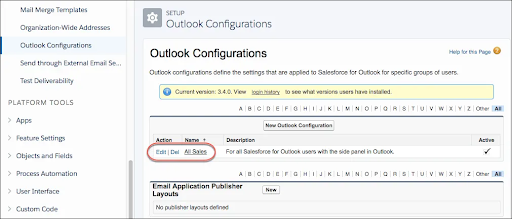
- Enter Outlook Configurations in the Quick Find box, and then select Outlook Configurations.
-
Click Edit next to an Outlook configuration.
-
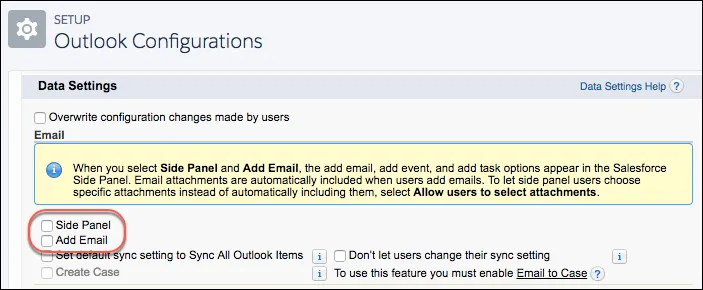
Scroll to Data Settings, and then deselect Side Panel
and Add Email.
-
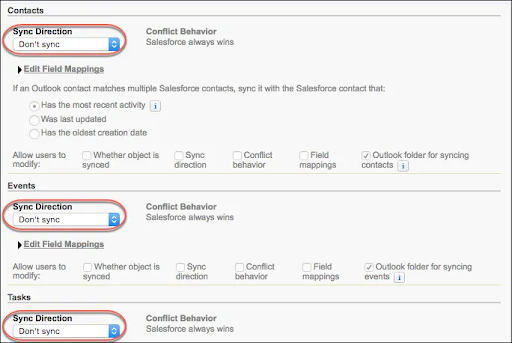
For contacts, events, and tasks, set the sync direction to Don’t
sync.
- Click Save.
