
You are here:
Add Microsoft® Outlook® Emails to Salesforce Records
Keep track of important Outlook emails related to Salesforce records from the Salesforce Side Panel.
Required Editions
| Available in: Salesforce Classic |
| Available in: Lightning Experience, if Salesforce Classic is available in your org. |
| Available with the purchase of Sales Cloud or Government Cloud in: Personal, Contact Manager, Professional, Enterprise, Performance, Unlimited, and Developer Editions |

Important Full product retirement for Salesforce for
Outlook is scheduled for December 2027. See Salesforce for Outlook Retirement. To keep
integrating Microsoft Outlook with Salesforce, check out our next-generation products: the
Outlook integration and Einstein Activity Capture. See Move from
Salesforce for Outlook (Retiring) to the Next-Generation Products.
Complete this procedure using the Salesforce Side Panel, a feature that's available in Salesforce for Outlook. You can learn about the side panel in Add Microsoft® Outlook® Emails to Salesforce Records.
- Make sure you’ve set up My Email to Salesforce. From your personal settings, enter My Email to Salesforce in the Quick Find box, then select My Email to Salesforce.
-
In Outlook, select an email from your Inbox or create an email.
You can add an Outlook email and its attachments to multiple Salesforce records.
-
In the side panel, click
 for the
contact, account, case, opportunity, or lead to which you want to add the email. The side
panel confirms the Salesforce records to which you added your email.
for the
contact, account, case, opportunity, or lead to which you want to add the email. The side
panel confirms the Salesforce records to which you added your email.
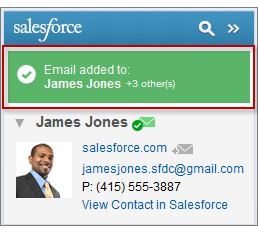
If you're sending a new email, we add it to the Salesforce records after you click Send.
-
You add attachments differently depending on how you’re set up to use the side
panel.
- If the attachments section appears after you add your email to Salesforce, click
 to include
specific email attachments on the record.
to include
specific email attachments on the record.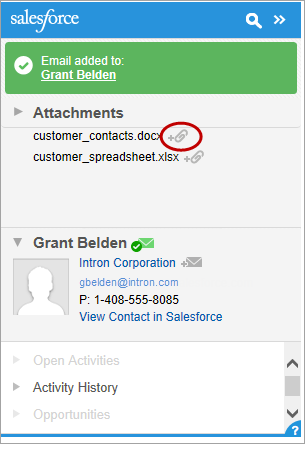
- If you don’t see the option to add attachments, your attachments are included automatically when you add your email to Salesforce, or the attachment exceeded General Email Limits.
- If the attachments section appears after you add your email to Salesforce, click
Did this article solve your issue?
Let us know so we can improve!
