
You are here:
How Your Contacts Sync with Salesforce for Outlook (Retiring)
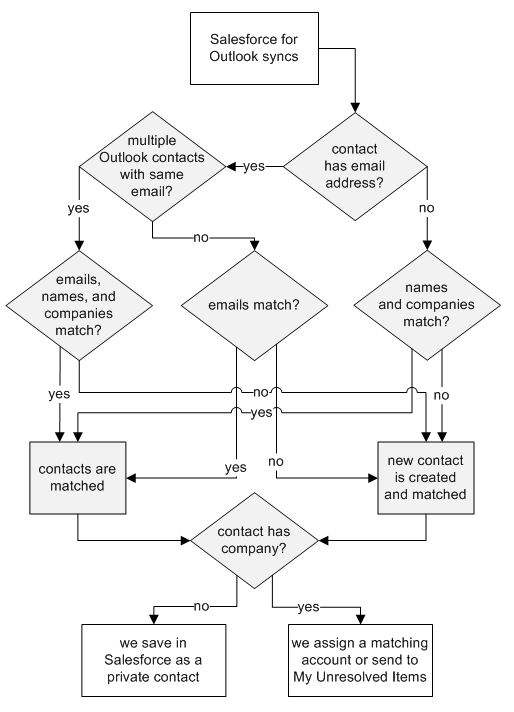
You can keep your important Outlook and Salesforce contacts in sync using Salesforce for Outlook. When contacts initially sync, Salesforce for Outlook checks to see whether a contact with the same email address exists in both Outlook and Salesforce. If a matching email address exists, the two contacts are synced. If it doesn't exist, Salesforce for Outlook checks to see whether a contact with the same first name, last name, and company name exists. If it doesn't exist, a new contact is created and the two are synced.
Required Editions
| Available in: Salesforce Classic |
| Available in: Lightning Experience, if Salesforce Classic is available in your org. |
| Available with the purchase of Sales Cloud or Government Cloud in: Personal, Contact Manager, Professional, Enterprise, Performance, Unlimited, and Developer Editions |
| User Permissions Needed | |
|---|---|
| To sync contacts from Salesforce to Outlook: | Read on contacts AND Contact sync direction set to Salesforce to Outlook |
| To sync contacts both ways: | Read and Edit on contacts, and Read on accounts AND Contact sync direction set to Sync both ways |

Your Outlook configuration defines which items are set to sync, which direction the data flows between Outlook and Salesforce, and what happens when data conflicts. You can set up Salesforce for Outlook to sync in the following ways, depending on whether your administrator allows you to change sync directions.Salesforce for Outlook lets you sync up to 5,000 contacts, and isn’t case-sensitive when matching contacts.
- Salesforce to Outlook
- Sync both ways
This diagram shows how contacts sync.
Syncing Contacts from Salesforce to Outlook
| If | Then |
|---|---|
| A contact exists in Outlook | The Salesforce contact replaces the Outlook contact and the two are synced. |
| A contact doesn't yet exist in Outlook | Salesforce for Outlook syncs the Salesforce contact, which creates the contact in Outlook. |
| You delete a contact in Outlook | Salesforce for Outlook doesn't sync the Salesforce contact again. |
| Multiple matching contacts exist in Outlook | Salesforce for Outlook selects one of them and syncs it. |
| You update a contact in Salesforce | The Salesforce contact overwrites the Outlook contact. |
| You update a contact in Outlook | The updates remain in the Outlook contact, but doesn't sync to Salesforce. The next time updates are made to the Salesforce counterpart, the Salesforce counterpart overwrites the Outlook contact. |
| You delete a Salesforce contact | The Outlook counterpart is also deleted. If the Outlook contact is deleted and the Salesforce contact is updated, the contact is recreated in Outlook. |
Syncing Contacts Both Ways Between Salesforce and Outlook
| If | Then |
|---|---|
| A contact exists on one side only | The contact is automatically created on the other side and the two are synced. |
| A matching contact exists | One contact record replaces the other one, and the records are synced. If your Outlook configuration specifies that Outlook contacts win, the Outlook version replaces the Salesforce version, and vice versa if Salesforce is set to win. Any change to either record is automatically reflected in the other. If records conflict, the conflict behavior setting determines which record wins. |
| Multiple matching Salesforce contacts exist | As long as there's only one version of the Outlook contact and that contact has an email address, we sync the Outlook contact with a Salesforce contact based on your matching preference, such as the contact that was most recently updated. |
| You update a contact | Both contacts are updated with the latest changes. If records conflict, the conflict behavior setting determines which record wins. |
| You delete a Salesforce contact and update an Outlook contact | The Outlook counterpart is deleted if Salesforce is set to win, and the contact is recreated in Salesforce if Outlook is set to win. |
| You delete an Outlook contact and update a Salesforce contact | The Salesforce counterpart is deleted if Outlook is set to win, and the contact is recreated in Outlook if Salesforce is set to win. |
Excluding Certain Records from Syncing
If you chose the Sync All Outlook Items option for your sync method during setup, you can exclude certain items from syncing in these ways.
- You can choose to sync items you mark as Private in Microsoft® Outlook®. If you don’t
want to sync private items, open Salesforce for Outlook Settings, and deselect the types
of private items you don’t want to sync.
If you have synced items in Outlook that you later mark as Private, those items remain in Salesforce. The corresponding Salesforce items, however, no longer receive updates if you modify the ones in Outlook.
- If you don’t want certain Outlook items to sync, regardless of whether they’re marked as Private, assign them to the category Don’t Sync with Salesforce in Outlook. For details on using categories in Outlook, refer to your Outlook documentation.

