
You are here:
Create a Path
Create one path for each available combination of object, picklist, and record type for supported objects. And help your teams celebrate their successes by tossing virtual confetti when reps reach designated path steps.
Required Editions
| Available in: Lightning Experience |
| Available in: Essentials, Group, Professional, Enterprise, Performance, Unlimited, and Developer Editions |
| User Permissions Needed | |
|---|---|
| To create a path: | Modify All Data OR Customize Application |
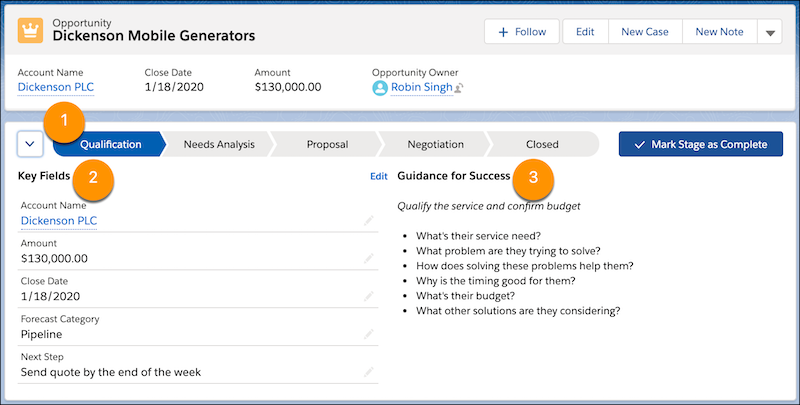
Steps for each path (1) are based on picklist values that you select when you create the path. At each step, show up to five key fields to help users focus on the most important information (2). And help users succeed with guidance, such as tips, links, and company policy information (3).
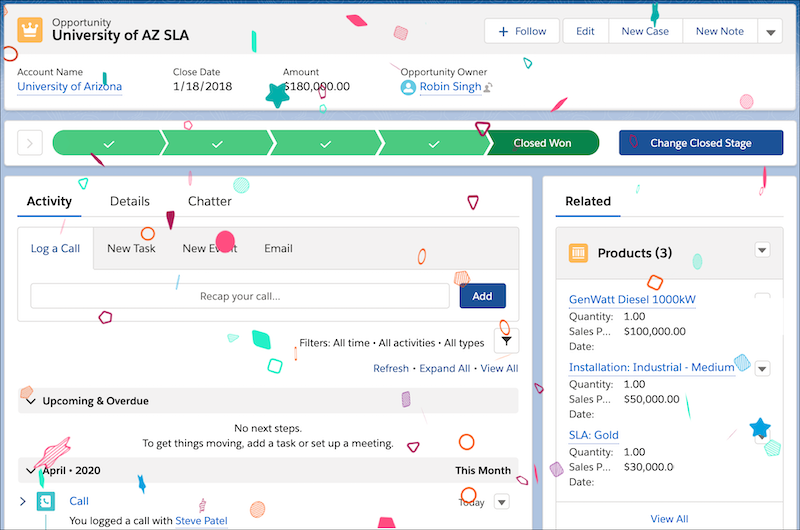
Help users celebrate their successes by tossing virtual confetti when reps reach path steps such as Closed Won.
- From Setup, in the Quick Find box, enter Path Settings and select it.
- Select New Path.
- In step 1 of creating a path, enter basic information about the path: a unique path name, the object to base the path on, the record type, and the picklist to base the path on.
 Note
NotePaths are supported for many standard picklists and for custom picklists.
If paths exist for all available record types for the object, create another record type, and then return to Path Settings to create a path.
- Click Next.
- In step 2 of creating a path, select key fields for each step on the path and enter success guidance.
- For each step on the path, select up to five key fields.
- For each step on the path, enter up to 1,000 characters of guidance.
- Click Next.
- In step 3 of creating a path, activate the path and enable confetti celebration animations.
- Decide whether to activate the path immediately. To activate the path later, return to Path Settings.
- Select picklist values and a frequency for triggering the celebration animation.
For frequency, if average users reach celebration values more often, set celebrations to occur less often. For example, let’s say you have a Renewal Business path where reps can close a lot of opportunities every day. Trigger the animation on random closed opportunities by selecting Rarely or Sometimes. But, for a New Business path where opportunities are hard won, select a frequency of Always.
- Click Finish.
For most objects, the order of path steps is based on the order of the values in the picklist that the path is based on. The last step represents a closed stage or status. For example, in the last step of an opportunity path based on the Stage field, by default, users select Closed Won or Closed Lost.
On some objects and fields, you can customize the field value represented by the last step of the path.
